
Installing a new program should be an ordinary computer task, not a gamble.
You find the software you need, download it, follow a few prompts, and start using it. Most of the time, that process is uneventful. Problems tend to appear when the source is unclear, the installer contains more than you expected, or you click through several screens without really looking at what they are asking.
For beginners, the challenge is rarely the installation itself. It is knowing whether the file in front of you is the right one.
A search for a familiar program can produce official websites, app stores, download directories, advertisements, imitation pages, and unrelated utilities with similar names. If you are not yet comfortable distinguishing one from another, the safest habit is to slow down before downloading anything.
A few seconds spent checking the source can prevent a much longer cleanup later.
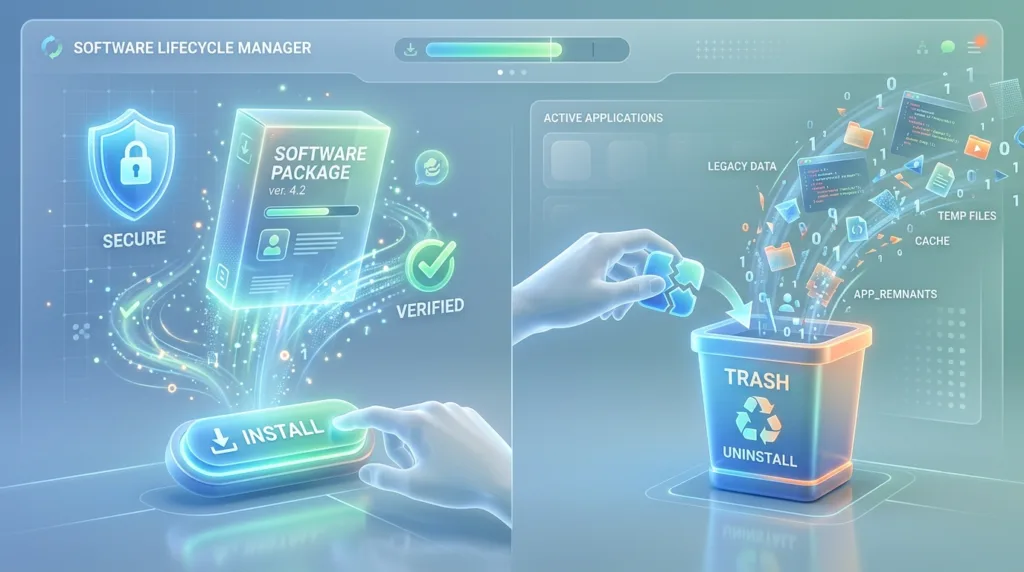
Start with the source, not the Download button
Suppose a coworker tells you to install Zoom, Firefox, or another program you have never downloaded before.
You search for it online and see several results. One has a large green button saying “FREE DOWNLOAD.” Another looks more restrained and appears to belong to the company that actually develops the software.
The size of the button tells you nothing about whether the download is trustworthy.
What matters is the source.
Whenever possible, obtain software from the developer’s official website or from a recognized app store built into your operating system. Microsoft explicitly recommends downloading programs only from trusted publishers and reputable websites in its guide to installing programs from online sources.
On Windows, the Microsoft Store is another common route. On a Mac, the App Store provides software reviewed for Apple’s platform, although many legitimate Mac applications are also distributed directly by their developers.
The important habit is not “only use an app store.” It is know who is giving you the software.
If you are downloading a browser made by Mozilla, for example, the destination should make sense for Mozilla. If you are downloading a Microsoft application, a Microsoft-owned page is considerably more reassuring than an unfamiliar download portal.
This is also where understanding website addresses becomes surprisingly useful. A page can look convincing while its URL tells a different story. We will examine that more closely in What Is a URL? Understanding Website Addresses.
Search results deserve a second look
People often assume that the first result in a search engine must be the official download.
That is not a safe assumption.
Search pages can contain sponsored results, third-party download sites, comparison pages, and other content above or around the official website. Some may be legitimate. Others may simply be trying to attract people searching for a well-known program.
Before downloading, look at the domain name rather than relying on the page title alone.
If you searched for a specific program, ask:
Does this website belong to the company that makes it?
Does the name of the site match what I expected?
Am I being redirected through several unrelated pages?
Is the page trying unusually hard to make me download something else?
A legitimate download page can still have promotions, but it should be reasonably clear which product you are getting and who provides it.
Beginners sometimes get into trouble because they click a prominent advertisement that resembles a download button rather than the actual download link on the page.
When the page feels confusing, backing out and finding the official product website is usually faster than trying to decipher which button is genuine.
What happens after you download an installer?
On Windows, software downloaded from the web commonly arrives as an executable installer, often with a filename ending in .exe or .msi.
The file will usually appear in your Downloads folder unless you chose another location.
Opening it starts the installation process.
Depending on the program, Windows may display a security prompt asking whether you want to allow the application to make changes to your device. This is a normal part of installing many desktop programs, but the prompt should not be treated as an automatic “Yes.”
Look at the publisher information.
If you intentionally downloaded an application from a company you recognize and the publisher shown in the prompt matches that expectation, the request makes sense.
If the name is unfamiliar, the installer appeared unexpectedly, or you no longer remember where the file came from, canceling the process is a sensible choice.
You can always investigate and run the installer later. There is no advantage to approving software simply because a prompt is already on the screen.
Read installation screens instead of racing through them
Many installers are straightforward.
You accept the software’s terms, choose a location if necessary, click Install, and wait for the process to finish.
Others offer additional choices.
You may be asked whether the program should launch when the computer starts, whether it should become the default application for certain files, or whether you want to install optional components.
These decisions are easy to miss if you automatically click Next on every screen.
Not every optional feature is harmful. A program may legitimately need an extension, additional component, or background service to provide a particular feature.
The point is simply to know what you are agreeing to.
Be especially attentive if an installer suddenly proposes unrelated software.
For example, imagine installing a utility for editing PDFs and discovering that the installer also wants to change your browser’s search provider or add another application you never requested.
That deserves scrutiny.
Software installation should not feel like navigating a series of traps. If the process repeatedly tries to push unrelated products or obscure what is being installed, reconsider whether you are using the best source for that application.
Windows already includes some protection
Modern Windows systems include security features designed to reduce the risk associated with suspicious software.
Microsoft Defender Antivirus is built into Windows, and downloaded files may be scanned as part of the normal protection process. Microsoft also advises users to obtain applications from trusted sources and keep Windows and other software current.
That does not mean every file that successfully downloads is automatically safe.
Security tools reduce risk; they do not replace judgment.
A newly created malicious program may not be recognized immediately. A legitimate installer can be downloaded from an imitation website. A technically safe application can still behave in ways you do not want.
The best protection is layered: use built-in security tools, keep the system updated, and be selective about what you install in the first place.
Our later article Why Software Updates Matter for Your Digital Security will explore why updates matter beyond simply adding new features.
Installing software on a Mac feels different, but the principle is the same
Mac applications can arrive in several forms.
Software from the App Store is usually installed through the store itself.
Applications downloaded directly from the web may arrive inside a disk image or installer package. You may open a file, drag an application into the Applications folder, or follow an installation wizard depending on how the developer distributes it.
macOS also evaluates software when you try to open it and can warn you about applications from unidentified developers or software that does not meet expected security requirements.
The warning itself is information worth considering rather than an obstacle to bypass reflexively.
There are perfectly legitimate Mac applications distributed outside the App Store. At the same time, if macOS warns you about an unfamiliar program you found on an obscure website five minutes ago, that is a good moment to stop and verify what you downloaded.
Installation is one of those areas where convenience and caution should coexist. You should be able to install the software you need without becoming suspicious of every dialog box, but warnings lose their value if you develop the habit of dismissing all of them automatically.
Do you need administrator permission?
Some programs can be installed without elevated privileges, while others require an administrator password or approval.
That requirement exists because certain applications need to place files in protected locations or make broader changes to the system.
If you are using your own computer, you may already have an administrator account.
On a work or school computer, you may not.
That is intentional.
Organizations often restrict software installation because unmanaged programs can create security, compatibility, or support problems.
Trying to circumvent those restrictions is rarely a good idea. If a work application is necessary, the appropriate route is usually to ask the person or team responsible for managing the device.
Administrator access is not simply an inconvenience inserted between you and the Install button. It reflects the fact that installing software can affect more than the current document or browser tab.
Be wary of programs that promise miraculous fixes
Certain categories of software deserve extra skepticism.
A website may tell you that your computer has hundreds of “critical errors,” that your drivers are dangerously outdated, or that installing one utility will instantly make an old computer dramatically faster.
Some maintenance tools are legitimate, but exaggerated warnings are a common way to persuade inexperienced users to install software they did not actually need.
Your computer does not generally require a random website to scan it and announce that it is in danger.
Similarly, avoid installing unfamiliar programs simply because a pop-up says a video, document, or website will not work without them.
If a site suddenly claims that you need a special player or browser update, leave the page and check through the official software or operating-system settings instead.
Unexpected urgency is a useful warning sign.
“Install this now or your computer is at risk” should make you more cautious, not less.
This type of judgment connects closely with How to Tell If a Website Is Safe to Visit, which will deal with suspicious pages in more depth.
Uninstalling a program is not the same as deleting its shortcut
After a while, computers accumulate software.
Some programs were needed for one project. Others came with a device, were tested once, or simply stopped being useful.
Removing programs you no longer need can make the system easier to navigate and recover some storage space.
The important point is that deleting an icon from the desktop does not normally uninstall the program.
A desktop icon is often just a shortcut pointing to software installed elsewhere.
On Windows 11, one common route is:
Start > Settings > Apps > Installed apps
Find the program you want to remove, open its additional options, and choose Uninstall.
Windows also offers other uninstall methods depending on the application. Microsoft’s current guide to uninstalling apps and programs covers the options available through Settings, Start, and Control Panel.
If the program provides its own uninstaller, follow the instructions carefully rather than manually deleting random folders that appear to belong to it.
Before uninstalling, think about the files you created
Removing an application and removing your own documents are usually separate things.
Uninstalling a word-processing program, for example, does not normally mean every document you created with it will disappear.
But there is another question: will you still be able to open those documents afterward?
Suppose you created project files using specialized design or accounting software. The files may remain safely on your computer after the application is removed, yet become difficult to open without compatible software.
Before uninstalling an unfamiliar or specialized program, look at what you use it for.
Do you have files that depend on it?
Is there another application capable of opening them?
Do you have account information or settings you might need if you reinstall it later?
Those questions matter much more than whether the application itself can technically be downloaded again.
Removing applications on a Mac
On a Mac, many applications are located in the Applications folder.
For some software, removing the application can be as simple as moving it to the Trash. Other programs include a dedicated uninstaller that should be used instead because the application may have installed additional components elsewhere on the system.
Apple specifically recommends checking whether a non-Apple application includes an Uninstall or Uninstaller tool before simply moving it to the Trash. Apple’s current instructions for uninstalling Mac apps explain both approaches.
That distinction is important.
Dragging the main application away may remove the program itself while leaving extensions, login items, support files, or other components behind.
When a developer supplies an uninstaller, there is usually a reason for it.
Also note that uninstalling an application does not necessarily cancel a paid subscription associated with that app. Apple explicitly calls this out in its guidance. If you pay monthly or annually for a service, check the subscription separately rather than assuming that deleting the application ends the billing relationship.
Resist the temptation to remove things you do not recognize
Cleaning up a computer can become overly enthusiastic.
You open the installed-app list and discover dozens of unfamiliar names.
It may be tempting to uninstall anything you do not remember installing.
That can cause problems.
Some entries belong to drivers, hardware utilities, supporting components, security software, or applications installed by the computer manufacturer. Their names may not be meaningful to you even though another program relies on them.
If you do not know what something is, investigate before removing it.
Search for the exact program name, check the publisher, and look at whether it appears to be associated with hardware or software you use.
This is one situation where “I do not recognize it” is not the same as “I do not need it.”
A deliberate cleanup is better than an aggressive one.
Reinstalling is sometimes easier than repairing
Programs occasionally stop behaving correctly.
They may crash, fail to launch, or display errors after an update.
Uninstalling and reinstalling can sometimes help because it replaces application files and restores parts of the software to a known state.
But it should not automatically be the first troubleshooting step.
Windows offers repair or reset options for certain applications, and individual programs may have their own repair tools.
Before removing an important application, consider whether it contains local settings, downloaded content, plug-ins, saved projects, or other information that may need to be preserved.
For a simple free utility, reinstalling may take two minutes.
For a complex professional application that required extensive configuration, the decision deserves more thought.
The scale of the program should influence the scale of your intervention.
Downloads do not have to live on your computer forever
After an application is successfully installed, the installer file may remain in Downloads.
That is normal.
If you downloaded ProgramSetup.exe, installed the program, confirmed that it works, and know you can obtain the installer again from the official website, you may not need to keep that setup file indefinitely.
Deleting an installer does not uninstall the application.
They are separate things.
This small cleanup can matter over time because Downloads tends to accumulate installers, PDFs, images, archives, and other temporary files.
Keeping everything “just in case” eventually makes it difficult to distinguish useful files from disposable ones.
Our guide How to Organize Files and Folders on Your Computer provides a broader system for dealing with that clutter without turning file management into a second job.
A good installation should feel unsurprising
One of the best instincts a beginner can develop is a sense of whether the process matches the task.
If you intend to install a simple note-taking application and suddenly find yourself approving browser extensions, changing search settings, creating three accounts, and accepting unrelated software, something has drifted away from the original goal.
Stop.
Read the screen.
Go back if necessary.
Installation is not a test where you lose points for canceling midway.
The same principle applies when uninstalling software. Removing a program should be a considered decision, especially if you do not know what the application does or whether your files depend on it.
Over time, the process becomes less intimidating because the patterns become familiar.
Official source. Recognizable publisher. Expected installer. Sensible permissions. No unexplained extras.
That sequence does not guarantee that nothing can ever go wrong, but it substantially reduces the chances of installing software you never intended to have.
And once you become comfortable checking those few details, installing a program returns to what it should have been all along: an ordinary computer task rather than a leap of faith.

Alex Carter is a technology writer with five years of experience in the tech field. He now focuses on creating clear, practical articles that help beginners in the United States better understand computers, smartphones, online services, and everyday digital technology.