
A cluttered computer usually does not become cluttered all at once. It happens gradually.
You download a résumé and leave it in Downloads. A screenshot lands on the desktop. A work document gets saved as “Document1.” A few weeks later, there are several versions of the same file, photos mixed with PDFs, and folders with names that no longer mean much.
Nothing is technically wrong with the computer, but finding anything starts to take longer than it should.
The good news is that organizing digital files does not require an elaborate system. In fact, complicated folder structures often create a different problem: you spend more time deciding where something belongs than actually using it.
For most people, especially those becoming more comfortable with computers, the best approach is a simple one. Create a small number of meaningful folders, give files names you can recognize later, and develop a few habits that prevent clutter from building up again.
Before getting into the practical steps, it helps to understand where files actually live. Your computer’s operating system manages files and storage behind the scenes, which is one of the concepts covered in What Is an Operating System? A Beginner-Friendly Explanation.
Start by understanding the folders already on your computer
Both Windows and macOS come with folders designed for common types of files, so you usually do not need to build your entire system from scratch.
You will commonly see folders such as Documents, Downloads, Pictures, Music, and Videos. Their names give you a useful starting point, but they are not strict rules.
The Documents folder, for example, can become the main home for school assignments, work projects, personal records, résumés, forms, and other files you create or need to keep.
Downloads works differently. Think of it more as an arrival area than a permanent filing cabinet. Files downloaded from websites, email attachments, installers, PDFs, and images often end up there automatically.
That convenience is exactly why Downloads tends to become messy.
On a Mac, Apple describes Finder as the central place for accessing and organizing documents, images, movies, and other files. Finder also provides standard locations such as Documents and Pictures while allowing you to create additional folders whenever you need them. You can explore the basics in Apple’s guide to Finder.
Windows follows the same general principle through File Explorer, even though the interface looks different.
You do not need to master either program before organizing your files. The important idea is simply that folders are containers, and you can create containers inside other containers when a category becomes large enough to need more structure.
Build your folder system around your life, not around file types
One of the easiest mistakes to make is organizing everything according to the kind of file it is.
You might be tempted to create folders named PDFs, Word Files, Spreadsheets, and Images. That seems logical until one project includes all four.
A better question is: what will I be looking for when I need this file again?
Imagine that you are applying for jobs. You might have a résumé in Word format, another version as a PDF, a spreadsheet tracking applications, and several job descriptions you saved for reference.
Keeping those files together in a folder called “Job Search” is generally more useful than separating them into four folders based on file format.
The same principle works for school, work, travel planning, personal documents, and hobbies.
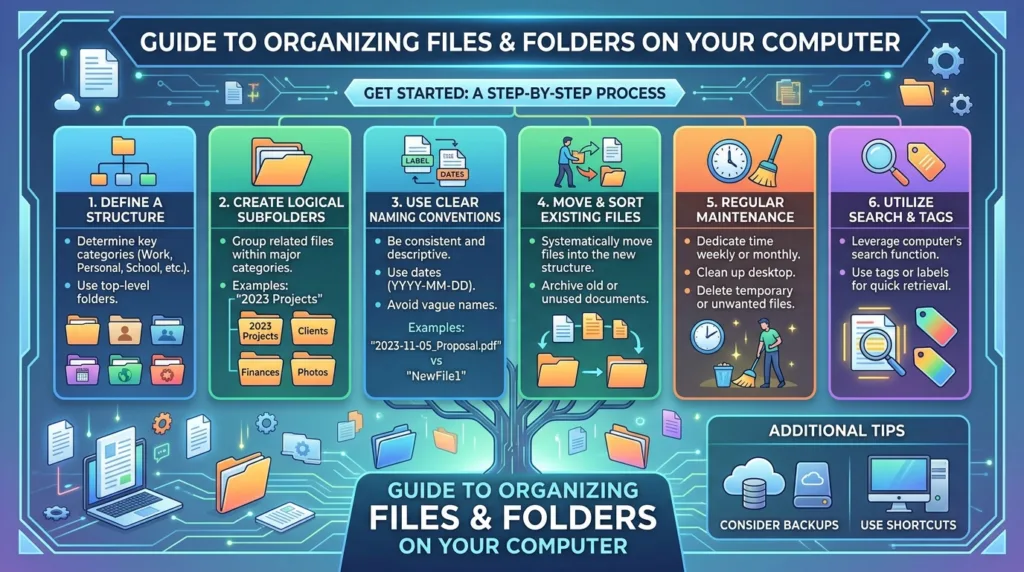
A simple top-level structure could look something like this:
- Work
- School
- Personal
- Finances
- Photos
- Projects
Inside Work, you might eventually create folders for individual employers, clients, or projects. Inside School, you could organize material by semester or class.
The key is to avoid creating dozens of empty folders before you actually need them. Start broad and add another level only when a folder becomes difficult to navigate.
A folder called Work containing 15 files is perfectly manageable. A folder containing 600 unrelated files probably needs another layer of organization.
Use file names that will still make sense six months from now
Folder structure only solves part of the problem. File names matter just as much.
Names such as final.docx, scan.pdf, image23.jpg, or presentation-new-final2.pptx may seem acceptable when you create them because you remember exactly what they contain.
Months later, that context is gone.
A useful file name tells you something about the file before you open it.
Instead of:
resume.pdf
you might use:
Alex-Carter-Resume-2026.pdf
Instead of:
meeting notes.docx
you might use:
Marketing-Meeting-Notes-2026-09-11.docx
There is no universal naming system that everyone needs to follow. What matters is consistency.
Dates can be particularly helpful when files change over time. Using the year first — for example, 2026-09-11 — also has the advantage of keeping dated files in chronological order when sorted alphabetically.
For documents that go through several revisions, descriptive versions are easier to manage than adding “final” repeatedly.
For example:
Portfolio-Draft.docx
Portfolio-Reviewed.docx
Portfolio-Submitted.pdf
These names immediately tell you something useful about the status of each file.
Try to keep names reasonably short, though. A filename does not need to contain every detail about the document. It only needs enough information for you to recognize it later.
Do not let your desktop become permanent storage
The desktop is convenient because it is always visible, which makes it tempting to save everything there.
A few shortcuts and temporary files are not a problem. Dozens of documents, screenshots, installers, and random images are.
A crowded desktop makes it harder to see what actually matters and can create the feeling that your entire computer is disorganized, even if your other folders are relatively clean.
A useful rule is to treat the desktop as a temporary workspace.
If you are actively working on a document this week, keeping it there may be convenient. Once the project is finished, move the file into the folder where it belongs.
This does not mean your desktop has to be completely empty. The goal is simply to make sure the items there are intentional.
You can apply the same idea to Downloads.
Once or twice a week, open the Downloads folder and ask three questions about each item:
Do I still need this?
If I need it, where should it live?
If I do not need it, can I delete it?
That small routine is much easier than trying to clean several thousand files once a year.
Create folders only when they solve a real problem
More folders do not automatically mean better organization.
Imagine opening Documents and seeing this:
Work > Current Work > Current Projects > Client Projects > Active Clients > Client A > Documents
Technically, everything is organized. Practically, reaching one document now requires opening seven folders.
Deep folder structures can become just as frustrating as having no structure at all.
For everyday computer use, two or three levels are often enough.
For example:
Work > Project Phoenix > Contracts
or:
School > Biology > Assignments
This structure provides context without turning file navigation into a maze.
There are exceptions, of course. Someone managing hundreds of client records or complex professional projects may legitimately need more levels. But for ordinary personal use, simplicity usually wins.
Microsoft makes a similar point in its documentation about organizing content: folders are useful when they help group related material into recognizable categories such as projects, teams, or departments. The purpose is to make information easier to scan and manage, not simply to create more containers. Microsoft’s overview of organizing content with folders illustrates that general principle.
Learn the difference between moving and copying
When organizing files, two actions that look similar can have very different results.
Moving a file changes where the original file is stored.
Copying creates another version while leaving the original where it was.
Suppose you have a PDF in Downloads and drag it into Documents. Depending on how and where you move it, you may be relocating the original file.
If you copy and paste it instead, you could end up with one copy in Downloads and another in Documents.
Neither action is inherently wrong, but unnecessary copies are one of the main reasons people eventually discover five or six versions of what appears to be the same document.
When your goal is simply to organize an existing file, moving it is usually what you want.
Copying makes more sense when you intentionally need a second version, perhaps because you are preserving an original document before editing it.
Understanding basic actions such as copy, cut, and paste makes file management much easier. We cover those commands separately in How to Copy, Cut, and Paste on a Computer.
Search is useful, but it should not replace organization completely
Modern computers are quite good at searching for files.
Windows has built-in search tools, while Finder on macOS lets you locate files using names, locations, and other attributes. That means you do not always have to remember exactly where something was saved.
Search works particularly well when your files have descriptive names.
If you type “resume” into search, a document called Alex-Carter-Resume-2026.pdf is easy to identify. A file called document47.pdf is much less helpful, even if the search manages to find it.
The ideal approach is therefore not to choose between folders and search. Use both.
Folders provide a predictable structure when you browse manually, while search gives you a faster route when you already know what you are looking for.
On a Mac, Apple notes that Finder is designed both to organize and access files, with different views and navigation options available depending on how you prefer to work. Apple’s Finder documentation provides an overview of those tools.
Be careful before deleting duplicate-looking files
Cleaning your computer often leads to a folder full of files that appear to be duplicates.
You might see:
Resume.pdf
Resume (1).pdf
Resume-final.pdf
Resume-new.pdf
It is tempting to delete everything except the newest-looking version, but file names do not always tell the full story.
Before deleting anything important, open the files and confirm what they contain. Check the modification date if necessary, and make sure one version does not contain information that another is missing.
The same caution applies to photographs and downloaded documents.
Storage space is inexpensive compared with the frustration of permanently deleting something important.
If you are cleaning because your computer is running low on space, first make sure you understand whether the issue involves storage rather than memory. Our guide to RAM vs. Storage: What’s the Difference? explains why freeing disk space and adding RAM solve different problems.
Decide which files deserve a backup
Organization makes files easier to find. It does not protect them if your laptop is lost, damaged, or stops working.
Important documents should exist in more than one place.
That might mean keeping them in a cloud storage service, on an external drive, or using another backup method appropriate for the type of information involved.
You do not necessarily need to back up every temporary download. Focus first on files that would be difficult or impossible to replace: personal photos, schoolwork, work documents, records, creative projects, and other original material.
If you already use a cloud service, remember that cloud storage and backup are related concepts but are not always exactly the same thing. We explain the basics in What Is Cloud Storage and When Should You Use It? and cover a practical backup routine in How to Back Up Important Photos and Documents.
A simple routine is more valuable than a perfect folder system
You can spend hours designing the ideal digital filing system and still end up disorganized if you stop using it after a week.
Good file organization is mostly about a few repeatable habits.
Give important files recognizable names when you save them. Move downloads you want to keep into appropriate folders. Clear temporary items from your desktop. Delete files you genuinely no longer need, and create a new folder when an existing one becomes difficult to navigate.
A five-minute cleanup every Friday is usually more effective than a massive cleanup once your computer has become overwhelming.
Your system may also evolve.
A student might organize files by class today and by employer or project several years from now. Someone starting a new job might discover that a folder structure that worked for personal documents is not ideal for dozens of weekly reports.
That is normal. The point is not to create a permanent system that can never change.
The goal is much simpler: when you need an important file, you should have a reasonable idea of where to look — and if you use search, the filename should give you enough information to recognize it.
Once those habits become routine, your computer stops feeling like a pile of digital paperwork and starts behaving more like what it should be: a tool that helps you get things done.

Alex Carter is a technology writer with five years of experience in the tech field. He now focuses on creating clear, practical articles that help beginners in the United States better understand computers, smartphones, online services, and everyday digital technology.