
A website can look perfectly legitimate and still be untrustworthy.
That is one reason judging a site by appearance alone has become increasingly unreliable. Professional layouts are easy to reproduce, familiar logos can be copied, and even fraudulent pages may use HTTPS, polished graphics, convincing language, and interfaces that closely resemble well-known brands. At the same time, a legitimate website can occasionally look outdated, load slowly, or contain awkward formatting without being malicious.
The better question is not whether the page “looks safe.” It is whether several independent pieces of evidence point in the same direction.
When you evaluate a website carefully, you are really assessing different layers of trust at once. Does the address belong to the organization you intended to visit? Is the connection encrypted? Is the browser warning you about anything? Does the site’s behavior match what you would reasonably expect from that type of service? And, perhaps most importantly, what is the site asking you to do?
Looking at those questions together is far more reliable than searching for one symbol or visual clue that supposedly guarantees safety.
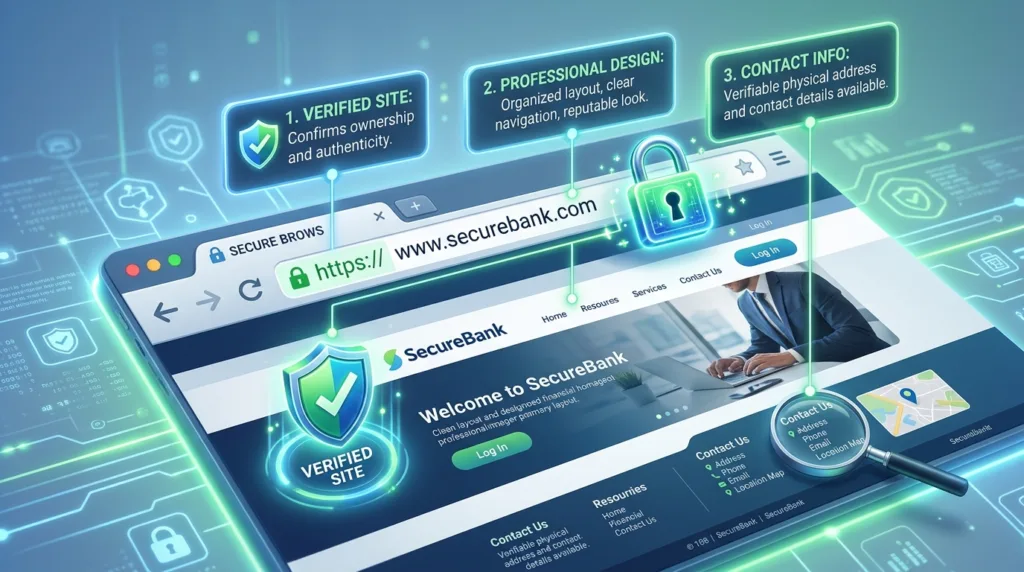
Start with the address because the address identifies where you actually are
The most convincing imitation website in the world still has to exist at some web address.
That makes the browser’s address bar one of the most useful places to begin.
Suppose you believe you are visiting your bank, a government service, or a familiar online store. The page may contain the correct logo and branding, but the address should still correspond to the organization you expected. A site can include a trusted brand name somewhere in a long URL without actually belonging to that company, which is why reading only the first recognizable word can be misleading.
For example, an address that contains paypal somewhere in a subdomain or page path does not automatically belong to PayPal. The important part is the underlying domain, because that is the portion that identifies the site you are connected to.
This becomes especially relevant when you arrive through an email, text message, advertisement, social post, or search result rather than typing the address yourself. The page may have been designed specifically to resemble the real service, and once the imitation loads, the visual difference may be extremely small.
Google’s Chrome guidance explicitly recommends checking the site name in the address bar even when the connection itself is secure. A secure connection means the traffic between you and that site is encrypted; it does not confirm that the site is the company you intended to reach. You can review Google’s current explanation of website connection indicators for the distinction between a secure connection and a trustworthy destination.
If web addresses are still difficult to interpret, What Is a URL? Understanding Website Addresses explains the components of a URL and how domain names fit into the larger address.
HTTPS answers one important question, but not every question
For years, people were taught to look for a padlock icon or https:// before entering personal information. That advice still has value, but the meaning needs to be understood correctly.
HTTPS tells you that information traveling between your browser and the website is encrypted. This helps prevent someone along the connection from simply reading or modifying the traffic in transit.
What HTTPS does not tell you is whether the person or organization operating the website is honest.
A scammer can create a fraudulent website and still enable HTTPS. The connection to the fraudulent site may be encrypted perfectly while the scammer receives the information you voluntarily enter there.
The Federal Trade Commission makes this distinction clearly in its consumer guidance: scammers can create fake websites and encrypt them, so a secure connection does not mean the site itself is trustworthy. The FTC’s public Wi-Fi and encryption guidance explains that encryption protects data while it travels, but it cannot protect you from the operator of a fraudulent destination.
That is why HTTPS should be treated as a baseline rather than a certificate of legitimacy.
If a page asking for passwords, payment details, or other sensitive information does not use a secure connection, that is a serious reason not to continue. If it does use HTTPS, the evaluation is not finished; you still need to know whose site you are on and whether the request itself makes sense.
This distinction connects directly with the reasoning behind Public Wi-Fi Safety: What Beginners Should Know, where encryption was one layer of protection rather than a guarantee that every destination on the internet was trustworthy.
Browser warnings deserve more weight than a polished page
Browsers constantly evaluate security information that most users never see. When everything appears normal, the browser stays quiet. When something goes wrong with a certificate, the connection, or the site’s reputation, it may interrupt the page with a warning.
Those interruptions are easy to treat as annoyances, particularly if you are trying to reach a site quickly.
That is exactly when they are most useful.
Chrome, for example, distinguishes between ordinary secure connections, pages that are not private, and sites it considers dangerous. Google advises users not to enter personal information on pages marked unsafe and recommends avoiding sites that trigger a full-page dangerous-site warning.
Firefox behaves similarly when it cannot verify a site’s security certificate. Mozilla’s current explanation of security certificate warnings describes how Firefox can stop a connection when the certificate presented by a site cannot be validated as expected.
A warning can occasionally result from a legitimate website that has been configured incorrectly. A certificate may have expired, a server may be misconfigured, or a device’s clock may be wrong. But none of those possibilities creates a reason to enter sensitive information while the browser is explicitly telling you that it cannot establish the expected secure relationship.
When the site is important, there is usually a better option than forcing your way through the warning. Leave the page, verify the address, try again later, or contact the organization through a channel you already trust.
The safest-looking page can still reveal itself through what it asks you to do
Identity and encryption are technical layers, but website behavior often provides the strongest practical clues.
Consider two pages.
The first is a retailer you visit regularly. You browse products, add something to a cart, sign in through the normal account page, and choose from familiar payment methods.
The second appears after an unexpected message and immediately says your account will be closed unless you verify your password, Social Security number, credit card, and authentication code.
Both pages could have professional design.
The second deserves much more scrutiny because the requested behavior is unusual and consequential.
A site becomes more suspicious when it creates urgency, asks for information that seems disproportionate to the task, pressures you to install software, tells you to disable security controls, or redirects you through several unrelated pages before you can accomplish something simple.
This does not mean that every unexpected request proves fraud. Legitimate services occasionally require identity verification or additional security checks. The question is whether the request is consistent with how that organization normally operates and whether you can confirm the same issue by accessing the service independently.
If a page says your account is locked, open the service through its official app or type the known address yourself. If the problem is real, it should generally be visible there too.
This approach is particularly useful because it removes the need to make a perfect visual judgment about the page itself.
Download pages deserve a different standard from ordinary informational pages
A website that only displays text creates a different kind of exposure from one asking you to download and run software.
That difference should affect how cautious you are.
If you are reading a recipe from an unfamiliar blog, the consequences of trusting the site are relatively limited as long as you are not entering personal information or downloading anything unusual. If you are about to install a program that will run on your computer, the source deserves more careful verification.
The FTC advises users not to download software from unfamiliar sites and specifically recommends going directly to the software provider’s website instead of clicking advertisements that claim to offer downloads. Its malware prevention guidance emphasizes that unfamiliar download sources can expose users to malicious or unwanted software.
This is why a site offering a well-known application should make sense in relation to the company that develops it. If you want a Mozilla browser, Microsoft utility, Apple software component, or another recognizable application, the developer’s official website or trusted app store is generally a better starting point than an anonymous download portal.
How to Install and Uninstall Programs Safely goes deeper into this issue because software installation creates a much larger trust relationship with the device than simply reading a webpage.
Advertising can imitate navigation
Some websites are not outright malicious but still create confusion through aggressive advertising.
A page may contain several buttons labeled Download, Continue, Start, or Open, even though only one of them belongs to the actual website function. Others may be advertisements designed to resemble system notifications, virus warnings, or software-update prompts.
This becomes particularly dangerous on download and streaming sites because the user’s expectation already involves clicking a prominent button.
The visual design encourages fast action.
Before clicking, look at where the button belongs in the page. Does it appear integrated with the site, or does it feel like an unrelated advertisement placed next to the content? Does hovering over the link reveal a destination that makes sense? Is the page suddenly claiming that your browser or computer has a problem even though you only arrived to read or download something unrelated?
A website itself generally cannot perform a meaningful antivirus diagnosis of your entire computer simply because you opened a page. Messages announcing that the site has discovered “17 critical viruses” should therefore be treated with considerable skepticism.
The same applies to prompts telling you that a browser update must be installed from the page you are currently visiting. Modern browsers update through their own built-in mechanisms or official sources, not through random banners embedded in unrelated websites.
Search ranking does not certify a website
Another subtle source of misplaced trust is the assumption that a site must be legitimate because it appeared near the top of a search page.
Search engines try to identify useful and safe results, but ranking is not an official endorsement, and search pages can also include advertisements.
A fraudulent or low-quality page may occasionally appear prominently, particularly when attackers target searches related to popular software, customer support, cryptocurrency, banking, or urgent account problems.
This is why navigational searches deserve an extra moment of attention.
If you are trying to reach a specific organization, compare the domain rather than clicking only because the result title looks familiar. Sponsored results should receive the same scrutiny as ordinary ones.
Google itself may display warnings when it believes a search result could lead to malicious software. Its guidance on harmful-site warnings explains that Google can flag pages it believes may attempt to install harmful software.
Those systems are useful, but they are additional defenses rather than replacements for your own verification.
Reputation matters more when the site asks for more trust
Not every website needs an extensive public reputation before you can safely read it.
The internet contains millions of small blogs, local businesses, portfolios, community projects, and independent publications that may have little brand recognition. Lack of fame does not make them unsafe.
What changes is the level of trust you are being asked to grant.
Reading a publicly available article requires relatively little trust. Creating an account requires more. Entering payment information requires more still. Downloading executable software, uploading private documents, or providing sensitive identity information raises the threshold further.
As the consequences increase, additional verification becomes reasonable.
You may look for a clear About page, legitimate contact information, consistent company details, established social or professional presence, recognized payment processing, or independent references confirming that the organization actually exists.
None of those signals is individually infallible, because fraudulent operations can fabricate some of them. Their value comes from consistency across multiple sources.
A website does not become safe because it has a Contact page, just as it does not become fraudulent because it lacks a large social following. Trust should be proportionate to what you are being asked to share or install.
Watch what happens after you interact with the site
Some concerns only become visible once you begin using the page.
A site that repeatedly redirects you to unrelated domains, opens unexpected tabs, triggers unsolicited downloads, requests browser notification permission before you have done anything meaningful, or produces aggressive pop-ups deserves more caution than a page that behaves predictably.
Again, context matters. Advertising-supported websites sometimes open legitimate external pages. A retailer may redirect you to an established payment processor. A sign-in system may use another domain belonging to the same company.
The issue is not simply that the address changes.
It is whether the transition is expected and understandable.
If you click a recipe and suddenly land on a page demanding permission to install software, the sequence does not make sense. If you select PayPal at checkout and are redirected to PayPal for authentication, the relationship is much clearer.
That ability to evaluate transitions rather than individual pages becomes increasingly useful as web services rely on several connected systems.
If you are uncertain, verification is usually easier than investigation
There is a point where trying to prove whether a website is fraudulent becomes more work than simply avoiding the uncertainty.
Suppose you receive a link that looks almost right but not quite. Instead of researching the domain for twenty minutes, close it and access the organization through a route you already know.
Open the official app.
Type the website address manually.
Use a bookmark you created previously.
Search for the organization and compare several reliable references.
Contact the company through independently obtained information.
This principle is particularly useful for beginners because it does not require advanced technical analysis.
You do not need to inspect certificate chains, DNS records, source code, or server infrastructure every time something feels wrong. Those tools have value for specialists, but ordinary users can avoid many fraudulent pages simply by refusing to let a suspicious link determine where they go next.
That is the same behavioral principle behind How to Recognize a Phishing Email Before You Click: when the source of the request is uncertain, verify the claim through a path you control.
Safety is easier to judge when you stop looking for a single symbol
There is no universal green light that turns a website into a trustworthy destination.
HTTPS matters, but fraudulent sites can use it.
A professional design can be reassuring, but it can also be copied.
A search engine result provides discovery, not certification.
A familiar logo helps identify a brand visually, but the domain tells you where you actually are.
Browser warnings carry meaningful technical information, yet the absence of a warning does not guarantee that the website’s operator is honest.
The more reliable approach is cumulative. The address matches the organization you intended to reach, the connection is encrypted, the browser is not displaying warnings, the site’s behavior makes sense, and the information or permissions being requested are proportionate to what you are trying to accomplish.
When those layers agree, there is more reason for confidence. When several of them conflict, slowing down becomes worthwhile.
That way of thinking is more durable than memorizing a list of “safe website signs,” because individual signals will continue to evolve as browsers, scams, and online services change. What remains useful is the ability to ask whether the technical signals, the identity of the destination, and the behavior of the page all tell the same story.

Alex Carter is a technology writer with five years of experience in the tech field. He now focuses on creating clear, practical articles that help beginners in the United States better understand computers, smartphones, online services, and everyday digital technology.