
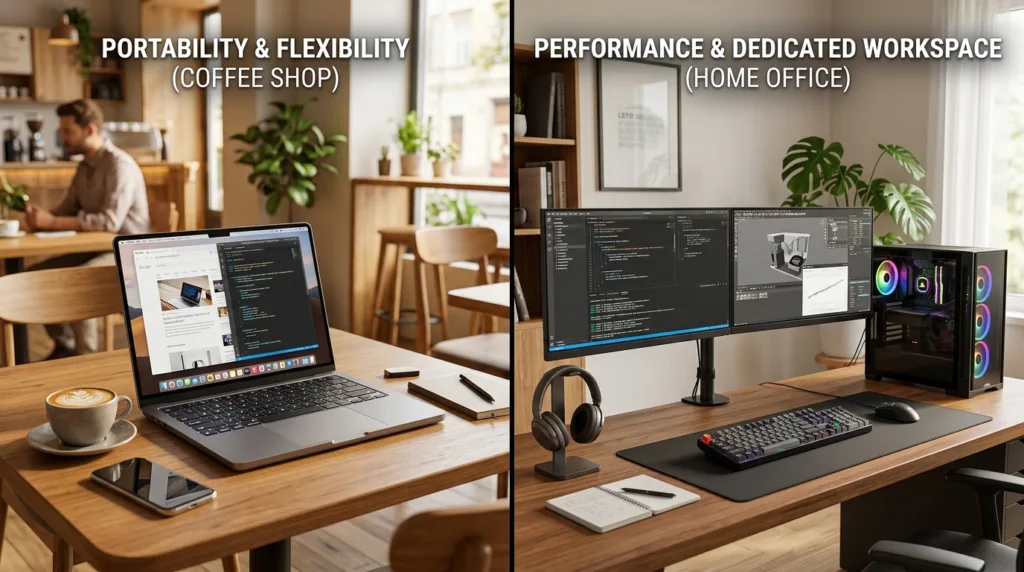
Buying a computer often starts with specifications.
Processor. RAM. Storage. Screen size. Battery life.
But before any of those details matter, there is a more basic question to answer: do you actually need a laptop or a desktop?
The difference is not simply that one folds and the other stays on a desk. The type of computer you choose affects where you can work, how comfortable your setup can become, how easy the machine is to repair or upgrade, and how much equipment you need around it.
For someone buying a computer for school, a first job, remote work, personal projects, or ordinary home use, the decision is usually less technical than it appears.
It comes down to where the computer will live and how often you need it somewhere else.
A laptop is a complete computer you can take with you
A laptop combines several pieces that a traditional desktop usually keeps separate.
The screen is built in. So are the keyboard, trackpad, speakers, battery, camera, and often the microphone. Close the lid, put the computer in a bag, and the entire setup goes with you.
That portability changes how the computer fits into daily life.
A college student can use the same machine in a dorm room, library, classroom, and coffee shop. Someone working in a hybrid job can move between home and the office without maintaining two separate computers. Even inside the same house, a laptop can travel from a desk to the kitchen table or living room without much effort.
Microsoft’s current guide to choosing among desktops, laptops, and tablets makes a similar point: the most useful starting question is not which device has the most impressive specifications, but how mobility, available space, comfort, and battery life fit into the way you actually work. Microsoft’s Windows device guide is built around that practical distinction.
A desktop sacrifices that flexibility.
In exchange, it can offer advantages that become more valuable when the computer spends nearly all of its time in one place.
A desktop is less portable, but that can be an advantage
A typical desktop computer consists of a main computer case connected to a monitor, keyboard, mouse, and power outlet.
That sounds less convenient than a laptop because, in one obvious sense, it is.
You are not going to close a desktop tower, slip it into a backpack, and continue working at the airport.
But a computer that never needs to travel can be optimized for something else: comfort.
You can choose a large monitor and position it at a height that feels natural. You can use a full-size keyboard rather than the compact keyboard built into a laptop. You can select a mouse that fits your hand, add a second monitor, or replace one component without replacing the entire workspace.
For someone spending eight hours a day at the same desk, those differences can matter more than portability.
A laptop can imitate much of this experience when connected to an external monitor, keyboard, and mouse. At that point, however, you are effectively creating a desktop-style workspace around a portable computer.
That is not a bad arrangement. In fact, it is one of the most flexible setups available.
It just changes the cost calculation.
Do not assume a desktop is automatically faster
Years ago, the distinction between laptops and desktops was easier to summarize: desktops were powerful, laptops were portable.
Modern computers have blurred that line considerably.
There are lightweight laptops designed mainly for browsing and documents, powerful laptops capable of demanding professional work, inexpensive home desktops, high-end workstations, compact mini PCs, and almost everything in between.
Intel notes in its laptop and desktop comparison that the right choice now depends heavily on the work you plan to do rather than on a simple assumption that one form factor is always faster.
That distinction is important when shopping.
A poorly equipped desktop can be slower than a well-configured laptop.
Performance depends on the actual components inside the computer: processor, RAM, storage, graphics hardware, cooling, and other design choices.
The words “laptop” and “desktop” describe the physical format. They do not provide a complete performance rating.
If specifications such as memory and storage still look like interchangeable numbers, RAM vs. Storage: What’s the Difference? is a useful place to start before comparing individual computers.
Price comparisons can be misleading
A desktop may appear less expensive until you remember what is missing.
Many desktop listings include only the computer itself.
You may still need:
a monitor,
a keyboard,
a mouse,
a webcam,
speakers,
and possibly additional cables or accessories.
A laptop normally includes all of those basic functions in one device.
That does not mean a laptop is automatically the better value. It means you should compare complete setups, not just the number beside the computer.
Suppose a $650 desktop and a $750 laptop have similar internal specifications.
At first glance, the desktop appears to save $100.
If you then spend $180 on a monitor, keyboard, mouse, and webcam, the comparison changes.
The opposite can also happen.
If you already own a good monitor and peripherals, a desktop may let you put more of your budget into the computer itself rather than buying another built-in screen and battery.
Price only makes sense in the context of what you already have and what the machine needs in order to become useful.
Laptops pay for portability in several ways
Packing an entire computer into a thin enclosure creates engineering compromises.
There is less room for cooling. Components have to fit into a much smaller space. The battery takes up a substantial portion of the interior. The display, keyboard, speakers, and other parts all compete for room.
This can make laptops more difficult to upgrade and repair than desktops.
Intel’s hardware guidance notes that many laptop components are difficult or impractical for ordinary users to replace, particularly processors and graphics hardware, while desktop computers generally offer much easier access to internal components.
Some laptops still allow storage or memory upgrades. Others do not.
RAM may be soldered directly to the motherboard. Storage may be replaceable on one model and effectively fixed on another. The battery may be straightforward for a technician to change, or the design may make the repair considerably more involved.
For that reason, buying a laptop often requires thinking further ahead.
If you purchase a model with too little memory today, you cannot safely assume that you will simply add more next year.
Desktops usually give you more room to change your mind later
A traditional desktop tends to be more modular.
The storage drive can often be replaced or supplemented.
Memory can frequently be added.
Graphics cards, power supplies, cooling systems, and other components may also be replaceable depending on the computer’s design.
This does not mean every desktop is endlessly upgradeable.
Compact systems, all-in-one computers, and some manufacturer-specific designs may have meaningful limitations. Warranty terms can matter too.
Still, conventional desktop towers generally provide more flexibility than laptops.
That can extend the useful life of the system for people who are comfortable upgrading components or paying someone else to do it.
A computer that needs more storage in three years may only need another drive rather than complete replacement.
The same flexibility can make repairs less disruptive because a failed component may be replaceable without discarding the rest of the system.
For an everyday user, however, upgradeability should not become an obsession. If you normally replace a computer every several years and never open the case, theoretical upgrade potential may not influence your life very much.
Features only matter when you are likely to use them.
Battery life changes the meaning of “portable”
Every laptop has a battery, but not every laptop delivers the same experience away from a power outlet.
Battery life depends on the model, screen brightness, applications, battery condition, power settings, and what you are doing.
Writing documents is very different from editing video or running demanding software.
Manufacturer battery estimates can be useful for comparison, but they are not guarantees of what you will see in your own routine. Microsoft’s PC buying guidance similarly notes that actual battery life varies according to configuration and use.
For someone who mainly moves a laptop between two desks with power outlets nearby, extraordinary battery life may not be worth paying much extra for.
For someone spending long periods in classrooms, airports, client sites, or other places where charging is inconvenient, it may be one of the most important specifications.
A desktop avoids the question entirely because it is designed to remain connected to power.
That sounds like a limitation until you realize that some users never needed battery power in the first place.
Screen size is really a question about where you work
Laptop screens are constrained by portability.
A 13-inch or 14-inch laptop is convenient to carry but provides less screen space. A 16-inch or larger model can feel more comfortable for extended work but becomes heavier and takes up more room in a bag.
Desktops give you much more freedom.
You can choose the monitor size independently of the computer, and replacing the display later does not require replacing the machine.
This can be especially valuable for spreadsheets, design work, programming, research, or any task where several windows need to remain visible.
But again, the boundary is not rigid.
A small laptop at home can connect to a large external monitor. When you need to leave, disconnect one cable and take the laptop with you.
For many professionals, this hybrid arrangement provides a strong compromise: desktop comfort when stationary, laptop portability when necessary.
It is also why the answer to “laptop or desktop?” does not always need to be ideological.
You can buy a laptop because you need portability and still create a permanent desk setup around it.
Think about failure differently
There is an overlooked consequence of having everything integrated into one device.
If a desktop monitor fails, the computer itself may still be perfectly fine. Replace the monitor and continue.
If the desktop keyboard stops working, buy another keyboard.
With a laptop, the display, keyboard, trackpad, battery, camera, and computer all belong to the same physical device.
A broken screen does not necessarily mean the computer is unusable — an external monitor may still work — but the repair can be more disruptive.
The same applies to batteries and built-in keyboards.
Integration is what makes laptops convenient, yet that integration also means one physical machine contains many parts you depend on.
This is not a reason to avoid laptops. Millions of people use them as their primary computers without serious problems.
It is simply another example of how portability involves trade-offs that are easy to overlook when comparing specification sheets.
What kind of everyday user benefits most from a laptop?
A laptop is usually the more natural choice when location changes frequently.
That includes many students, remote and hybrid workers, freelancers, people who travel regularly, and anyone without a dedicated desk.
It can also be the simplest choice for someone who only wants one computer.
There is less setup involved. Open the box, complete the operating-system setup, connect to Wi-Fi, and the device already has the essential hardware needed for ordinary use.
For browsing, email, video calls, documents, streaming, online classes, and other everyday tasks, a well-chosen laptop can comfortably serve as a person’s only computer.
The main question is whether you are willing to accept a smaller integrated screen and reduced upgrade flexibility in exchange for that convenience.
For many people, the answer is yes.
Who is better served by a desktop?
A desktop becomes particularly attractive when the computer will spend its life in the same room.
Someone building a permanent home office may value a large display, ergonomic keyboard, easier upgrades, and a cleaner separation between the computer and its accessories.
Families can also benefit from a shared desktop placed in a common area, particularly when portability is unnecessary.
Users with demanding workloads may appreciate the larger cooling capacity and hardware flexibility available in many desktop designs, although the actual performance still depends on the components chosen.
A desktop can also be appealing to someone who dislikes the idea of replacing an entire computer because one integrated part becomes inadequate.
Change the monitor. Add storage. Replace the keyboard. Upgrade the memory when supported.
The setup can evolve piece by piece.
What about all-in-one computers and mini PCs?
Not every computer fits neatly into the traditional laptop-versus-tower comparison.
An all-in-one PC places the computer hardware behind or inside the monitor. The result looks cleaner and requires fewer cables than a traditional desktop.
It saves space, but some all-in-one systems sacrifice the upgrade flexibility associated with desktop towers.
A mini PC goes in the opposite direction. It is a very small desktop computer that connects to a separate monitor and peripherals.
Mini PCs can be attractive for compact workspaces and ordinary home or office tasks, but their upgrade and performance characteristics vary widely.
These categories matter because they show how much the market has changed.
You are not choosing between exactly two shapes anymore.
The useful question remains the same: what combination of mobility, comfort, performance, space, and flexibility fits the way you intend to use the computer?
Try to describe your week before choosing the machine
This is more useful than beginning with a processor name.
Picture a normal week.
Where would the computer be on Monday morning?
Would it stay there Tuesday?
Do you expect to take it to work, school, meetings, or another room?
Will you regularly use it for several hours at a time?
Do you already own a monitor?
Would you benefit from two screens?
Is your desk permanent or temporary?
Do you travel?
Do several people need to use the same computer?
Questions like these expose which advantages actually matter.
If the computer must move several times a week, the portability of a laptop is difficult to ignore.
If it will remain on the same desk for five years, paying for extreme portability may provide little benefit.
Microsoft’s current device guidance essentially frames the choice in this way: mobility favors laptops, while a fixed workspace can make desktops more comfortable and economical.
That is a much more useful framework than asking which category is universally “better.”
There is no winner because the inconvenience is different
Every computer asks you to tolerate something.
With a laptop, you accept a smaller integrated workspace, batteries that eventually age, and usually less flexibility inside the machine.
With a desktop, you accept that the computer belongs to a location. It needs separate equipment, more space, and continuous access to power.
The better choice is the one whose disadvantages interfere less with your routine.
If carrying the computer matters, a desktop’s advantages may be irrelevant.
If the machine will never leave your office, portability may be a feature you pay for without using.
That is why the most sensible buying process starts with your life rather than the product page.
Once you know whether the computer needs to move, the remaining decisions become much easier: how much RAM you need, how much storage makes sense, what screen size feels comfortable, and which operating system fits the software you use.
A computer is ultimately a tool.
The best format is not the one with the longest specification sheet or the newest design. It is the one that quietly fits into your routine without repeatedly reminding you of the compromise you made when you bought it.

Alex Carter is a technology writer with five years of experience in the tech field. He now focuses on creating clear, practical articles that help beginners in the United States better understand computers, smartphones, online services, and everyday digital technology.