
If you have ever turned on a laptop, unlocked your phone, downloaded an app, or saved a document, you have already used an operating system — even if you never thought about it.
Names such as Windows, macOS, Android, and iOS appear everywhere in technology, but for someone who is just becoming comfortable with computers and smartphones, it is not always obvious what those names actually mean.
The simplest way to think about an operating system is this: it is the main software that makes your device usable.
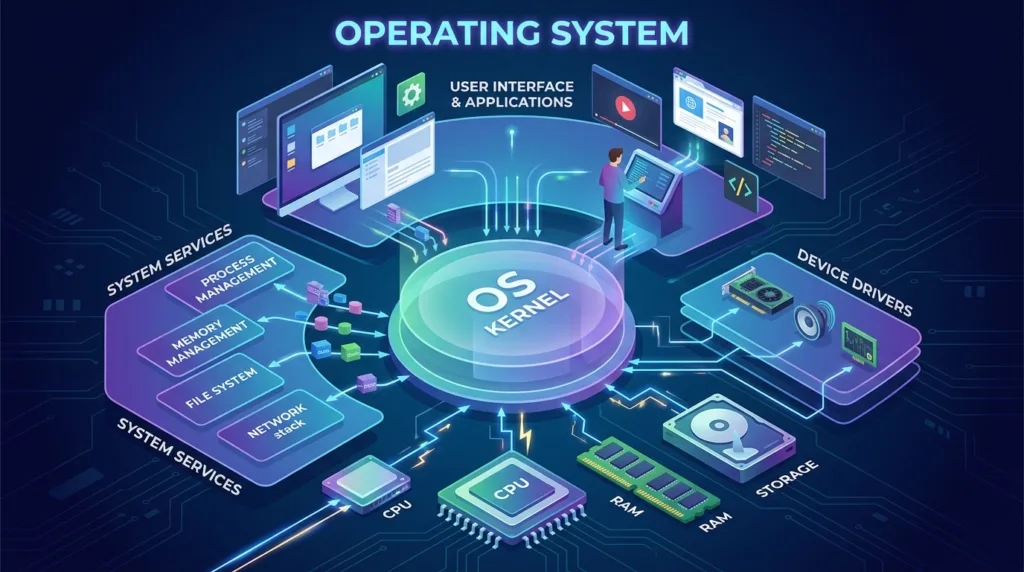
Your computer contains physical parts such as a processor, memory, storage, a screen, keyboard, Wi-Fi hardware, and many other components. At the same time, you use programs such as web browsers, video-meeting apps, games, word processors, and music services. The operating system sits between those two worlds and coordinates how everything works together.
Microsoft describes an operating system in much the same way: as the software responsible for managing hardware, applications, files, and security while providing the environment people interact with every day. You can read more in Microsoft’s explanation of how an operating system works.
That may sound technical at first, but the idea becomes much easier to understand once you look at what happens during an ordinary day.
Your operating system is working even when you do not notice it
Suppose you sit down at your laptop in the morning and open a browser. You click the browser icon, a window appears, and within seconds you are checking email, reading the news, or searching for something online. From your perspective, very little happened: you clicked something and the program opened.
Behind the scenes, however, the operating system had several jobs to handle. It located the program on your computer’s storage, made memory available for it, gave it access to processing power, displayed the window on your screen, and allowed it to communicate with your keyboard, mouse, speakers, and internet connection.
If you open a second application while the browser is still running, the operating system has to manage that application as well. Add a video call, music playing in the background, and several browser tabs, and the device is now juggling many different tasks at once.
You normally do not need to think about any of this because the operating system takes care of the coordination for you.
This is also why understanding the difference between memory and storage becomes useful. They perform very different jobs, and the operating system constantly works with both while your device is running. If those terms still seem interchangeable, our guide to RAM vs. Storage: What’s the Difference? explains the distinction in practical terms.
It gives you the interface you recognize
The part of an operating system that beginners notice most is usually the interface.
On Windows, you may recognize the Start menu, taskbar, desktop, folders, and Settings. On a Mac, you encounter the Dock, Finder, menu bar, and System Settings. Smartphones have their own versions of the same idea, with home screens, app icons, notifications, settings menus, and controls for features such as Wi-Fi and Bluetooth.
Those elements are not simply decoration. They give you a practical way to communicate with the device without having to understand the electronic components underneath.
Imagine having to type a technical command every time you wanted to move a photo, connect to Wi-Fi, increase the volume, or open a document. Modern operating systems hide much of that complexity behind buttons, menus, windows, icons, and gestures that are easier to understand.
Apple’s Mac User Guide, for example, organizes everyday macOS use around familiar elements such as the desktop, menu bar, Dock, Finder, apps, files, settings, and internet connectivity.
That is one reason switching from Windows to a Mac — or from an iPhone to an Android phone — can initially feel unfamiliar. Many of the underlying tasks are similar, but the operating system presents them differently.
It keeps track of your files and applications
Whenever you save a school assignment, download a résumé, take a screenshot, or create a folder for work documents, the operating system helps determine where that information is stored and how you can access it later.
This file-management system is the reason you can open a folder called Documents and find a file you saved three weeks ago. The operating system also helps applications interact with those files. If you double-click a PDF, for example, it can recognize the file type and open an appropriate application.
For someone learning to use computers more confidently, file management is one of the most valuable skills to develop early. Our guide on how to organize files and folders on your computer goes deeper into the process and explains how to create a structure that is easy to maintain.
Applications depend on the operating system in other ways too.
A video-calling app may need your camera and microphone. A navigation app on your phone may request access to your location. A photo-editing app needs permission to open or save images. Instead of every application independently controlling your hardware, the operating system helps manage those requests.
That is why your phone may ask whether an app is allowed to access your photos, camera, microphone, contacts, or location. Those permissions are worth paying attention to, especially when installing a new app. Our article on how to check and change app privacy permissions explains what those controls mean and where to find them.
Windows, macOS, Android, and iOS are all operating systems
For most beginners in the United States, four names are especially common: Windows, macOS, Android, and iOS.
Windows is Microsoft’s operating system for personal computers. It is found on laptops and desktops from many manufacturers, including Dell, HP, Lenovo, Acer, ASUS, and Microsoft itself.
macOS is Apple’s operating system for Mac computers, such as the MacBook Air, MacBook Pro, iMac, and Mac mini.
Android is Google’s mobile operating system and is used by many smartphone manufacturers. Android provides the software environment that allows apps and device hardware to work together, while manufacturers can customize parts of the experience for their own phones and tablets. Google’s official Android overview provides additional information about the platform.
iOS is Apple’s operating system for the iPhone. It manages the phone’s applications, settings, notifications, wireless connections, privacy controls, storage, and many of the features people use throughout the day.
These operating systems perform many of the same fundamental jobs, even though they may look and behave differently.
For example, both Windows and macOS let you create folders, connect to Wi-Fi, install applications, adjust sound, browse files, and use external devices. Android and iOS both let you install apps, take photos, manage notifications, connect to wireless networks, and control privacy settings.
The buttons and menus may differ, but the purpose behind them is often remarkably similar.
If you are choosing your first smartphone and are unsure how the two main mobile platforms compare, Android vs. iPhone: A Simple Guide for First-Time Buyers will explore those differences from a beginner’s perspective.
An operating system is not the same thing as an app
This distinction causes a lot of confusion when you are new to technology.
Google Chrome is not your operating system. Neither are Microsoft Word, Spotify, Zoom, WhatsApp, or Photoshop. Those are applications, often simply called apps or programs, and they run inside an operating system.
If you use Chrome on a Windows laptop, Windows is the operating system and Chrome is the browser. If you use Chrome on a MacBook, macOS is the operating system and Chrome is still the browser.
The same application can sometimes be available for several operating systems, but developers usually create versions designed specifically for each platform. That is why a software download page might ask whether you are using Windows or macOS before giving you the installer.
It also explains why you occasionally find an application that works on one type of device but not another. Software has to be designed to communicate correctly with the operating system underneath it.
Installing programs is generally straightforward today, but it is still worth knowing where your software comes from. Before downloading an unfamiliar program, read our beginner’s guide on how to install and uninstall programs safely.
Why operating system updates matter
Operating systems are not static. Microsoft, Apple, Google, and other software developers continue changing them after a device reaches consumers.
Updates may introduce new features, fix bugs, improve compatibility with applications or hardware, or address security vulnerabilities. You have probably seen messages such as “Update available,” “Restart required,” or “Install tonight?” while using a computer or phone.
It can be tempting to postpone these updates repeatedly, particularly when everything seems to be working normally. In many cases, however, the most important changes are not immediately visible.
Security is one of the responsibilities handled by a modern operating system, which means system updates can include protections against newly discovered problems. Apple, for example, provides dedicated guidance on keeping macOS up to date.
That does not mean you need to stop what you are doing the instant every update appears. It does mean that ignoring updates indefinitely is generally not a good habit.
We cover the subject in more detail in Why Software Updates Matter for Your Digital Security, including why updates are about more than simply adding new features.
How to tell which operating system you are using
In most cases, identifying your operating system is straightforward once you know what to look for.
If you have an iPhone, you are using iOS. If you own a MacBook or iMac, you are using macOS. Most Samsung, Google Pixel, and Motorola smartphones use Android, although their interfaces can look somewhat different because manufacturers often customize the system.
Windows is common on PCs made by companies such as Dell, HP, Lenovo, Acer, ASUS, and Microsoft.
You can also check the exact version from your device’s settings. On Windows, information about the system can be found in the About section of Settings. On a Mac, choosing the Apple menu and then About This Mac displays information about the computer and the installed version of macOS.
Knowing your operating system becomes particularly useful when you search for help online.
Instructions written for Windows may not match what you see on a Mac, and a tutorial written for Android may show menus that do not exist on an iPhone. Adding the operating system to your search — such as “how to take a screenshot on Windows” instead of simply “how to take a screenshot” — often leads to much more relevant instructions.
Understanding the OS makes technology easier to navigate
Learning what an operating system does is less about memorizing technical terminology and more about building a mental map of how technology fits together.
Think of a laptop as several layers. The hardware is the physical machine: the screen, keyboard, processor, memory, storage, speakers, and other components. The operating system manages that hardware and gives you an environment in which to work. Your applications run within that environment, and some of those applications, such as a web browser, give you access to another layer entirely: websites and online services.
Once you understand those distinctions, everyday technology becomes less mysterious.
When somebody tells you to update Windows, you know they are talking about the software that manages the computer. When a website asks you to download the Mac version of an application, you understand why. And when your phone asks whether an app should have access to the microphone, you know that the operating system is helping control that interaction.
You still do not need to know exactly how a processor works or what happens inside a computer every millisecond. That is partly the point of having an operating system in the first place: it handles an enormous amount of technical complexity so you can focus on what you actually want to accomplish with the device.
For a beginner, understanding that single idea provides a useful foundation for almost everything else you will learn about computers, smartphones, applications, and the internet.

Alex Carter is a technology writer with five years of experience in the tech field. He now focuses on creating clear, practical articles that help beginners in the United States better understand computers, smartphones, online services, and everyday digital technology.