
For many people, “the internet” is the blue, red, yellow, and green Chrome icon sitting on the taskbar.
Open it, type something, and the web appears.
That experience is so familiar that it is easy to blur several different things together: the browser, Google Search, a website, Wi-Fi, and the internet itself. They all seem to happen inside the same window, so why bother separating them?
Because once you understand what the browser is actually doing, a surprising number of everyday technology questions become easier to answer.
A web browser is an application that lets you open and interact with websites. Chrome, Safari, Microsoft Edge, and Firefox are all browsers. They can display text, images, video, forms, online stores, webmail, maps, banking sites, and many other kinds of content that live on the web.
Google’s own Chrome documentation describes Chrome simply as a web browser used to browse the web, while Microsoft notes that modern browsers have to do much more than display pages: they need to support interactive web technologies, handle user data, remain reliable, and respond to security threats. You can see that broader picture in Microsoft’s explanation of modern browser technology.
That is a lot of work for an application most people open without thinking about it.
The browser is not the internet
One useful distinction is to imagine the internet as the infrastructure and the browser as one of the tools you use to access what is available through it.
Your internet connection might come through home Wi-Fi, a wired network, or a mobile connection. That connection gives your device access to online services.
The browser is the program that helps you visit websites through that connection.
This is why you can have an internet connection even when Chrome is closed. Other applications may still be online: Spotify can stream music, a messaging app can receive messages, and cloud storage can synchronize files.
The browser is only one way your device uses the internet.
It is an important one, though, because so many modern services now run inside a browser rather than requiring a separate desktop application.
Email is a good example. If you open Gmail or Outlook.com in a browser, you are using a web application. Microsoft describes browser-based applications as software that runs through a web browser instead of requiring a traditional local installation. Its overview of browser-based applications includes email, online office tools, games, calculators, and many other services.
That is one reason browser windows have gradually become a kind of workspace of their own.
What actually happens after you type a website address?
Suppose you type wikipedia.org into the address bar and press Enter.
To you, the result is almost immediate: the Wikipedia website appears.
Behind that simple action, several things have to happen.
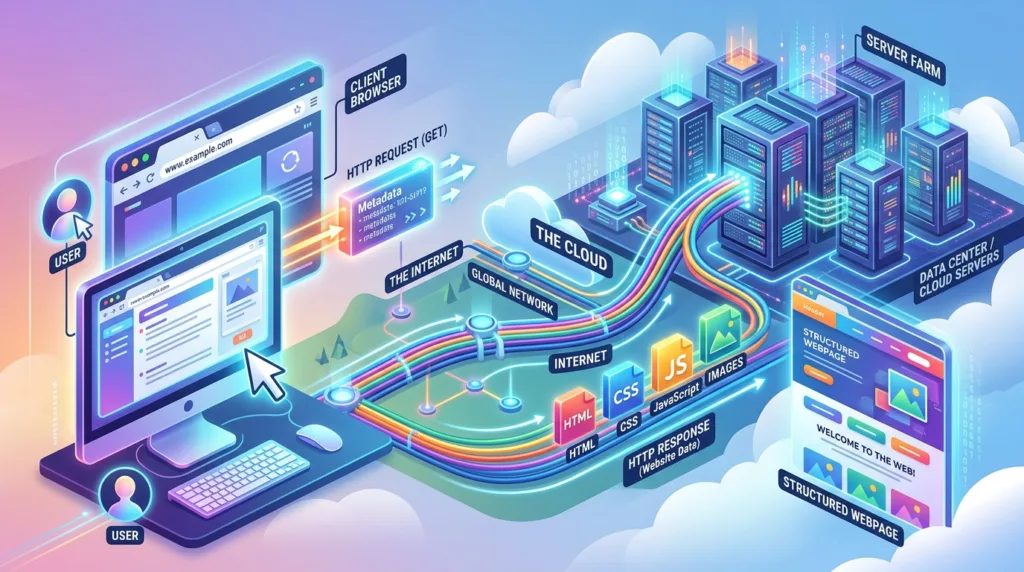
The browser first needs to understand where you want to go. The address you entered is a URL, or web address. Your device and network then help locate the server responsible for that site.
The browser sends a request asking for the page.
The server sends information back.
Then the browser interprets that information and turns it into what you see on the screen: text, headings, buttons, images, navigation menus, video players, and other page elements.
That final step is more complex than it may appear.
Websites are built using technologies that describe content, layout, appearance, and behavior. The browser has to interpret those instructions correctly and assemble the page for your device.
That is why a sophisticated website can look almost identical on computers made by completely different manufacturers.
The browser is doing much of the translating.
If terms such as website address and URL are unfamiliar, What Is a URL? Understanding Website Addresses will cover that part of web navigation separately.
A browser and a search engine are not the same thing
This may be the most common browser-related misunderstanding.
Google Chrome is a browser.
Google Search is a search engine.
They are closely connected in many people’s daily routines, which makes the difference easy to miss.
A browser is the application used to open websites. A search engine is a website or online service that helps you find information and other websites.
Google Search, Bing, and DuckDuckGo are examples of search engines.
You can open Google Search inside Chrome, Edge, Firefox, or Safari. In the same way, you can use Bing inside Chrome even though Bing is made by Microsoft.
Most browsers let you choose which search engine is used when you type ordinary words into the address bar. Google’s Chrome help documentation specifically treats the browser and the default search engine as separate settings. Its Chrome setup guide includes choosing a default browser and choosing a search engine as different parts of the setup process.
A practical way to remember the distinction is this:
The browser gets you around the web.
The search engine helps you find where to go.
Our article How Search Engines Work: A Simple Guide for Beginners will explore what happens after you type a question into a search engine.
Why does one browser open automatically when you click a link?
Your computer or phone usually has something called a default browser.
This is the browser your operating system chooses automatically when another application asks to open a web link.
Imagine someone sends you a website link in an email. You click it, and the page opens in Chrome.
Chrome may be your default browser.
If the same link opens in Microsoft Edge or Safari instead, that browser is probably set as the default.
Mozilla describes a default browser in exactly these practical terms: it is the application the operating system uses when you click a web link from another app. Firefox’s guide to default browsers explains that you can change this preference later.
This setting does not prevent you from using other browsers.
A Windows computer can have Edge, Chrome, and Firefox installed at the same time. You might use one most of the time and open another for a particular purpose.
The operating system simply needs to know which one should handle links when you have not made a specific choice.
If the relationship between applications and the operating system still feels a little abstract, What Is an Operating System? A Beginner-Friendly Explanation gives you the larger picture.
Tabs changed the way people use browsers
A browser used to feel more like a single window showing a single place.
Tabs changed that.
Instead of opening a completely separate window for every website, you can keep multiple pages available inside one browser window.
One tab might contain your email. Another could hold a work document. A third might be a YouTube video, and several others may be search results you plan to return to.
Tabs are extremely useful, but they can also become a form of digital clutter.
If you routinely keep dozens of tabs open, it can become difficult to remember what is where. Large numbers of active tabs may also use more computer memory, especially when the pages contain video, interactive tools, or web applications.
Google’s Chrome help center treats tab management as one of the browser’s basic productivity skills, alongside downloads, bookmarks, profiles, and keyboard shortcuts. Chrome’s home-use guide gives a sense of how many everyday tasks now live inside the browser.
You do not need an elaborate tab-management system, but closing pages you no longer need makes the browser easier to navigate.
For sites you want to return to later, bookmarks are often a better tool than keeping a tab open for several weeks. We cover that in How to Bookmark and Organize Your Favorite Websites.
The address bar does more than hold website addresses
At the top of most browsers is a long field often called the address bar.
Its original job was straightforward: show the URL of the website you were visiting and let you type another one.
Modern browsers have turned it into something more versatile.
If you type a complete website address, the browser can take you directly there.
If you type a question such as “weather in Boston,” the browser may send that text to your chosen search engine.
You can often use the same field to search your browsing history, revisit previously opened websites, or find saved bookmarks.
This is convenient, but it can contribute to the confusion between browsers and search engines because both actions happen in the same box.
The browser decides whether what you typed looks like a website address or a search query, then responds accordingly.
For beginners, there is no need to memorize the technical rules behind that decision. It is enough to know that typing nytimes.com and typing best museums in Chicago are two different requests, even though they go into the same place.
Browsers remember some things about your activity
As you browse, the application may keep information that makes future visits easier.
Browsing history allows you to return to pages you previously opened.
Cookies can help websites remember things such as sign-in status, language choices, or items placed in a shopping cart.
Saved passwords can make it easier to sign in again, although they should be handled carefully.
Cached files can help websites load more efficiently by storing certain resources locally instead of downloading everything again every time.
These features are useful, but they are also why browser privacy settings matter.
Deleting browser history, for instance, does not necessarily erase every trace of an online account or remove information stored by a website. Similarly, using private or incognito mode changes what the browser saves locally, but it does not make you invisible on the internet.
Those distinctions deserve their own explanations, which is why this project includes both What Happens When You Delete Your Browser History? and What Is Incognito Mode and What Does It Actually Do?.
Understanding those concepts is more useful than treating “private browsing” as a magic privacy button.
Do different browsers show the same websites?
Usually, yes.
Web developers generally build sites so that they work across major browsers, and modern browsers support many of the same web standards.
Still, small differences can appear.
A website may behave slightly differently in Chrome than in Safari. An older site may work better in one browser. Certain browser extensions may only be available for particular platforms.
There is also overlap beneath the surface.
Google Chrome and Microsoft Edge, for example, are both built partly around the Chromium open-source project. Microsoft explains that Chromium provides underlying browser technology used by several different products, even though those browsers may have their own interfaces and features.
Safari and Firefox use different underlying technologies.
For an everyday user, none of that means you need to choose a browser based on its internal engine. It simply explains why browsers that look like competing products can sometimes behave very similarly.
The more useful differences for most people involve interface, privacy controls, account synchronization, extensions, performance, and how well a browser fits the other devices they already use.
Your browser can also download files
Not everything you see in a browser remains inside it.
Clicking a download link can transfer a document, image, program, or other file from a website to your computer.
The browser handles that transfer, but once the file has been saved, it normally lives in your computer’s storage rather than “inside Chrome” or “inside Edge.”
This distinction becomes important when beginners try to find downloaded files later.
Many browsers place downloads in your system’s Downloads folder by default, although the location can usually be changed.
Google’s Chrome help pages list downloading and saving files as one of the browser’s basic functions, alongside visiting websites and managing tabs. Chrome’s getting-started resources are useful if you want to explore those controls in the browser itself.
Once the download is complete, file organization becomes a job for the operating system. That is where How to Organize Files and Folders on Your Computer becomes relevant.
The browser gets the file to your device. Your file system determines where it goes afterward.
A browser is really a doorway, not the destination
The easiest way to understand a browser may be to stop thinking of it as “the internet.”
It is closer to a doorway.
Chrome, Edge, Firefox, or Safari gives you a way to reach websites and web applications. Once you understand that, the pieces around it become easier to separate.
Your internet connection carries data.
The browser is the application you use to navigate the web.
A URL identifies an online location.
A search engine helps you discover pages you may want to visit.
A website is the destination itself.
Those distinctions may sound small, but they remove a lot of confusion when you are troubleshooting a problem or following instructions.
If a website is not loading, for example, you can begin asking more useful questions. Is the internet connection down? Is only one website affected? Is the browser having trouble? Would the page work in another browser?
That is a much better starting point than assuming every problem means “the internet is broken.”
And that is really the value of understanding basic technology: not learning terminology for its own sake, but gaining enough context to make everyday devices feel predictable rather than mysterious.

Alex Carter is a technology writer with five years of experience in the tech field. He now focuses on creating clear, practical articles that help beginners in the United States better understand computers, smartphones, online services, and everyday digital technology.