
Copy, cut, and paste are some of the first computer skills worth learning because they show up almost everywhere.
You use them when moving a paragraph in a document, copying an address from a website, organizing files, sharing information in an email, or moving an image from one place to another. Once the basic idea clicks, the same actions become useful across dozens of programs.
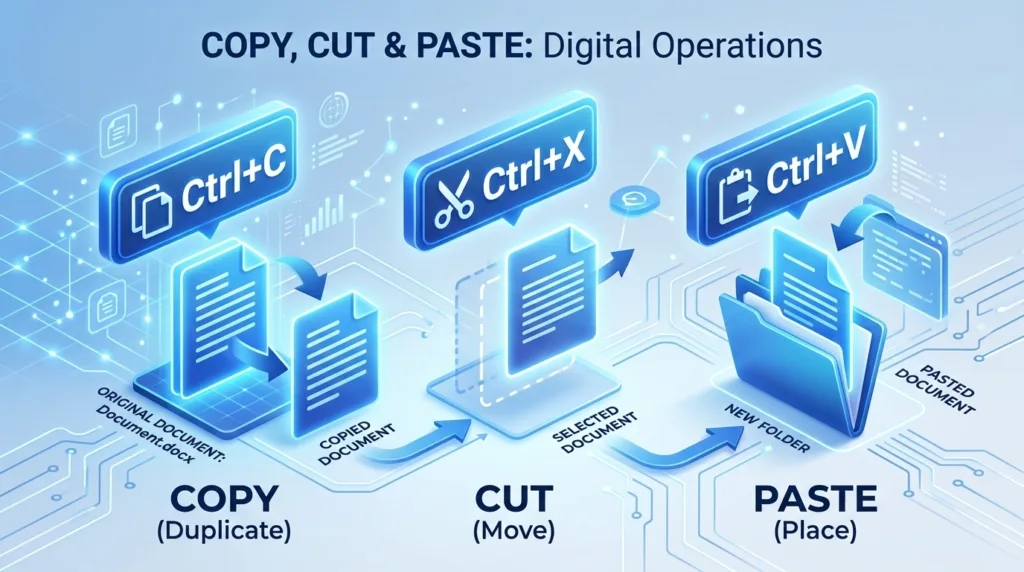
The commands themselves are simple. The part that often confuses beginners is understanding the difference between copying something and moving it.
Copy keeps the original where it is and creates another version somewhere else.
Cut removes the selected item from its current place so you can move it to a new one.
Paste is the action that places whatever you copied or cut into the destination you choose.
That sounds straightforward, but it is easier to remember once you see how it works in a few everyday situations.
Copying means keeping the original
Imagine you are writing an email and want to include your home address.
You could type the address again, but if it already appears in another document, copying it is faster.
First, you select the text. Then you copy it. After that, you click inside the email and paste it.
The original address stays exactly where it was in the first document, and a second version appears in the email.
This is the essential idea behind copying: the source remains unchanged.
The same thing can happen with files.
If you copy a photo from one folder and paste it into another folder, you now have two copies of that photo. One remains in the original location, and another exists in the new location.
That can be useful when you genuinely need duplicates, but it can also create clutter if you copy files without realizing you are creating additional versions.
If your computer already has several folders full of duplicate-looking files, How to Organize Files and Folders on Your Computer explains a simple way to bring that structure under control.
Cutting is usually about moving something
Cut works differently.
Suppose a sentence is in the wrong paragraph of a document.
You could copy the sentence to the correct place and then return to delete the original, but cutting does both parts more efficiently. You select the sentence, cut it, move your cursor to the new location, and paste it there.
The sentence is moved rather than duplicated.
The same idea applies to files in many situations. If a document was saved in Downloads but belongs in your Work folder, moving it is usually more useful than creating another copy.
There is one detail worth knowing, though: the way file moving behaves can vary depending on the operating system, application, or destination involved. For beginners, the safest approach is not to worry about the technical rules at first. After moving an important file, simply confirm that it appears in the destination you intended before deleting anything manually.
The difference to remember is conceptual:
Copy when you want another version.
Move or cut when you want the item to live somewhere else.
The keyboard shortcuts are easier than they look
You can copy, cut, and paste by clicking menus, but keyboard shortcuts are usually much faster once they become familiar.
On a Windows computer:
Ctrl + C copies
Ctrl + X cuts
Ctrl + V pastes
Microsoft lists these among the standard keyboard shortcuts used across Windows applications. You can find them in the official Windows keyboard shortcut guide.
On a Mac, the idea is identical, but you use the Command key instead of Ctrl:
Command + C copies
Command + X cuts
Command + V pastes
Apple documents the same shortcuts in its guide to copying and pasting on a Mac.
The letters are the same on both systems, which makes them easier to remember than they may initially seem.
C for Copy is obvious.
V does not stand for Paste, but its position next to C and X on the keyboard makes the group easy to use with one hand.
The X key is associated with cutting partly because it visually suggests removing something.
You do not need to memorize every keyboard shortcut at once. If you learn only these three, you will already save a surprising amount of time.
Our separate guide to Keyboard Shortcuts Every Beginner Should Know will build on these commands with other useful shortcuts for everyday work.
How to copy and paste text with a mouse
Keyboard shortcuts are convenient, but they are not the only way to do it.
Suppose you want to copy one sentence from a website.
Start by placing the mouse pointer at the beginning of the text. Hold down the left mouse button and drag across the words you want. The selected text usually appears highlighted.
Once it is selected, right-click the highlighted area.
A menu should appear with an option such as Copy.
Click Copy.
Now move to the place where you want the text to appear. This might be a document, email, note, or another text field.
Right-click again and choose Paste.
The copied text should appear at the new location.
You can also mix the two methods. For example, you might select text with the mouse, press Ctrl + C to copy it, and then press Ctrl + V to paste it somewhere else.
There is no requirement to use only the mouse or only the keyboard.
Most people naturally switch between the two.
Selecting the right text is often the hardest part
The copy command itself rarely causes trouble. Selecting exactly what you want can take a little more practice.
If you drag too far, you may accidentally include extra words or punctuation.
If that happens, just click somewhere else and try again.
Many applications also offer faster selection methods. Double-clicking a word often selects the entire word, while dragging lets you select a larger passage.
Keyboard selection is possible too. Holding the Shift key while using the arrow keys can extend a text selection one character or line at a time in many programs.
These small techniques become useful when you are editing documents regularly, but they are not essential on day one.
The most important habit is to look at what is highlighted before copying or cutting it.
That quick check prevents many mistakes.
What is the clipboard?
When you copy or cut something, it does not immediately appear in the new location.
For a short time, the computer keeps it in an area called the clipboard.
You can think of the clipboard as temporary holding space.
You copy a sentence, the computer remembers it, and when you choose Paste, the same content is inserted where your cursor is.
Usually, you do not need to open or manage the clipboard directly. It works quietly in the background.
In many basic situations, copying something new replaces what you copied previously. Modern operating systems can offer more advanced clipboard features, but beginners do not need them to use copy and paste effectively.
Windows, for example, includes clipboard-history features on supported systems, while newer versions of macOS can also provide access to recently copied items. Those tools are helpful later, but the fundamental workflow remains the same: select, copy or cut, choose a destination, and paste.
Copy and paste works with more than words
Text is only the beginning.
You can often copy:
- images
- files
- folders
- website addresses
- spreadsheet cells
- slides
- pieces of formatted content
The exact behavior depends on the program you are using.
For example, copying an image from one presentation slide and pasting it onto another usually duplicates the image.
Copying a file from Documents and pasting it onto an external drive creates a second copy of that file on the drive.
Copying a website address from your browser lets you paste the link into a message.
This is one reason learning copy and paste early makes so many other computer tasks easier. The same basic action keeps appearing in different contexts.
Why pasted text sometimes looks strange
One of the more surprising things beginners encounter is that copied text can bring its formatting with it.
Imagine copying a paragraph from a website into a document.
The words may appear in a different font, size, color, or spacing than the rest of your document.
Nothing is wrong with the computer.
You did not just copy the words; the application may also have copied some of the formatting attached to them.
Depending on the program, you may see options such as Paste as plain text, Keep text only, or Paste and match style.
These options tell the application to keep the words while discarding some or all of the original formatting.
On supported Windows applications, Microsoft documents Ctrl + Shift + V as a shortcut that may paste text without its original formatting. Not every application handles this shortcut in exactly the same way, so the menu options available in the program are worth checking if the result looks different from what you expected.
On a Mac, Apple provides a Paste and Match Style command in many applications. That can be useful when you want copied text to adopt the formatting of the document you are pasting it into.
This is a small detail, but it becomes especially helpful when working with résumés, school assignments, reports, or emails where consistent formatting matters.
Cut is different from Delete
Cutting something may make it disappear from its original location, which makes it look similar to deleting it.
The difference is that a cut item is intended to be pasted somewhere else.
Delete simply removes the selected content.
Suppose you highlight a sentence and press Delete.
The sentence disappears.
If you instead press Ctrl + X or Command + X, the sentence disappears from that location too, but it is placed on the clipboard so you can paste it elsewhere.
That distinction matters when editing.
If you cut something accidentally, do not panic. You can often paste it back immediately.
You can also use Undo.
On Windows, Ctrl + Z is the common Undo shortcut. On Mac, it is Command + Z. Both Microsoft and Apple include these commands among their standard system shortcuts.
Undo is worth remembering alongside copy and paste because it gives you an easy way to recover from many ordinary editing mistakes.
Be careful when copying files you plan to delete
Text is usually easy to recover if something goes wrong. Important files deserve a little more caution.
Suppose you are moving family photos from your computer to an external drive.
You copy the folder, paste it onto the drive, and then immediately delete the originals.
Before deleting anything, open the destination folder and make sure the files actually arrived.
For something especially important, open a few of the copied files as well.
This takes only a moment and confirms that the transfer worked as expected.
The same principle applies when moving work documents, school projects, or personal records.
Copy and paste is convenient, but it is not a substitute for a backup. If the only two copies of an important document are on devices that can both be lost or damaged, the information is still vulnerable.
Our guide to How to Back Up Important Photos and Documents explains how to think about that separately.
Copying something does not usually change the original
This is useful to keep in mind when working with documents.
If you copy three paragraphs from a report and paste them into an email, the original report does not change.
If you copy a photo from one folder to another, the first photo remains in place.
If you copy a URL and send it to someone, the website itself is obviously unchanged.
Copy is generally a non-destructive action.
Cut and move require slightly more attention because they change where content appears.
That is why copying can feel safer while you are learning. If you are uncertain whether you want to remove the original, copying first gives you a chance to verify the new version before making any changes.
The skill becomes automatic surprisingly quickly
At first, using Ctrl + C and Ctrl + V may feel like something you have to consciously remember.
After a while, it becomes almost invisible.
You see a piece of text you need, select it, copy it, move to the destination, and paste it without thinking through each step.
That small habit can make writing emails faster, simplify file organization, reduce unnecessary retyping, and make many common computer tasks less frustrating.
The important thing is not memorizing every possible variation.
Remember the basic logic:
Copy duplicates.
Cut moves.
Paste places the copied or cut content where you want it.
Once that distinction feels natural, you have learned one of the most reusable skills in everyday computing.

Alex Carter is a technology writer with five years of experience in the tech field. He now focuses on creating clear, practical articles that help beginners in the United States better understand computers, smartphones, online services, and everyday digital technology.