
Most people do not think seriously about backups while everything is working.
Photos open normally, documents remain in familiar folders, the laptop turns on, and the phone still has enough storage to hold years of pictures. The urgency usually appears later, after a device stops working, a file is deleted by mistake, a phone disappears, or an old computer refuses to start.
At that point, the question becomes very simple: does another usable copy exist somewhere else?
That question is more useful than asking whether a file is “in the cloud” or “on an external drive,” because those are methods rather than outcomes. A backup exists to give you another path to your information when the original path fails.
For personal photos and documents, a strong setup does not need to be complicated. What matters is that important files are not dependent on one device, one drive, or one account.
Start by thinking about what could actually disappear
A family photo stored only on a phone depends entirely on that phone.
A tax document saved only in the Downloads folder depends on the computer and the storage device inside it. A folder copied from the computer to an external drive has another copy, although both copies may still be sitting on the same desk. A document synchronized to a cloud service can survive a failed laptop, but the protection behaves differently when files are changed or deleted because synchronization and backup are closely related without being identical concepts.
Thinking through those failure points makes backup decisions much easier.
The most common problems are ordinary rather than dramatic. A file is deleted accidentally. A computer drive fails. A phone is lost. A laptop is damaged. A folder is overwritten with the wrong version. A device is replaced, and only afterward does someone realize that an important folder was never transferred.
A useful backup plan gives you somewhere else to recover from when one of those events happens.
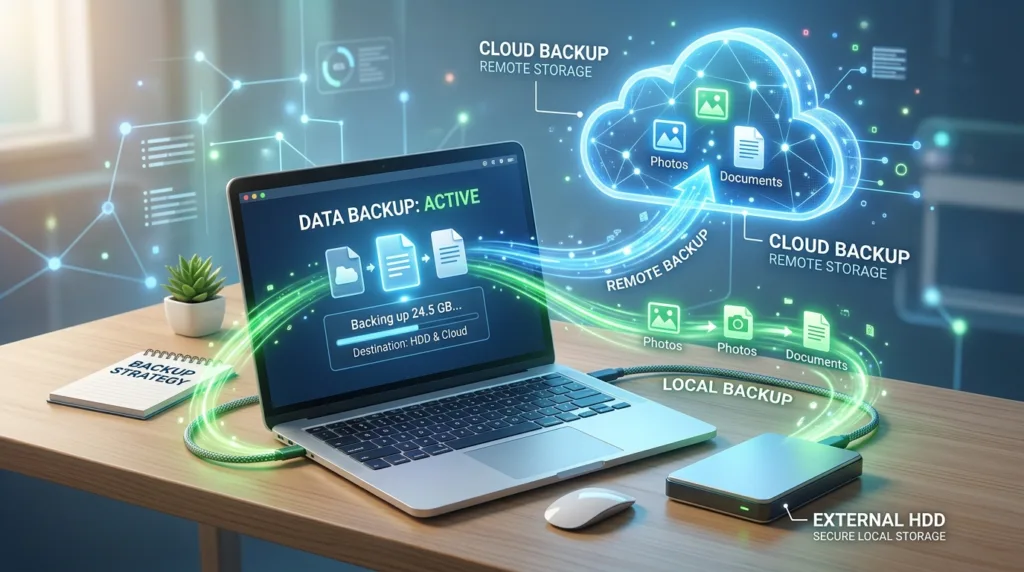
Three places can protect files in different ways
There is no single storage method that is ideal for every person or every file.
| Method | What it does well | What to remember |
|---|---|---|
| Another copy on a separate drive | Keeps a physical copy under your control and works without internet access | The drive must actually be updated, and it can be lost or damaged along with the computer if stored nearby |
| Cloud storage or cloud backup | Keeps files away from the original device and makes them accessible from other devices | Storage limits, account security, synchronization behavior, and internet access all matter |
| Automatic computer backup | Protects large groups of files repeatedly with less manual effort | It still needs a correctly configured destination and occasional checks that backups are completing |
These methods can complement one another.
An external drive can provide a local recovery copy that does not depend on an internet connection. Cloud storage creates geographical separation from the computer and can make recovery from a lost or damaged device much easier. Automatic backup reduces the chance that protection depends entirely on remembering to drag files into another folder every few weeks.
The strongest setups often combine more than one approach because the methods fail differently.
Cloud storage is convenient, but understand what synchronization is doing
Services such as OneDrive, Google Drive, and iCloud make backup feel almost invisible because files can appear on several devices automatically.
Microsoft’s current OneDrive folder-backup feature can protect standard folders such as Desktop, Documents, Pictures, Videos, and Music by synchronizing them with OneDrive. Microsoft’s official OneDrive backup guidance explains that the protected folders remain available across devices signed into the same account.
That convenience comes from synchronization.
When a synced file changes on your computer, the change can appear in the cloud. When a file is deleted or moved, that action may also propagate depending on the service and configuration. Many cloud systems provide recycle bins, version history, or recovery features, but the broader lesson is worth understanding: synchronization keeps locations aligned; it does not mean that every historical state of every file is preserved forever.
This is one reason important files benefit from more than one layer of protection.
Cloud synchronization is excellent for accessibility and device replacement. A second backup method can give you another recovery path when the problem involves accidental deletion, account access, or a change that has already synchronized.
Photos deserve automatic backup because they accumulate too quickly for manual routines
Documents are often created intentionally and stored in recognizable folders. Photos arrive much faster.
A phone can collect hundreds or thousands of images without the owner ever deciding where each file should be stored. Waiting until the phone is nearly full before copying everything manually creates long periods during which the newest photos exist in only one place.
Google Photos can automatically save photos and videos to a Google Account when backup is enabled. Google’s current Photos backup documentation explains that backed-up media becomes accessible from other signed-in devices and uses the storage associated with the Google Account.
Apple users can use iCloud Photos to keep their photo library synchronized across supported Apple devices, while other services provide similar automatic-upload features.
The advantage of automation is mundane but important: the backup can continue while you are taking ordinary photos, instead of depending on a future afternoon when you finally remember to connect the phone to a computer.
Storage limits still deserve attention. A backup service that stopped uploading six months ago because the account ran out of space is not protecting the photos taken since then. Checking backup status occasionally is therefore more useful than assuming that an icon you enabled years ago is still doing exactly what you expect.
An external drive creates distance from the computer without giving up local control
External drives remain useful even in a world of cloud storage.
They can hold large photo libraries, project folders, scanned documents, and computer backups without requiring those files to be uploaded over the internet. Recovery can also be fast when many gigabytes of information need to be restored at once.
For a simple manual backup, the process can be as basic as connecting the drive, copying important folders, and confirming that the copied files open normally before disconnecting the drive.
Automation improves that approach considerably.
On a Mac, Time Machine is built specifically for repeated backup. Apple’s current Time Machine guidance explains that the feature can automatically back up files to compatible external or network storage and later restore individual files or a larger set of data.
Apple also recommends using a backup device with substantially more capacity than the Mac itself so that the system has room to retain backups over time rather than only one snapshot.
The practical advantage is version history. A file that was modified yesterday may still have an earlier version available in the backup, which is a different kind of protection from simply maintaining one synchronized copy.
Where the external drive sits matters more than people expect
Consider a laptop and its backup drive stored permanently beside each other.
That arrangement protects against a failed internal drive. It offers much less protection against theft, fire, flooding, or another event affecting the entire room.
The files exist twice, yet both copies share many of the same physical risks.
You do not need to build an elaborate disaster-recovery system for ordinary family photos, but keeping an especially important backup away from the primary computer improves resilience. Some people disconnect an external backup drive after use and store it elsewhere; others rely on cloud storage as the off-site layer.
The value comes from separation.
Two copies on two partitions of the same physical drive are especially weak as a backup because the failure of that drive can remove both at once. The same reasoning applies to a phone whose “backup folder” exists only elsewhere on the same phone.
A backup should survive at least some failures that the original cannot.
Decide which files deserve the most protection
Backing up everything can be convenient, although not every file carries the same value.
An application installer can usually be downloaded again. A movie purchased from an online service may remain available through the account. A temporary download can often disappear without consequence.
Original family photographs are different. So are personal documents, signed agreements, school work, tax records, creative projects, business files, and scans of paperwork that would be difficult or impossible to recreate.
A useful first pass is to identify the material you would genuinely miss or struggle to replace.
That may include:
- personal photos and videos;
- important documents and PDFs;
- work or school projects;
- financial and tax records;
- scans of significant paperwork;
- original creative work;
- files connected with ongoing personal or professional projects.
This prioritization becomes useful when storage is limited. Protecting irreplaceable material first is more sensible than filling a backup drive with easily replaceable downloads while unique files remain exposed.
Backing up a computer is different from copying one folder occasionally
Manual copying can work well for a small group of documents, especially when those documents change infrequently.
Its weakness is memory.
A folder copied to an external drive in January remains a January backup unless somebody copies the newer version again. Files created afterward may never reach the drive, even though the existence of a folder named “Backup” creates a reassuring impression that everything is protected.
Automatic backup systems solve part of that problem by revisiting files repeatedly.
Windows Backup integrates with OneDrive and can protect selected user folders through the Microsoft account. Microsoft’s Windows Backup documentation describes folder protection for locations such as Desktop, Documents, Pictures, Videos, and Music.
A Mac using Time Machine can automatically create recurring backups when its configured backup destination is available.
Automation does not eliminate the need for occasional attention, but it moves the process from “remember to make a backup” toward “confirm that the backup system is still working.”
That is a much easier habit to maintain.
A backup that has never been checked is partly an assumption
People often focus on creating backups and spend much less time thinking about restoration.
Recovery is the reason the backup exists.
You do not need to simulate a catastrophic computer failure every month, but occasionally opening the backup location and confirming that important files are present can reveal obvious problems. An external drive might have stopped receiving updates. A cloud account may be full. A folder you assumed was protected may never have been included in the backup configuration.
For a few particularly valuable documents or photos, open a copy from the backup rather than only checking that a filename exists. That confirms that the file is accessible and not merely represented by an empty folder, broken shortcut, or incomplete transfer.
Automatic services usually provide some indication of backup or synchronization status. Learn where that status appears and pay attention when it reports an error for an extended period.
A warning ignored for several months can turn an automatic system back into a single-copy system without anyone noticing.
Your backup account deserves the same attention as the files inside it
Cloud backup moves some of the risk away from the physical device and toward the online account controlling the storage.
A strong, unique password becomes important because access to that account may also provide access to years of personal documents and photographs. Two-factor authentication adds another barrier when the service supports it.
The Vandutz guides How to Create a Strong Password You Can Actually Remember and What Is Two-Factor Authentication and Why Should You Use It? explain those protections in more detail.
Account recovery information deserves attention as well. A backup is far less useful when the files still exist in the cloud but you can no longer access the account because an old phone number or email address is the only recovery method.
That is another advantage of combining cloud and local backups: neither system has to carry every possible failure scenario by itself.
Do not wait for a new computer to discover what the old one was protecting
Replacing a device is one of the best tests of a backup system because the old computer or phone is no longer the place you want to depend on.
Cloud-backed documents can reappear after signing into the same account. A Time Machine backup can restore files to a Mac. An external drive can be connected to the new computer, while backed-up phone photos can become available again through the corresponding cloud service.
The upcoming Vandutz guide How to Transfer Photos From Your Phone to Your Computer will cover direct photo transfers in more detail. Transfer and backup overlap, but they serve different purposes: moving a file gets it from one device to another, while a backup is meant to leave another recoverable copy available after something goes wrong.
That distinction becomes especially useful when replacing a phone. Copying all photos to a laptop may preserve them temporarily, yet deleting the originals from the phone afterward leaves the laptop as the only copy unless another backup exists.
Thinking one step beyond the transfer prevents the same single-copy problem from simply moving to a different device.
A backup routine should become boring
The best backup system is usually the one you stop having to think about very often.
Automatic photo backup handles new pictures as they appear. Cloud folder protection keeps important computer folders synchronized. An external drive provides another recovery path and, with tools such as Time Machine, can preserve older versions of files.
Occasionally you check that the systems are still working, confirm that storage has not filled up, and make sure the files you care about are actually included.
Nothing dramatic happens.
That quiet routine is the point.
Backups are valuable because they turn a future emergency into a recovery task. A broken laptop remains inconvenient, a lost phone remains frustrating, and an accidentally deleted folder can still ruin an afternoon — but the event no longer has to decide whether years of photographs or important documents continue to exist.

Alex Carter is a technology writer with five years of experience in the tech field. He now focuses on creating clear, practical articles that help beginners in the United States better understand computers, smartphones, online services, and everyday digital technology.