
Clicking a suspicious link can create an immediate sense of panic, especially when you realize what happened only after the page has already opened. The natural reaction is to assume the worst: perhaps the computer is infected, the account has been compromised, or personal information has already been stolen. In reality, a click by itself does not tell you exactly what happened, and the most useful response is to determine what occurred after the link opened rather than treating every situation as identical.
A fraudulent link can lead to several different outcomes. It may simply open an imitation login page designed to collect credentials. It may attempt to persuade you to download a file. It may ask for banking or personal information, trigger a browser warning, or redirect you through several pages without anything obvious happening. Those scenarios carry different levels of risk, which means the appropriate response also changes.
The most important distinction is whether you only opened the page or whether you also entered information, approved something, downloaded a file, or installed software.
That is where the recovery process should begin.
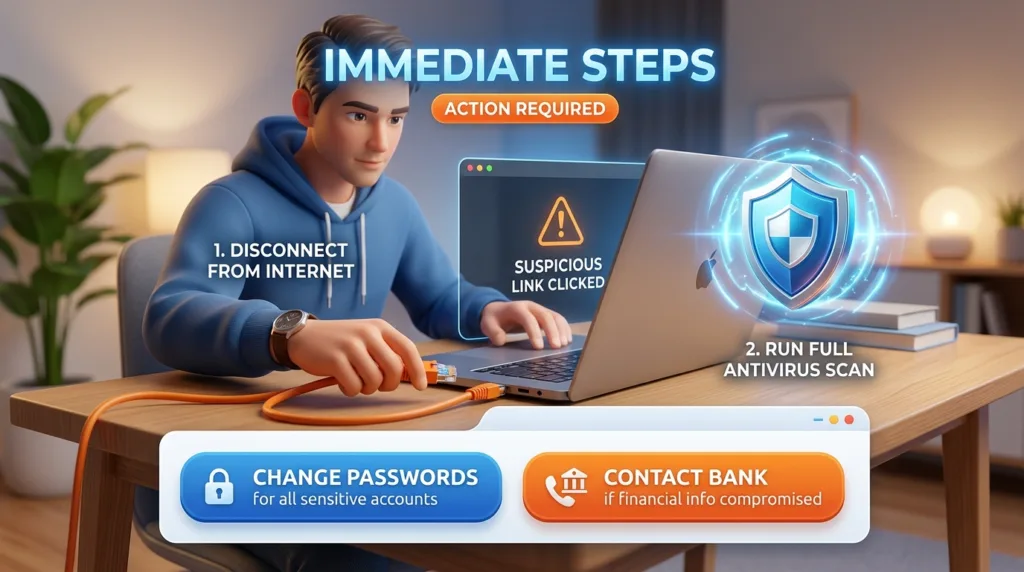
If you clicked the link but did not enter anything
Suppose you open a link, immediately notice that the page looks suspicious, and close it without typing a password, downloading anything, or granting permission.
That is a better situation than entering sensitive information, although it is still worth paying attention to what happened. Some malicious websites attempt to exploit browser or software vulnerabilities, while others rely almost entirely on social engineering and cannot accomplish much unless the visitor takes another step. For most ordinary phishing pages, the attack depends on convincing you to provide credentials or install something rather than on the page magically taking control of the device the moment it loads.
Closing the page is therefore a sensible first action, but there is no need to begin deleting random files or resetting every account you own if nothing else occurred. Instead, consider whether the browser displayed a download, security warning, unusual pop-up, permission request, or notification asking you to install software. Check the Downloads folder as well, particularly if you are uncertain whether a file was saved automatically.
If nothing was downloaded and you did not provide information, the immediate risk may be limited. Even so, keeping the browser and operating system updated remains important because modern security protections are designed partly to reduce the impact of malicious websites.
The Federal Trade Commission advises users who think a suspicious link or attachment may have downloaded malicious software to update their security software, run a scan, and remove anything the security tool identifies. Its guidance on phishing scams makes an important distinction between merely receiving a phishing message and interacting with content that may have installed malware.
That distinction prevents both complacency and unnecessary panic.
If you entered a password, assume that password may no longer be private
The situation changes considerably if the suspicious page asked you to sign in and you entered your password.
At that point, you should behave as though the credential may have been captured, even if the page displayed an error afterward or redirected you somewhere that looked legitimate. Fraudulent login pages often imitate real services closely enough that entering credentials feels completely normal, and there may be no obvious confirmation that anything was stolen.
Go directly to the legitimate service — not through the suspicious link — and change the password as soon as possible.
Use a new password that you have not used elsewhere. If the compromised password was reused on other accounts, those accounts deserve attention as well because attackers frequently try stolen credentials across multiple services. A password leak involving one website can therefore become a broader problem when the same credential unlocks email, shopping accounts, cloud services, or social media.
Google’s account-recovery guidance recommends changing the password immediately when suspicious activity suggests that another person may have access to the account. It also advises changing passwords on other services where the same password was used. Google’s guidance for compromised accounts describes this as one of the first steps in restoring account security.
After changing the password, review the account’s recent activity. Look for unfamiliar devices, sign-ins, recovery email changes, phone-number changes, forwarding rules, or other security settings that you do not recognize. If the account offers a way to sign out other sessions or remove unknown devices, use it.
This is particularly important for email because an attacker who gains access to your inbox may be able to reset passwords for other services. Email is not just another account; in many people’s digital lives, it functions as part of the recovery system for everything else.
If password reuse is still part of your routine, How to Create a Strong Password You Can Actually Remember explains why uniqueness matters as much as complexity.
If you entered a verification code or approved a sign-in, move quickly
A phishing page may not stop after collecting a password. It may immediately ask for a verification code sent to your phone or prompt you to approve a login request.
If you provided that second factor, the attacker may have been attempting to sign in to the real service at the same time. Temporary codes are designed to expire quickly, but that also means they can be used quickly.
Change the account password from the legitimate service, review active sessions, and remove devices you do not recognize. If the account provides security-event history, inspect it for sign-ins that happened around the time you interacted with the suspicious page.
Also verify that your authentication settings have not been altered. Check whether unfamiliar phone numbers, passkeys, security keys, authenticator methods, or recovery options have been added.
Two-factor authentication still provides valuable protection, but no authentication method can help very much if a user unknowingly approves the attacker’s login. That is why What Is Two-Factor Authentication and Why Should You Use It? emphasizes that verification prompts should be treated as decisions rather than routine notifications.
If you receive additional sign-in prompts after changing the password, do not approve them unless you are certain you initiated the login yourself.
If a file was downloaded, the filename alone does not tell you whether it is safe
A suspicious link may lead directly to a download or to a page that encourages you to open an invoice, document, installer, compressed archive, or other file.
If the file downloaded but you did not open it, deleting it is generally safer than experimenting with it. Empty the appropriate recycle or trash location afterward if you want it fully removed from ordinary access.
If you opened the file, installed software, enabled macros, approved administrator access, or followed instructions telling you to disable security settings, the risk becomes more significant because the file may have been given an opportunity to run code or make changes to the system.
The FTC’s current malware guidance recommends that people who think a suspicious link or attachment may have installed malicious software stop logging into sensitive accounts on the affected device, update their security software, run a security scan, and remove anything identified as a problem. Its malware recovery guidance also advises changing passwords and enabling two-factor authentication after the device has been checked.
The order matters more than it may initially appear. If you suspect malware is actively monitoring the computer, immediately changing every password from the same potentially compromised device could expose the new passwords as well. Whenever practical, use a different trusted device to secure critical accounts while the affected computer is being scanned and evaluated.
You do not need to start deleting system folders, uninstalling unfamiliar components at random, or following complicated commands from anonymous forum posts. If the security software identifies something you do not understand, or the computer continues behaving strangely after a scan, getting assistance from a reputable technical support provider is safer than improvising.
Strange behavior after the click deserves more attention than the click itself
A suspicious link becomes more concerning if unusual behavior starts afterward.
Examples include repeated pop-ups, unexpected browser redirects, new extensions you do not remember installing, security software becoming disabled, unfamiliar applications appearing, browser settings changing on their own, or accounts sending messages that you did not write.
The FTC lists similar symptoms among signs that malware may be present, including unexpected errors, disabled system tools, unauthorized messages, or other behavior that does not match normal use. None of these symptoms proves that one particular link caused the problem, but a sudden change immediately after interacting with suspicious content is a reason to investigate rather than ignore it.
This is also where memory matters. Try to reconstruct what happened in sequence: which link you clicked, whether a file downloaded, whether you opened it, whether Windows or macOS displayed a warning, and whether you approved any permissions. Those details can make troubleshooting considerably easier than simply saying, “I clicked something bad.”
If you need help, take note of filenames, warnings, or unusual behavior before removing them, provided doing so does not require opening suspicious files again. A screenshot can be useful when communicating with technical support, which is one practical application covered in How to Take a Screenshot on Windows and Mac.
If you shared financial or personal information, treat the problem as more than a password issue
Some phishing pages ask for information that cannot simply be “changed” in the same way as a password.
A credit card number can be replaced, but a Social Security number, date of birth, address, or other personal data may remain useful to a fraudster long after the original phishing page disappears. If you entered banking or card information, contact the relevant financial institution using an official number or app rather than any contact information associated with the suspicious message.
Explain what happened and ask what protective actions they recommend. Depending on what was shared, this may involve replacing a card, monitoring transactions, changing account credentials, or adding additional security controls.
If sensitive identity information was exposed, the FTC directs consumers to IdentityTheft.gov for a recovery plan based on the specific information involved. That is more useful than applying the same generic response to every case because the consequences of exposing a credit card number are different from the consequences of exposing a Social Security number.
Pay attention to follow-up scams as well. Once someone knows that you responded to a fraudulent message, they may attempt another contact pretending to be a bank, security department, government agency, or fraud specialist offering to “help” recover the account or money.
The second contact can sound more credible precisely because it refers to a real incident.
Use independently verified contact information every time.
Do not let embarrassment delay the response
People sometimes hesitate after realizing they interacted with a phishing message because they feel they should have recognized it sooner.
That delay only benefits the attacker.
Phishing is deliberately designed to exploit ordinary habits: checking deliveries, responding to workplace messages, signing into accounts, paying invoices, or reacting to security warnings. A convincing attempt can fool experienced users as well as beginners, particularly when the message arrives at a moment when its story happens to fit reality.
If the incident involves a work account or company device, report it promptly according to your organization’s security process. IT or security teams may be able to disable sessions, block malicious domains, identify whether other employees received the same message, or determine whether additional action is necessary.
Trying to quietly fix a workplace security incident alone can make recovery harder, especially when the account has access to company files, customer information, or internal systems.
For personal accounts, the same principle applies in a simpler form: acting quickly is more useful than spending time trying to decide whether the mistake was embarrassing.
Check the account again after the immediate problem appears resolved
Changing a password is important, but account recovery should not end there.
Review recent logins and devices again. Check recovery email addresses and phone numbers. Look at forwarding settings if the compromised account was email. Review connected applications and third-party access where the service makes those controls available.
An attacker who briefly accessed an account may try to create another route back in. Adding a recovery address, authorizing an application, or creating a forwarding rule could potentially allow continued access even after the password changes.
The exact settings vary by service, so use the provider’s official security or account-recovery documentation rather than trying to follow generic instructions that may not match the platform.
For Google accounts, Google’s compromised-account guidance walks users through reviewing suspicious activity, devices, and security settings. Microsoft and Apple provide similar account-security tools within their ecosystems.
Once you are confident the account is under your control again, enable two-factor authentication if it was not already active and the service supports it.
Recovery is a good moment to improve the security posture that existed before the incident rather than simply restoring it to the previous state.
A suspicious click is a branching problem, not a single emergency
The phrase “I clicked a suspicious link” sounds like one event, but from a security perspective it can describe several very different situations.
Someone who opened a page and immediately closed it is not in the same position as someone who installed an unknown program. Entering a reused password creates a different problem from exposing a credit card number, and approving a two-factor authentication request introduces another set of concerns.
That is why the most useful first question after a suspicious click is not “Am I hacked?”
It is: What did I do after the page opened?
From there, the response becomes more precise. If you entered a password, protect the account. If the password was reused, protect the other accounts that shared it. If you approved authentication, review sessions and security settings. If you downloaded or executed something suspicious, examine the device. If you shared financial or identity information, contact the institutions responsible for protecting that information.
The goal is neither to minimize the incident nor to treat every click as a catastrophe. It is to match the response to the exposure.
And once the immediate problem is under control, look back at how the message persuaded you to click in the first place. Was it urgency? A familiar logo? A delivery you were expecting? A sender you recognized?
That reflection matters because the most useful outcome is not simply cleaning up one incident. It is becoming less likely to follow the same path the next time a message tries to create the same pressure.

Alex Carter is a technology writer with five years of experience in the tech field. He now focuses on creating clear, practical articles that help beginners in the United States better understand computers, smartphones, online services, and everyday digital technology.