
Most app updates happen quietly enough that you may never notice them. One morning an icon looks slightly different, a menu has moved, or a feature appears that was not there the day before. The phone downloaded a newer version in the background and replaced the older one without requiring much attention from you.
That convenience can also make updates confusing when something does not happen automatically. An app may display a message saying that your version is no longer supported, a feature a friend has may still be missing on your phone, or the App Store or Google Play may show an Update button that seems to remain there indefinitely.
Updating an app is different from updating the operating system itself. An iPhone can run the latest version of iOS while one downloaded app is waiting for an update. An Android phone can have current system software while several Google Play apps are still on older versions.
For most people, leaving automatic app updates enabled is the simplest arrangement. Manual updating becomes useful when you want a particular fix immediately, are troubleshooting one app, or simply want to see which applications are waiting for newer versions.
Automatic updates should handle most ordinary maintenance
On current iPhones, apps downloaded from the App Store are set to update automatically by default. Apple documents the setting under Settings > Apps > App Store, where App Updates can be turned on or off.
Apple’s current App Store update instructions also distinguish those downloaded apps from software that comes as part of iOS. Built-in Apple apps tied to the operating system can receive changes through iOS updates rather than appearing like ordinary third-party App Store updates.
Android follows a similar general idea through Google Play. Google’s official Android app update guidance allows apps to update automatically and provides choices for how mobile data and Wi-Fi should be used.
Automatic updates make sense because app maintenance is repetitive. Developers release bug fixes, compatibility changes, security improvements, and new features continually. Requiring users to inspect every app individually would turn routine maintenance into another weekly chore.
There are still reasons to control how automatic updates behave. Someone with limited mobile data may prefer updates to wait for Wi-Fi. A person traveling with an expensive roaming plan may be even more cautious. A phone with very little free storage can also struggle to complete larger updates until some space has been recovered.
The useful default is therefore not “update everything manually.” It is let the system handle routine updates, then intervene when there is a reason.
Manual updating is useful when one app needs attention now
Suppose your banking app opens and says that an update is required before you can continue.
Waiting for the phone’s normal automatic schedule is unnecessary. You can update that app immediately.
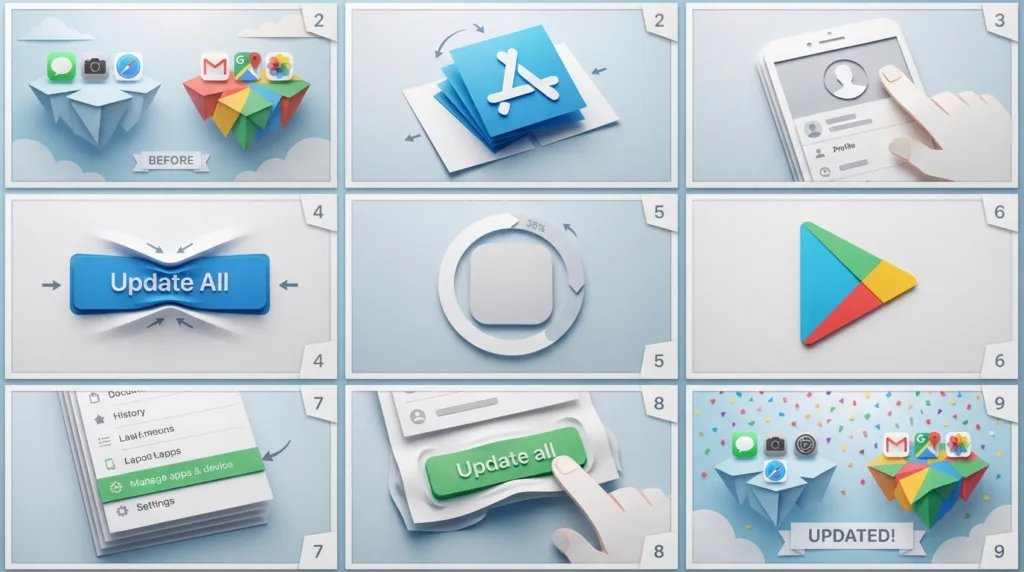
On iPhone, open the App Store, tap your account button or profile picture, then open the available app updates. You can update an individual app or choose to update all available apps.
On Android, open Google Play Store, tap the profile icon, choose Manage apps & device, and review the available updates. Google Play lets you update one app or update several together.
Another simple route on Android is to open the app’s page in Google Play. When a newer version is available for your device, the normal Open button can be accompanied or replaced by Update.
Manual updating is particularly useful in a few situations:
- an app is behaving incorrectly and its developer recently released a fix;
- a service says your current version is no longer supported;
- you are waiting for a newly released feature;
- an app needs to be current before a trip, appointment, payment, or other important task;
- automatic updating appears not to be working.
You do not need to update every app simultaneously simply because one requires attention.
That distinction can matter when storage, bandwidth, or time is limited. Updating the app you actually need first may be more practical than starting dozens of downloads before leaving home.
An update can change more than the app’s appearance
People often think of updates as feature deliveries.
They can be, but that is only part of their purpose.
Updates can correct bugs that cause crashes, repair compatibility problems after operating-system changes, improve performance, address security vulnerabilities, change the way an app communicates with its online service, or modify the interface.
This is one reason extremely outdated apps can eventually stop functioning correctly even when they still open.
The service behind an app changes too. A company may update its servers, login systems, security requirements, file formats, or other infrastructure. At some point, maintaining compatibility with a much older app version may no longer be practical.
Security is particularly important here. Google states that app updates can improve security and stability, and it reserves the ability in certain circumstances to install an update that addresses a critical security vulnerability regardless of normal update preferences.
The broader principle matches what we covered in Why Software Updates Matter for Your Digital Security: outdated software can continue working while still missing protections and fixes added later.
That does not mean every new version will be perfect.
An update can introduce a new bug. A redesigned interface may initially feel worse because familiar controls moved. Occasionally a feature is removed or changed in a way some users dislike.
Those possibilities are real without being a good reason to leave apps permanently outdated. For ordinary users, keeping actively used applications reasonably current is generally the more sustainable approach.
When an app refuses to update, look at the conditions around the update
Repeatedly tapping Update is not very informative when nothing happens.
A failed update usually has another cause.
Storage is a common one. Installing a new version requires enough working room for the phone to download and process the update. A device that is almost completely full can struggle even when the final app will not be dramatically larger than the version already installed.
If storage is tight, How to Free Up Storage Space on Your Smartphone explains how to identify large photos, videos, downloads, apps, and offline content before deleting things at random.
The network matters as well. A weak or unstable Wi-Fi connection can interrupt downloads. Automatic settings may also be configured to wait for Wi-Fi instead of using cellular data.
Account problems can interfere too. Google notes that automatic app updates may fail when an account on the device has a sign-in error. App stores also depend on the account being able to access the relevant store and, in some cases, resolve billing or account issues.
Compatibility creates another category of failure.
A developer can release a version that requires a newer version of iOS or Android than your phone currently runs. An older device may eventually reach a point where newer operating-system releases — and therefore some newer app versions — are no longer supported.
In that case, the problem is not necessarily the app store itself. The requested software may simply require a newer environment than the device can provide.
Restarting the phone can be reasonable when an update appears stuck, especially after checking the obvious conditions. It refreshes the system without deleting app data or resetting network configuration.
More disruptive steps should come later, after you understand the symptom.
Deleting an app and reinstalling it can sometimes solve a damaged installation, but verify first whether the app contains important information stored only on the device. Some apps keep everything in an online account; others may hold local files, drafts, downloads, authentication information, or game progress differently.
Reinstallation is a troubleshooting tool, not a universal first step.
New permissions after an update deserve a moment of attention
An app update may introduce a feature that needs access the previous version never requested.
A photo-editing app could add a camera feature. A navigation application might add functionality involving location. A communications app may introduce something that uses the microphone.
On Android, Google notes that some app updates can require new permissions and that the user may be asked to approve them.
The appearance of a new permission request after an update does not automatically mean something suspicious happened.
It does mean the request deserves the same question you should ask whenever an app wants new access:
Does this permission make sense for the feature I am trying to use?
An app does not necessarily need every permission merely because it was recently updated.
You can review permissions later through the operating system as well. How to Check and Change App Privacy Permissions explains how camera, microphone, location, photos, contacts, and other permissions can be inspected after the original prompt disappears.
Updates can also reset your expectations simply because a feature changed. Perhaps an app now offers more notification categories, adds background behavior, introduces a widget, or changes what appears on the Home Screen.
Notice those changes rather than assuming the update is only a new version number.
Automatic updates still deserve an occasional glance
Automation reduces maintenance; it does not make maintenance invisible forever.
An app may stop updating because the phone lacks storage.
A download may remain pending because of a connection problem.
An old application can disappear from the store.
A developer may stop supporting your operating-system version.
You do not need to inspect updates every day, but looking occasionally at the App Store or Google Play update area can reveal applications that have been waiting unusually long.
This becomes more worthwhile before situations where specific apps matter.
Before travel, make sure airline, hotel, navigation, translation, and transportation apps open correctly.
Before relying on a banking or payment app away from home, check that it does not suddenly demand an update when you are in a hurry.
Before an important video call or event, opening the relevant application once can reveal a pending update while you still have time to install it.
These small checks are different from obsessively installing every update the minute it appears.
They are simply a way of finding maintenance at a convenient moment instead of having maintenance find you at an inconvenient one.
Automatic updates should carry most of the routine work. Manual updates give you control when timing matters. Together, they make app maintenance largely uneventful — which is exactly how it should feel.

Alex Carter is a technology writer with five years of experience in the tech field. He now focuses on creating clear, practical articles that help beginners in the United States better understand computers, smartphones, online services, and everyday digital technology.