
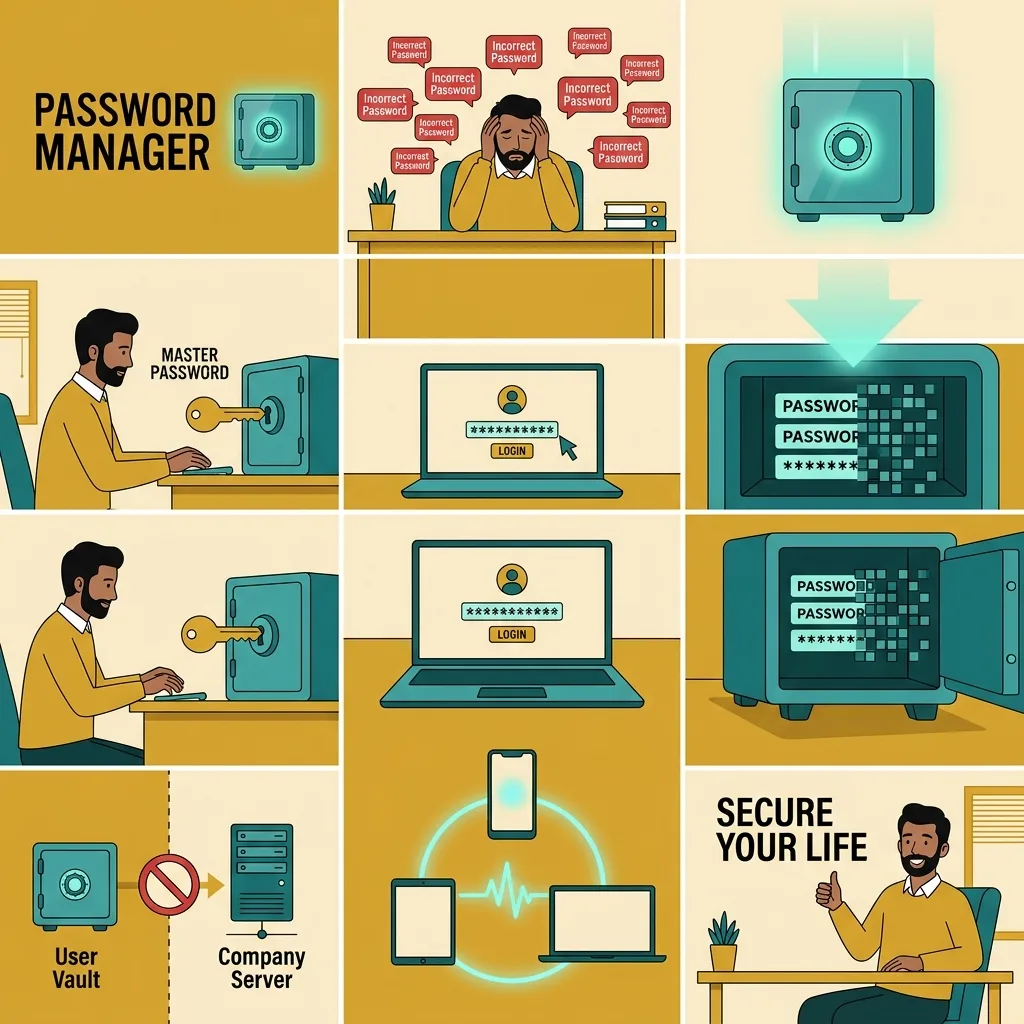
A password manager solves a problem that gets worse as your digital life grows. Ten accounts are manageable in your head; fifty or a hundred accounts are not, especially when each one should have a different password.
Without a system, people tend to compensate in predictable ways. They reuse a favorite password, make small variations of it, store credentials in scattered notes, or choose passwords simple enough to remember. The difficulty is not a lack of effort. Human memory is being asked to do a job that does not scale well.
A password manager changes the job. Instead of memorizing every account password, you keep them in a protected vault and let the software retrieve the right credential when you need it. The individual passwords can then be long and unique because you no longer need to recall each one from memory.
That makes the password manager less like a notebook of secrets and more like an account system of its own. Understanding what it stores, how it unlocks, what happens when it autofills a login, and how recovery works is more important than simply installing one.
The vault is the center of the system
A password manager stores login information in a protected database often called a vault.
A typical entry may include:
- the website or app name;
- your username or email address;
- the password;
- the web address associated with the login;
- notes or other information you choose to save.
Many current password managers can also store passkeys, verification information, Wi-Fi passwords, or other credentials. Google’s Password Manager documentation, for example, describes support for passwords and passkeys along with password generation and autofill. Apple’s Passwords app can manage passwords, passkeys, Wi-Fi passwords, and verification codes across supported Apple devices.
The important part is that the manager keeps credentials in one protected system rather than leaving you to remember or manually copy them from several places. Reputable managers protect stored credentials with encryption, although the exact architecture differs among products, especially when a vault synchronizes through a cloud account.
A password manager does not make passwords unimportant. It changes how you create, store, and use them.
One login shows what the manager is actually doing
Consider what happens when you create an account for a new online service.
The site asks you to choose a password.
Instead of inventing something memorable, the password manager can generate a random password that you would never realistically memorize. You accept it, and the manager saves that credential together with the website and username.
A week later, you visit the site again.
The manager recognizes the login page and offers the saved username and password. After you unlock the manager when required, it fills the credential for you.
Nothing about that process requires the new service to know your password manager’s main unlock secret. The site receives the password created for that particular account.
Now imagine that the site later suffers a breach and the password becomes exposed.
If that password was unique, the damage is more contained. An attacker cannot take the same credential and automatically try it against your email, shopping account, social network, and other services.
This is the main reason password managers fit so well with unique passwords. NIST’s current digital identity guidance says verifiers should allow password managers and autofill, and notes that managers can make it more likely that people use stronger, distinct passwords. NIST’s authentication guidance also highlights the importance of distinct passwords in reducing credential-stuffing risk.
Our earlier guide How to Create a Strong Password You Can Actually Remember focuses on password quality itself. The password manager solves a different problem: how to maintain many unique credentials without making memorization your security strategy.
The one password you still need to treat differently
A standalone password manager commonly has a primary credential that unlocks the vault or the account behind it. Depending on the product, you may hear terms such as master password, account password, or vault password.
This is not the password to reuse everywhere else.
If the same password protects your password manager and several ordinary websites, a breach of one of those sites can create a direct risk to the vault that contains everything else.
Choose a strong, unique primary password and protect the account with multi-factor authentication when the manager supports it.
NIST’s guidance on password managers specifically warns that compromise of the secret protecting a password vault can have broad consequences because many credentials are stored in one place. That concentration of valuable information is a reason to secure the manager carefully, not a reason to resume password reuse.
Biometrics can make daily use easier.
On a phone or computer, the manager may allow Face ID, a fingerprint, Windows Hello, or another device authentication method to unlock saved credentials after the system has been configured. The underlying account password still matters. You may need it on a new device, during recovery, or when changing security settings.
This is also where What Is Two-Factor Authentication and Why Should You Use It? becomes especially relevant. The account holding dozens of credentials is a strong candidate for an additional authentication layer.
Autofill changes more than the amount of typing you do
Autofill is one of the features that makes a password manager practical.
Without it, you would repeatedly open the vault, locate the right account, copy the password, switch back to the browser or app, and paste it. Autofill reduces that friction enough that unique random passwords become realistic in everyday life.
It can also provide a useful clue about where you are signing in.
Password managers generally associate saved credentials with particular websites or apps. If you visit a page that merely resembles your bank but uses a different web address, the expected credential may not appear automatically.
That should make you stop and inspect the page.
It is not an infallible phishing detector. You should still check unfamiliar links, domain names, unexpected login prompts, and messages pressuring you to act quickly. How to Recognize a Phishing Email Before You Click covers those warning signs in more detail.
The useful habit is to avoid treating autofill as a magical approval signal.
If the manager does not offer a credential where you expect one, investigate rather than immediately opening the vault and forcing the password into the page.
Conversely, when a legitimate site changes domains, restructures its login system, or uses a separate authentication domain, autofill may need to be adjusted even though nothing malicious has happened.
The feature reduces typing. Judgment still belongs to you.
Built-in and standalone managers solve the same basic problem in different ecosystems
You may already have a password manager without having installed a separate application.
Modern browsers and operating systems commonly include credential-management tools. Google Password Manager can save and use credentials through a Google Account and supported devices. Apple’s Passwords app and iCloud Keychain provide similar functions inside the Apple ecosystem.
Dedicated password-manager applications offer another approach.
They may be attractive when you regularly move among Windows, macOS, Android, iPhone, several browsers, or family and work environments. Features differ by provider, but cross-platform support, sharing, administrative controls, emergency access, import/export options, and account-recovery design can all influence the choice.
There is no useful rule saying that a standalone manager is automatically better than a built-in one, or that the built-in option is always sufficient.
A better evaluation asks whether the system fits the devices and accounts you actually use.
Can you access your credentials on every device where you need them?
Does it work in the browsers and apps you rely on?
Can you move your credentials later if you change platforms?
How does recovery work if you lose a device or forget the primary password?
Does it support multi-factor authentication for the manager account?
How does it handle sharing if several people legitimately need access to the same household or team account?
Those questions are more useful than choosing solely because one product has the longest feature list.
Recovery deserves attention before you need recovery
Password managers reduce one kind of memory problem and create another dependency: you need reliable access to the manager itself.
That makes recovery planning part of the setup.
Some managers tie recovery closely to a Google, Apple, Microsoft, or other platform account. Others use a dedicated account and may offer recovery codes, trusted devices, emergency contacts, organization administrators, or other methods.
Some security designs deliberately limit what the provider can recover for you. A support agent may not be able to reveal or recreate the secret that decrypts your vault.
This is not a detail to discover after losing your phone.
Read the recovery process while you can still sign in. Store required recovery codes somewhere appropriate. Keep the email address and phone number associated with the account current. If a trusted device plays a role in recovery, know which device that is.
Our guide How to Recover Access to an Online Account explains the broader logic of recovery methods and why outdated information can become a problem at exactly the wrong moment.
Recovery planning should not undermine the vault.
For example, writing the primary password on a sticky note attached to the laptop defeats much of the point of having a protected password system. A recovery method should give you a realistic path back without making the secret easily accessible to anyone nearby.
Moving to a manager is easier when you do not try to fix every account in one night
The idea of migrating dozens of accounts can make password management feel like a weekend project.
It does not need to be.
Start with the accounts you use most and the accounts that would cause the most damage if someone took them over: primary email, Apple or Google account, financial services, important work services, and major social accounts.
As you sign in normally, save the credentials to the manager.
When you discover that two accounts still share the same password, replace one with a unique generated password and save the change.
When an old password is flagged as compromised, deal with that account instead of trying to redesign your entire digital identity at once.
Most managers also provide ways to import credentials from browsers or other managers. Importing can save time, but an imported vault is only a starting point. Years of stored credentials may include duplicates, obsolete accounts, and passwords that should be replaced.
A gradual migration has another advantage: it teaches you the manager during ordinary use.
You learn what autofill looks like.
You see how password generation works.
You discover how the manager behaves on your phone versus your computer.
You encounter recovery and synchronization settings while there is no emergency.
That familiarity is valuable because the system becomes boring. You stop thinking about whether you can remember the password for a particular site and start expecting each account to have its own credential stored where it belongs.
The useful change happens one login at a time
A vault full of reused passwords is more organized than a pile of notes, but the real security improvement comes from changing the pattern behind those passwords.
Each account can have its own credential. The manager account can have a strong, unique primary password and multi-factor authentication. Recovery information can be kept current. Autofill can remove much of the daily friction, while the vault remains available on the devices where you actually sign in.
You do not need to reorganize every credential before the system becomes useful.
The next time an important account asks you to create or change a password, let the manager generate one, save it, and confirm that you can retrieve it from another device you trust.
Repeat that when another account naturally needs attention.
After enough ordinary logins, remembering dozens of passwords no longer feels like a task you are supposed to be good at. The system has quietly replaced the task.

Alex Carter is a technology writer with five years of experience in the tech field. He now focuses on creating clear, practical articles that help beginners in the United States better understand computers, smartphones, online services, and everyday digital technology.