
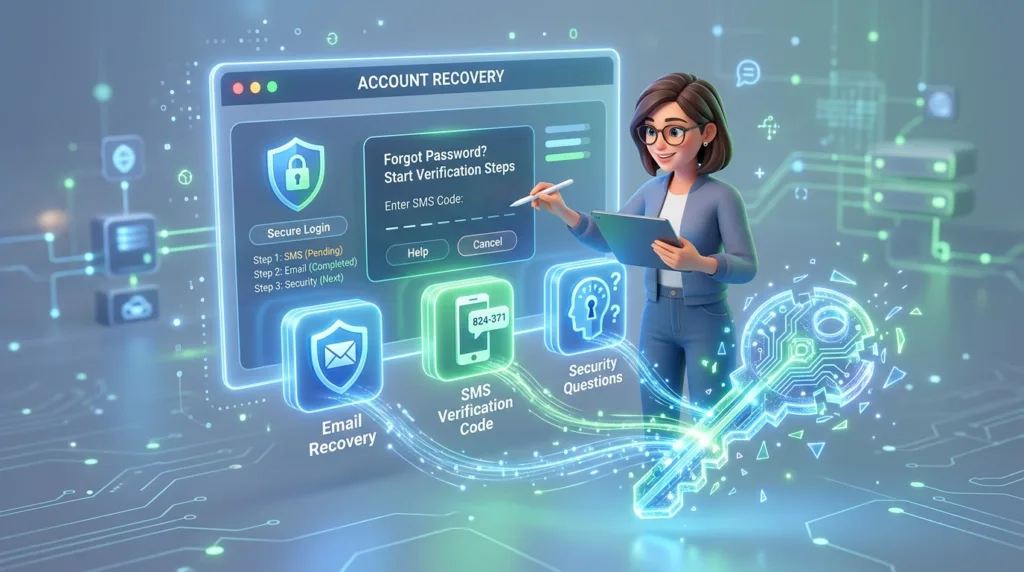
Being locked out of an account does not always mean you forgot the password. Sometimes the password is correct but belongs to a different account. A verification code is being sent to an old phone number. You originally used “Sign in with Google” and are now trying to enter an email and password. The account may even have been changed by someone else.
Those situations can look almost identical from the login screen, which is why repeatedly trying passwords is rarely the best first move. Account recovery becomes much easier when you identify what part of the sign-in process is actually failing.
Before changing anything, slow down long enough to establish three facts: which account you are trying to reach, how you normally sign in to it, and which recovery methods you can still access.
First, diagnose the kind of lockout you have
A message saying Incorrect password points in one direction. A request for a code sent to a phone you no longer own points somewhere else.
The most common situations fall into a few recognizable groups:
- you know the username or email address but forgot the password;
- you remember the password but cannot complete two-factor authentication;
- you are not sure which email address or username belongs to the account;
- you normally sign in through Google, Apple, Microsoft, or another provider;
- the password or recovery information appears to have changed without your permission;
- the service says the account is locked, disabled, or does not exist.
These are different problems. Treating all of them as “forgot password” can send you in circles.
A particularly common mistake is recovering the wrong account. Someone with several Gmail addresses might reset the password for one Google Account while the photos, files, or subscription they want actually belong to another. The same problem occurs with Microsoft accounts, Apple Accounts, gaming services, and social platforms.
If multiple identities have become difficult to track, How to Manage Multiple Online Accounts Without Getting Confused explains how browser profiles, account roles, and sign-in methods can reduce this problem before the next recovery attempt is necessary.
Use the service’s own recovery route rather than looking for someone who claims they can recover it
Once you know which account you need, begin from the provider’s official website or app.
For a Google Account, Google’s official account recovery process handles situations such as a forgotten password, forgotten username, difficulty receiving verification codes, and suspected unauthorized access.
Microsoft provides both a Sign-in Helper and an account recovery form for eligible situations where the normal reset process is not enough.
Apple recommends using a trusted Apple device when available and also provides official password recovery instructions for people who cannot remember their Apple Account password.
Going directly through the provider matters because account recovery is an attractive opportunity for scammers.
Someone who claims they can “unlock” a Gmail, Microsoft, Instagram, or Apple account in exchange for payment may simply be trying to obtain the very information needed to take the account over: passwords, verification codes, recovery codes, or identifying details.
Google explicitly warns users not to give passwords or verification codes to services claiming to provide account or password recovery. Recovery information should be entered only through the legitimate provider’s process.
This is also where the habits from How to Recognize a Phishing Email Before You Click become relevant. A recovery message arriving at exactly the moment you are stressed and trying to regain access deserves the same scrutiny as any other unexpected security message.
Familiar devices can matter during identity verification
Account providers need to solve an awkward problem during recovery: helping the legitimate owner while making it difficult for somebody else to impersonate that owner.
Your previous activity can provide context.
Google recommends attempting recovery from a device, browser, and location you have used regularly when possible. Microsoft similarly advises completing its recovery form from a familiar device and a location such as home or work when available.
That does not mean you can recover an account only from your old laptop. It means familiar circumstances may give the provider additional signals that fit your normal account activity.
This becomes useful after an unexpected lockout. Rather than immediately switching among several phones, browsers, VPN connections, and unfamiliar networks, starting from the computer and connection you normally use may create a more recognizable recovery attempt.
Answer questions carefully as well. If the service asks for a previous password, provide the most recent one you genuinely remember rather than inventing a completely new guess. If it asks for an email address where you can currently be reached, make sure you can actually open that inbox.
Recovery systems are trying to establish continuity between the person making the request and the account’s previous history.
Losing access to the second factor is a different problem from forgetting the password
You may know the password perfectly and still be unable to sign in.
Perhaps verification codes are going to a phone number you no longer use. Your authenticator app was on a phone that was lost. A security key is unavailable, or the trusted device that normally approves sign-ins has been replaced.
This is why two-factor authentication should always be considered together with recovery.
What Is Two-Factor Authentication and Why Should You Use It? explains why the additional factor improves account security. The other half of the equation is making sure you understand the backup methods offered by the service.
Those might include another trusted device, backup codes, an alternate verification method, a recovery contact, or other options provided by the account.
Check devices that may already be signed in
A lost password does not necessarily mean you have lost every session.
Your phone may still have the email account open. A tablet could remain signed in to the service. A browser profile on another computer might still have an active session.
An existing trusted session can sometimes provide a path to account settings, password changes, or recovery options. Apple, for example, recommends a trusted Apple device as the easiest place to reset an Apple Account password when one is available.
Do not casually sign out of every working device while attempting recovery. An existing authenticated session may be the easiest proof of access you still possess.
Look for backup methods before assuming the account is gone
If the screen offers Try another way, Use another method, or an equivalent option, review what is available.
A backup code stored safely elsewhere may solve the problem immediately. Another device might receive an approval request. An alternate email or phone number could still work.
The options differ considerably among services, which is why preparation matters more than memorizing a universal recovery sequence.
Recovery becomes harder when the recovery information is outdated
A phone number is useful only while you control it.
A recovery email helps only while you can still access that inbox.
This sounds obvious until an account created eight years ago suddenly sends a verification code to a number you stopped using five years ago.
Recovery information is one of those settings people usually configure once and then forget. Unlike a password, it rarely demands attention during normal use, so outdated information can remain unnoticed for years.
Your primary email accounts deserve particular attention because they frequently recover other services. If you lose access to the email account used to reset your shopping, cloud, social, and subscription accounts, one problem can spread across much of your digital life.
How to Create an Email Account and Set It Up Properly covers recovery information as part of initial email setup, but the same principle applies afterward: update it when your phone number or secondary email changes.
Google currently supports several recovery options depending on the account and region, including recovery phone numbers and email addresses. Some accounts may have additional recovery features. The available methods can change over time, so the account’s own Security settings are a better guide than an old checklist you saved years ago.
If someone else may have changed the account, recovery and security become the same job
A forgotten password usually produces a familiar story: you try several possibilities and eventually accept that none of them is correct.
A compromised account can look different.
Perhaps the password you know suddenly stops working. Recovery emails are no longer arriving where expected. You receive security notifications about changes you did not make, unfamiliar sign-ins appear, or friends tell you that your account sent messages you never wrote.
In that situation, use the provider’s compromised-account or account-recovery process rather than assuming the password merely slipped your mind.
If you regain access, changing the password is only part of the cleanup.
Review recovery information and remove phone numbers or email addresses you do not recognize. Inspect active sessions or signed-in devices where the provider offers that information. Check whether new forwarding rules, app connections, or other account changes were introduced.
A new password should also be unique rather than a variation of the old one. How to Create a Strong Password You Can Actually Remember explains why password reuse creates problems beyond the account where the original compromise occurred.
Two-factor authentication is worth reviewing afterward as well. If it was already enabled, make sure the registered methods still belong to you. If it was not enabled, the recovery process may be a good moment to add it after control of the account has been restored.
Failed recovery attempts can still tell you something useful
Not every recovery request succeeds immediately.
That can be frustrating, but changing every detail on each attempt usually does not make the process more coherent.
Read what the service is asking for and gather information before trying again.
A Microsoft recovery form, for example, can ask questions connected with the account’s previous use. Microsoft recommends supplying as much accurate information as possible and, when practical, completing the form from a familiar device and location.
Google similarly encourages users to answer as many recovery questions as possible rather than skipping them merely because they are uncertain.
Look through information you still possess.
An old password manager may contain a previous credential. Another inbox might contain welcome emails showing the exact username. Receipts can reveal which email address was used for a purchase. A browser profile may show which account normally opens a particular service.
The solution is occasionally sitting outside the recovery page.
This is particularly true when the missing detail is the username rather than the password. You cannot successfully reset the password for an account you have not correctly identified.
Once you get back in, repair the recovery path before moving on
The moment access returns, there is a temptation to close the settings page and continue with whatever you were trying to do before the lockout.
Spend a few more minutes there.
Check the recovery email.
Check the phone number.
Review the two-factor authentication methods.
Make sure you recognize devices or sessions associated with the account.
Store any new backup codes using whatever secure method you normally use for important credentials.
Confirm that your new password has been saved correctly if you use a password manager.
This turns the recovery from a one-time rescue into a correction of whatever made the lockout difficult in the first place.
It can also reveal dependencies worth fixing. Perhaps five important services still recover through an old email account. Maybe the only backup code exists as a screenshot on the same phone that provides your authenticator codes. You might discover that your password manager contains duplicate entries under different usernames.
Fixing those small weaknesses while the experience is fresh makes the next lockout much less likely to become another investigation.
Account recovery will always involve some uncertainty because providers deliberately avoid making it easy for a stranger to claim someone else’s account. A good setup cannot remove that security tension.
What it can do is leave your future self with several credible ways to prove that the account is yours.

Alex Carter is a technology writer with five years of experience in the tech field. He now focuses on creating clear, practical articles that help beginners in the United States better understand computers, smartphones, online services, and everyday digital technology.