
Connecting to a normal Wi-Fi network is usually the easiest part
On both iPhone and Android, Wi-Fi works by showing you nearby networks and letting you choose the one you want to join.
On an iPhone, open Settings > Wi-Fi, make sure Wi-Fi is turned on, and tap the network name. Apple’s current Wi-Fi instructions explain that secured networks may ask for a password, while some public networks can require you to accept terms or complete another step before internet access begins.
On Android, the wording varies slightly by manufacturer, but the general route is Settings > Network & internet > Internet or a similar Wi-Fi menu. Google’s Android Wi-Fi guidance explains that secured networks appear with a lock and can be joined by entering the network password.
Once the connection succeeds, the phone normally remembers the network.
That means your home Wi-Fi does not need to be selected manually every morning. When Wi-Fi is enabled and the phone recognizes a saved network nearby, it can reconnect automatically.
This convenience also explains why an old network can occasionally create confusion. A phone may keep trying to reconnect to a saved network that is weak, has changed passwords, or no longer provides internet access.
If a familiar network suddenly stops working, the fact that its name still appears under Wi-Fi does not guarantee that the connection itself is healthy.
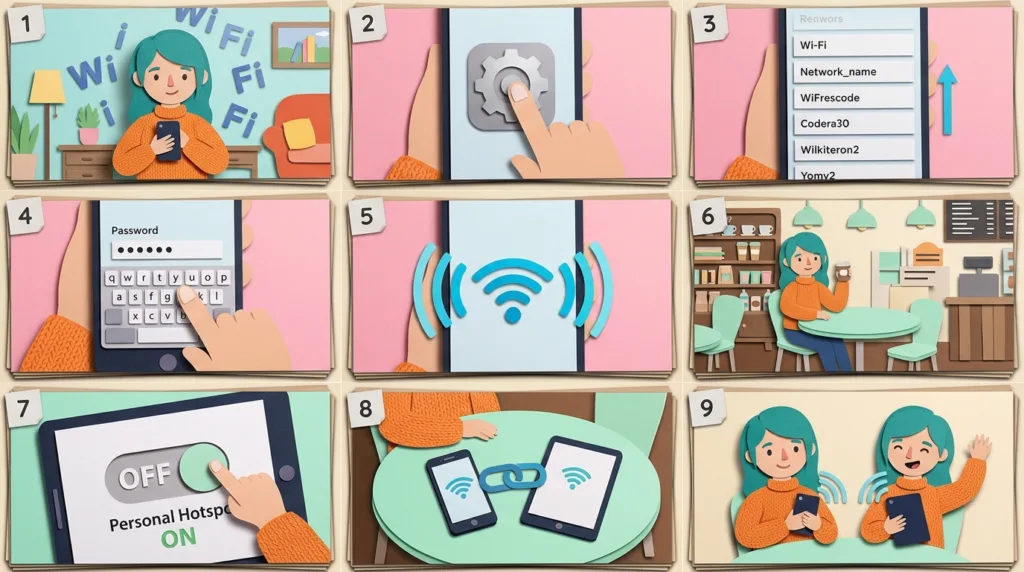
The Wi-Fi icon only tells part of the story
There are two separate connections involved when you use Wi-Fi:
Phone → Wi-Fi router
and
Wi-Fi router → internet
Your phone can successfully connect to the router while the router itself has no working internet connection.
That is why a phone can show the Wi-Fi symbol and still refuse to load webpages.
Suppose your home internet service goes down during the night. The router may continue broadcasting the same network name, so your phone connects exactly as it normally does. From the phone’s perspective, the local Wi-Fi connection exists. The problem is farther upstream.
A quick comparison can help identify that situation.
If several devices connected to the same Wi-Fi lose internet access at the same time, the phone itself is less likely to be the problem.
If every other device works while your phone does not, look more closely at the phone’s connection.
Moving closer to the router can also clarify whether signal strength is involved. A weak Wi-Fi signal may technically remain connected while becoming slow or unreliable.
This distinction between connected to Wi-Fi and connected to the internet through Wi-Fi is one of the most useful things to understand when troubleshooting.
Public Wi-Fi may require one more screen after you connect
Hotels, airports, coffee shops, libraries, hospitals, universities, and other public locations often use Wi-Fi differently from a home router.
You choose the network, the phone says it connected, and then a webpage appears asking you to accept terms, enter a room number, provide an email address, purchase access, or complete another step.
This type of page is commonly called a captive portal.
Until that step is completed, the phone may be connected to the Wi-Fi network without having normal internet access.
If the login page does not appear automatically, opening a browser can sometimes trigger it. You can also disconnect and reconnect to the network and wait a few moments.
Be careful about the network name.
A coffee shop called “Green Street Cafe” might operate a network named GreenStreetGuest, but someone nearby could create another hotspot with a similar name. When the network matters, asking the business or venue for the official Wi-Fi name is safer than selecting the first familiar-looking option.
Our guide Public Wi-Fi Safety: What Beginners Should Know explains the broader security considerations, including HTTPS, sensitive activity, and when mobile data may be preferable.
Public Wi-Fi can be perfectly useful. It simply deserves a little more context than your private home network.
Your phone can also become the Wi-Fi network
A mobile hotspot reverses the normal relationship.
Instead of connecting your phone to someone else’s Wi-Fi, the phone uses its cellular data connection and creates a network that another device can join.
This is useful when a laptop or tablet has no internet connection but your phone still has mobile service.
Imagine sitting in a location where the building’s Wi-Fi is unavailable. Your phone shows a strong 5G or LTE connection. Turning on the hotspot allows the laptop to use that cellular connection through the phone.
On iPhone
Apple calls the feature Personal Hotspot.
Apple’s Personal Hotspot instructions explain that an iPhone or cellular-capable iPad can share its mobile data connection. Depending on the settings and carrier plan, you can enable Allow Others to Join, check or change the Wi-Fi password, and then select the iPhone’s hotspot from the Wi-Fi menu on another device.
Apple devices associated with the same Apple Account or Family Sharing group can also support faster connections through Instant Hotspot in compatible situations.
On Android
Android commonly calls the feature hotspot or tethering.
Google’s Android tethering guidance explains that most Android phones can share mobile data through a Wi-Fi hotspot, and many can also use USB or Bluetooth tethering.
For Wi-Fi sharing, you generally turn on Wi-Fi hotspot, check the network name and password, and then join that network from the second device as you would any other Wi-Fi network.
The exact menu depends on the phone manufacturer.
A Google Pixel, Samsung Galaxy, and Motorola phone may place hotspot controls in slightly different locations even though the underlying idea is the same.
A hotspot uses your mobile plan, not free Wi-Fi
This distinction matters when using a laptop through your phone.
The laptop may display a Wi-Fi symbol because it is connected wirelessly to the hotspot, but the actual internet traffic is passing through the phone’s cellular connection.
That means hotspot use can count against your mobile data allowance.
Some carriers include generous or unlimited hotspot data. Others apply separate limits, reduce speeds after a threshold, or restrict tethering depending on the plan.
Google explicitly notes that some carriers limit tethering or may charge extra for it, so checking your plan is worthwhile before using a phone as the primary internet connection for several hours.
The amount of data also depends heavily on what the connected device is doing.
Reading email and editing cloud documents may use relatively little.
Streaming high-resolution video, downloading a large game, installing operating-system updates, backing up a photo library, or synchronizing large cloud folders can consume far more.
Computers can also perform background tasks that are less obvious than phone activity. A laptop connected to the hotspot may begin downloading updates or synchronizing files automatically.
When mobile data is limited, treat the hotspot connection as a metered resource rather than ordinary home broadband.
Troubleshoot the symptom rather than changing every setting
Wi-Fi problems are easier to solve when you identify what is actually failing.
| What you see | A useful first check |
|---|---|
| Network does not appear | Move closer to the router and confirm Wi-Fi is enabled |
| Correct network appears but password fails | Check the password carefully and confirm it has not changed |
| Phone shows Wi-Fi but websites do not load | See whether other devices on the same network have internet |
| Public Wi-Fi connects but nothing opens | Look for a sign-in or captive portal page |
| Hotspot does not appear on another device | Confirm the hotspot is enabled and both devices are nearby |
| Hotspot connects but has no internet | Check whether the phone itself has a working cellular data connection |
| Connection works but is very slow | Compare signal strength and test another network or mobile connection |
Start with the smallest change.
Turning Wi-Fi off and back on can refresh the connection.
Disconnecting from a problematic network and reconnecting may help when the phone is holding an old session.
For a home network that fails on every device, restarting the modem or router may be more relevant than repeatedly changing settings on the phone.
For one stubborn saved network, both iPhone and Android provide options to forget the network. Doing so removes the saved connection details, so the next connection begins more like a first-time setup and usually requires the password again.
Use that step intentionally. Forgetting a network when you do not know its password can leave you unable to reconnect.
Airplane Mode can also interrupt wireless connections, depending on how it is configured. The upcoming Vandutz guide How to Use Airplane Mode and When You Actually Need It will explain why Wi-Fi and Bluetooth can sometimes be turned back on even while Airplane Mode remains active.
Hotspots are convenient, but they ask more from the phone
Running a hotspot means the phone is handling at least two jobs at once: maintaining a cellular internet connection and sharing that connection with another device.
That can increase battery use.
The effect becomes more noticeable during long sessions, weak cellular signal, heavy downloads, or when several devices are connected.
Google recommends connecting devices to power during longer tethering sessions when practical and turning tethering off when it is no longer needed. Some Android phones can also disable the hotspot automatically when no devices remain connected.
Similar habits make sense on iPhone.
For a short laptop session, battery impact may not matter much. For several hours of work away from an outlet, it becomes more relevant.
The upcoming guide How to Make Your Smartphone Battery Last Longer will cover battery use more broadly, including display, signal strength, background activity, and charging habits.
A hotspot should also have a password when you are sharing it over Wi-Fi. Leaving a personal hotspot openly accessible can allow nearby devices to attempt to join and potentially consume your mobile connection.
The password does not need to become another elaborate account credential you use everywhere else, but it should not be something strangers can guess immediately.
When you finish, turn the hotspot off if you no longer need it.
The simplest setup is also the easiest to reason about: Wi-Fi when a trusted network is available, mobile data when it is not, and hotspot sharing when another device temporarily needs access through your phone.

Alex Carter is a technology writer with five years of experience in the tech field. He now focuses on creating clear, practical articles that help beginners in the United States better understand computers, smartphones, online services, and everyday digital technology.