
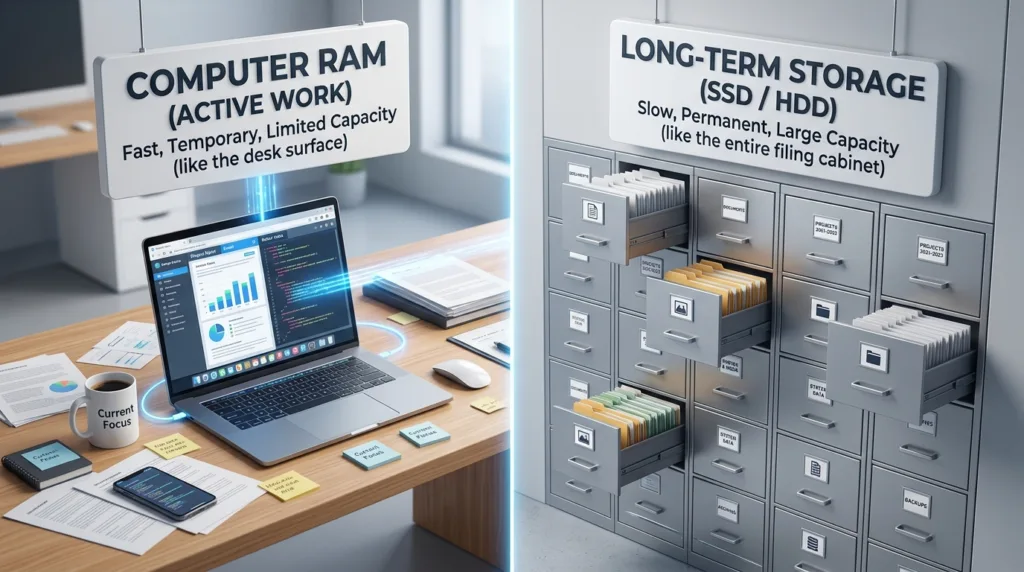
When you look at the specifications for a new laptop, two numbers often appear close together: something like 8 GB of RAM and 256 GB of storage.
Because both are measured in gigabytes, it is easy to assume they are simply two versions of the same thing. They are not.
RAM and storage play very different roles inside a computer. One helps the device handle what you are doing right now; the other keeps your files, applications, and other information available for later.
That distinction matters even if you have no interest in computer hardware. It can help explain why a laptop slows down when too many programs are open, why deleting photos may free space without making everything dramatically faster, and why two computers with the same amount of storage can perform very differently.
A useful way to understand the difference is to forget the specifications for a moment and think about an ordinary desk.
RAM is the workspace you are using right now
Imagine sitting down to work at a desk.
You might have a notebook open, a few printed documents beside it, your phone nearby, and perhaps a calculator or reference book within reach. The larger the desk, the more things you can comfortably work with at the same time.
RAM — short for Random Access Memory — serves a similar purpose inside a computer.
When you open a web browser, a document, a video meeting, or another application, the computer places information it needs to access quickly into RAM. That allows the processor to work with the information without constantly retrieving everything from slower long-term storage.
Microsoft describes RAM as a computer’s short-term memory. Apps and files are loaded into it while they are being used, and the contents of RAM disappear when the computer is shut down or restarted.
That last part is important.
RAM is temporary.
If you are writing a document and have not saved it, the information you are actively working with may exist in memory, but RAM is not where you want important files to live permanently.
This is one reason applications regularly ask you to save your work.
Storage is where your files stay
Now imagine that the desk from our example sits beside a filing cabinet.
You do not keep every document you own spread across the desk. Most of them remain in the cabinet until you need them.
Computer storage works more like that filing cabinet.
Your photos, videos, documents, downloaded files, applications, and the operating system itself are stored on a drive. On most modern laptops, that drive is an SSD, or solid-state drive. Older computers may use a traditional hard disk drive, usually called an HDD.
Unlike RAM, storage keeps its contents when the computer is turned off.
If you save a résumé today, shut down your laptop, and open it again next week, the résumé should still be there because it was written to storage.
Microsoft’s guide to SSD, HDD, and computer storage notes that SSDs are now common in modern PCs and are generally smaller, quieter, and faster than traditional hard drives.
This storage is also what you are managing when you create folders, move documents, or delete old downloads. If that side of computer use still feels disorganized, How to Organize Files and Folders on Your Computer provides a practical way to clean it up.
Why are RAM and storage both measured in gigabytes?
This is where much of the confusion starts.
RAM and storage both hold digital information, so their capacities can be expressed using the same units: gigabytes, or GB.
But the fact that they share a unit does not mean they are interchangeable.
A laptop might have:
8 GB of RAM
and
512 GB of storage
The 8 GB figure tells you roughly how much working memory the computer has available for active tasks.
The 512 GB figure tells you how much long-term space is available for Windows or macOS, applications, documents, photos, videos, and other files.
You would never expect the two numbers to be similar because storage normally needs to hold far more information than RAM.
Think again about the desk and filing cabinet. You may only need a few documents on the desk at one time, while the cabinet has to hold years of paperwork.
What happens when you do not have enough RAM?
A computer with limited RAM may work perfectly well when you are doing one or two light tasks.
The difference becomes more noticeable as the workload grows.
Suppose you have a browser open with many tabs, a video call running, a spreadsheet in the background, music playing, and several other applications waiting for you to return to them.
All of those tasks compete for memory.
If the system begins running short on RAM, it may have to move some information back and forth between memory and storage. That process is slower than simply keeping everything readily available in RAM, so you may notice delays when switching between programs, tabs reloading, or applications becoming less responsive.
Microsoft explains that having more RAM generally allows a device to do more things simultaneously without slowing down. Its current guidance for Windows PCs distinguishes RAM from storage for exactly this reason: memory affects active performance, while storage determines how much data you can keep on the device.
This does not mean adding enormous amounts of RAM automatically makes every computer fast.
RAM is only one part of performance. The processor, storage drive, software, background tasks, and even the kind of work you are doing also matter.
Still, if a computer struggles mainly when several applications are open at once, limited RAM can be part of the explanation.
Running out of storage feels different
A storage problem usually gives you different clues.
Instead of slowing down primarily when many programs are open, you may see warnings that your drive is almost full. You might not have enough room to download a large file, install an application, save new videos, or complete an operating system update.
Photos and videos can consume storage surprisingly quickly, especially as smartphone cameras produce larger files.
Applications also occupy space, and some games can use dozens or even hundreds of gigabytes by themselves.
Deleting files can help solve a storage shortage because it creates additional long-term space. What it does not do is increase the amount of RAM your computer has.
That is why advice such as “delete some photos to get more RAM” is misleading. You may free storage capacity, but the physical amount of RAM remains the same.
There are situations in which freeing an extremely full drive can improve how smoothly a computer operates, because the operating system itself needs some available storage for temporary processes. But that is different from adding RAM.
Why does an SSD make a computer feel faster if it is only storage?
This is a good question because it shows that the line between storage and performance is not completely invisible in everyday use.
An SSD is still long-term storage, but it can read and write information much faster than an older mechanical hard drive.
That affects tasks such as starting the computer, opening applications, copying large files, and loading information from the drive.
So storage speed can influence how responsive a computer feels, even though storage capacity and RAM capacity remain different concepts.
For example, imagine two laptops that both have 8 GB of RAM. One uses an old mechanical hard drive, while the other has a modern SSD.
The SSD-equipped computer may start faster and open applications more quickly because it can retrieve stored information faster.
Once those applications are running, however, the amount of RAM still affects how comfortably the computer can handle several active tasks.
The components work together rather than independently.
If you are still getting familiar with what each part of a computer does, What Is an Operating System? A Beginner-Friendly Explanation helps connect these hardware concepts with the software that manages them.
What do 8 GB, 16 GB, and 32 GB of RAM actually mean?
There is no single amount of RAM that is ideal for every person.
Someone who mainly checks email, works on documents, watches videos, and browses the web has very different needs from someone editing large videos, working with professional design software, or running demanding development tools.
Microsoft’s current consumer guidance generally places 8 GB to 16 GB of RAM in the range commonly considered for everyday Windows computers, while heavier workloads may benefit from more. The company’s PC and laptop buying guide treats RAM and storage as separate purchasing decisions because they address different needs.
For a beginner, the exact number matters less than understanding the pattern.
More RAM gives the computer more room to keep active work readily available.
That can become useful if you regularly multitask or use applications that consume a lot of memory.
But buying 32 GB of RAM for very light web browsing does not automatically make sense simply because 32 is a bigger number than 16.
The computer should match what you actually plan to do with it.
Storage needs depend heavily on what you keep locally
Storage is even more personal.
A person who keeps most documents online, streams music and movies, and stores photos in cloud services may use relatively little local space.
Someone who records videos, keeps a large photo library, installs large games, or works with media files can fill the same drive surprisingly quickly.
A 256 GB drive and a 1 TB drive do the same basic job; the second simply provides much more room.
One terabyte, or TB, is roughly 1,000 gigabytes in the way storage is commonly marketed.
That sounds enormous until you start dealing with high-resolution video or large application libraries.
For ordinary documents, 1 TB can hold an extraordinary amount. For someone creating video professionally, it may not feel large at all.
This is also where cloud services enter the picture. Services such as OneDrive, iCloud Drive, and Google Drive can keep files online and reduce how much information you need to store locally, although they introduce their own considerations involving internet access, synchronization, and backups.
We cover that separately in What Is Cloud Storage and When Should You Use It?.
Can you upgrade RAM or storage later?
Sometimes.
Desktop computers are often easier to upgrade because many of their internal components are accessible and replaceable.
Laptops vary much more.
Some allow you to replace or add RAM and storage. Others have memory soldered directly onto the main board, making a later RAM upgrade impractical or impossible. Certain thin laptops also have storage that cannot be replaced easily.
For that reason, it is worth checking before buying rather than assuming you can add more later.
External storage is usually easier. USB drives and external SSDs can provide additional file space without modifying the computer itself.
Cloud storage can serve a similar purpose for certain files.
RAM is different: plugging in an external drive does not give the computer more working memory.
If you are comparing machines and are unsure what kind of computer fits your routine, Laptop vs. Desktop: Which Is Better for Everyday Use? will look at those trade-offs in a broader context.
A quick way to remember the difference
If the terminology becomes confusing again, ask yourself one question:
Am I talking about what the computer is working with right now, or what it needs to keep for later?
RAM is mainly about the first.
Storage is mainly about the second.
Opening several browser tabs, editing a document, joining a video call, and running applications at the same time put demands on RAM.
Saving thousands of photos, installing games, downloading videos, and keeping years of documents use storage.
A computer needs both, and neither replaces the other.
Once you understand that distinction, specification sheets start making much more sense. Instead of seeing “16 GB RAM, 512 GB SSD” as two mysterious numbers, you can read it as two separate pieces of information: how much working memory the computer has and how much permanent space it provides for your software and files.
That is a small piece of computer knowledge, but it is surprisingly useful — especially the next time you are comparing laptops or trying to understand why the one you already own is behaving the way it is.

Alex Carter is a technology writer with five years of experience in the tech field. He now focuses on creating clear, practical articles that help beginners in the United States better understand computers, smartphones, online services, and everyday digital technology.