
A row of computer ports can look like a collection of unrelated holes until you connect each one to a job. One may send a picture to a monitor. Another connects a keyboard. A third provides wired internet, while a smaller port may charge the computer, transfer files, connect a display, or do several of those things at once.
The useful skill is not memorizing every connector ever made. It is learning to recognize a few common families and understanding that the shape of a port tells you only part of the story.
Start with the job you want the port to do
When someone asks which computer port they should use, the better first question is usually:
What are you trying to connect?
A monitor creates a different problem from an external hard drive. A wired internet connection has different requirements from charging a laptop. Headphones need something different again.
Most everyday computer connections fall into a handful of jobs:
- transferring data between devices;
- connecting a monitor or television;
- supplying or receiving power;
- connecting to a wired network;
- carrying audio;
- reading removable media such as SD cards.
Some ports perform only one of these jobs. Others combine several.
That overlap is one reason modern computers can have fewer visible ports than older machines. A single USB-C connection may sometimes replace several dedicated connectors, although its exact capabilities depend on the computer.
If the number and variety of ports matter when choosing a computer, Laptop vs. Desktop: Which Is Better for Everyday Use? explains why desktops and laptops often make different tradeoffs around expansion and connectivity.
USB is the general-purpose connection you will see most often
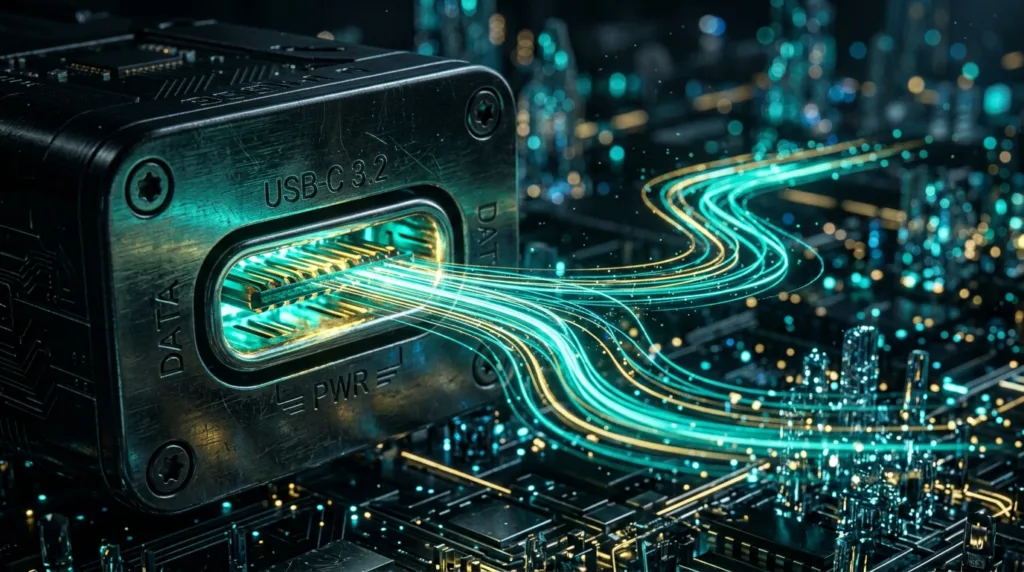
USB stands for Universal Serial Bus, and the name reflects how broadly it is used.
Keyboards, mice, printers, phones, flash drives, webcams, external drives, microphones, game controllers, card readers, and countless other peripherals can connect through some form of USB.
The confusing part is that “USB” does not describe one single connector shape.
USB-A is the familiar rectangular connector
USB-A is the large rectangular USB connector found on many desktops, older laptops, chargers, keyboards, and accessories.
It has been common for decades.
A USB flash drive with the traditional rectangular plug generally connects directly to a USB-A port. The same is true for many wired mice and keyboards.
The connector is directional, so the plug has a correct orientation. Anyone who has tried to insert a traditional USB plug, flipped it, and then somehow discovered that the original orientation was correct has already encountered this design characteristic.
Although the shape is familiar, USB-A ports have existed across multiple generations of USB technology. Two USB-A ports that look similar are not guaranteed to transfer data at exactly the same speed.
Color sometimes provides a clue on particular devices, but it is not reliable enough to replace the computer’s documentation.
USB-C is smaller, reversible, and much more complicated
USB-C has a rounded, symmetrical connector that can be inserted either way.
That convenience is easy to understand.
Its capabilities require more care.
USB-IF describes the USB Type-C system as a connection that can support data, display, and power. A USB-C port may therefore be used for something as simple as a flash drive or something as substantial as charging a laptop and connecting an external display.
Microsoft’s USB-C guidance for Windows likewise notes that USB-C can be used for charging compatible PCs and connecting phones, docks, display adapters, and other devices.
The crucial word is can.
A USB-C connector describes the physical interface. It does not guarantee that every USB-C port supports every possible USB-C feature.
One laptop may support charging through its USB-C port.
Another may support data but not accept charging through that particular connection.
One port may support an external monitor.
Another visually identical port may not provide the same display capability.
The cable matters too.
A cable designed mainly for charging may not provide the same data performance as another cable. High-performance display or data applications can have additional requirements.
So when a USB-C accessory fits physically but does not work as expected, that does not automatically mean the accessory or computer is defective.
Compatibility involves more than whether the plug fits.
Thunderbolt shows why port shape and capability are different ideas
Thunderbolt is a high-performance connection standard used on various computers and accessories.
Recent versions commonly use the same physical USB-C connector shape.
That creates an important distinction for beginners:
Two ports can look the same without having identical capabilities.
Apple’s guide to identifying Mac ports illustrates this clearly. Modern Macs can have USB-C-shaped ports that support technologies such as Thunderbolt, USB, display output, and charging in different combinations depending on the model.
A Thunderbolt symbol next to a port can help identify its capabilities.
This does not mean everyone needs Thunderbolt.
A basic mouse does not require an extremely high-performance connection. Neither does an ordinary keyboard.
Thunderbolt becomes more relevant when a setup involves fast external storage, high-resolution displays, docks, professional audio or video hardware, or multiple demanding devices sharing one connection.
The broader lesson matters more than the brand name.
Connector shape is the first clue, not the complete specification.
When buying an expensive dock, monitor, external drive, or adapter, check what the computer’s port actually supports rather than assuming all USB-C-shaped ports behave identically.
HDMI is designed around displays and audiovisual equipment
HDMI is one of the easiest ports to associate with a specific purpose.
It is widely used to connect:
- monitors;
- televisions;
- projectors;
- game consoles;
- streaming devices;
- computers and other audiovisual equipment.
HDMI can carry digital video and audio over the same connection. HDMI Licensing Administrator describes HDMI as a digital video, audio, and data interface used across displays and consumer electronics.
For a beginner, the practical result is simple.
If your laptop has an HDMI output and your monitor or television has an HDMI input, a single HDMI cable may be enough to carry both the picture and sound.
Apple’s HDMI guidance for Mac also demonstrates another common arrangement: a computer without a dedicated HDMI port may still connect to HDMI equipment through a compatible USB-C or Thunderbolt adapter.
That is increasingly common on thin laptops.
The absence of a large HDMI connector does not necessarily mean the computer cannot use an HDMI monitor.
It may mean that an adapter or dock is required.
There is another detail worth remembering: the connector alone does not determine the maximum resolution, refresh rate, or feature set. The computer, port, adapter, cable, monitor, and versions of the technologies involved all participate in the connection.
For ordinary office use, that complexity often remains invisible.
It becomes more important when someone is trying to drive a very high-resolution monitor or a display at a high refresh rate.
Ethernet gives a computer a wired network connection
Wi-Fi connects a computer to a network through radio signals.
Ethernet usually does the same basic networking job through a cable.
The familiar Ethernet port is wider than a telephone-style connector and normally accepts an RJ45 plug with a small locking tab. Apple’s port documentation describes Ethernet as the connection used with compatible networks and devices through an Ethernet cable.
Desktop computers frequently include Ethernet directly.
Some laptops do as well, particularly larger business or gaming models.
Thin laptops may omit the physical port because the connector itself requires space. Those machines can often use Ethernet through a USB adapter or dock.
A wired Ethernet connection can be useful when stable networking matters, when Wi-Fi coverage is weak, or when a desk already has access to a wired network.
It does not mean Ethernet is automatically necessary for every user.
Someone who uses a laptop around the house may rely almost entirely on Wi-Fi. A desktop sitting in the same office for years can be an excellent candidate for Ethernet because mobility is irrelevant.
Also remember that connecting an Ethernet cable does not magically create internet service.
The other end still needs to connect to an appropriate router, network switch, wall connection, or network infrastructure.
The port provides a way into a wired network.
What that network provides depends on what is connected beyond the cable.
The 3.5 mm audio jack survives because one small port still does a simple job well
Many computers still include a round 3.5 mm audio jack.
This is the familiar connection used by wired headphones, headsets, speakers, and certain microphones.
Its role is narrower than USB-C or Thunderbolt, which can make it easier to understand.
Plug in compatible wired headphones and the computer can route sound through them.
Some devices use a combined headset jack that supports both headphones and a microphone through one connector. Other computers, particularly some desktops, may have separate input and output jacks.
Wireless Bluetooth audio has reduced dependence on this port, but wired audio remains useful.
It does not need pairing.
It is not dependent on the headphones having a charged battery.
Latency can also matter in certain audio applications.
The existence of Bluetooth therefore did not make the audio jack meaningless; the two connections solve overlapping problems in different ways.
An SD card slot is a port for removable storage rather than a cable
Not every opening on a computer is designed for a cable.
An SD card slot accepts removable memory cards commonly associated with cameras and other devices.
Photographers can remove an SD card from a camera and insert it directly into a computer with a compatible slot. The card then appears as storage from which photos or other files can be accessed.
Apple’s current Mac port documentation, for example, identifies SDXC slots on several Mac models and notes compatibility with supported SD-family media.
Computers without an integrated card slot can use an external card reader, often connected through USB-A or USB-C.
This is a useful example of how ports can substitute for each other indirectly.
Your laptop does not necessarily need every specialized connection built into its case.
A general-purpose USB port plus the right adapter can provide access to functions the laptop does not offer directly.
Adapters and docks solve missing-port problems, but they do not create capabilities from nothing
A small laptop might have only two USB-C ports.
That does not necessarily limit you to two accessories.
A USB-C hub or docking station can provide several additional connections, such as:
- USB-A;
- HDMI;
- Ethernet;
- SD card slots;
- audio;
- additional USB-C connections;
- charging passthrough.
This is one of the main reasons USB-C has become so useful on compact computers.
One cable between the laptop and a desk dock can potentially connect the machine to a monitor, network, keyboard, mouse, storage, and power.
But a dock cannot force the computer to support a feature the underlying port does not provide.
If the computer’s USB-C port lacks the required display capability, plugging an ordinary video adapter into it does not automatically add that support.
If the laptop cannot receive charging through that port, a hub with a charging input may not change the limitation.
This is where specifications become more useful than appearance.
Before buying a complex adapter or dock, check:
- what ports your computer has;
- what those particular ports support;
- what connections the accessory provides;
- whether the accessory requires capabilities such as video output or power delivery from the host computer.
That small amount of checking can prevent a surprisingly common situation: buying an adapter because every connector physically fits and discovering that the intended feature still does not work.
Cables can be part of the problem too
Ports receive most of the attention because they are visible on the computer.
Cables are part of the connection.
A damaged cable can cause intermittent behavior. A cable built for limited capabilities may become a bottleneck in a more demanding setup. Some USB-C cables are better suited to charging, while others support higher data rates or particular display and power features.
HDMI connections can also become more demanding as resolution, refresh rate, and other features increase.
This is why troubleshooting a connection should not automatically begin with the assumption that the computer’s port has failed.
Suppose an external monitor stops displaying an image.
The possible causes include the port, cable, adapter, monitor input selection, operating-system settings, compatibility, or the monitor itself.
Likewise, a phone that charges over USB but does not appear for file transfer may involve the cable, phone settings, computer settings, or the capabilities of the particular connection.
Our guide How to Transfer Photos From Your Phone to Your Computer covers that type of phone-to-computer connection in more detail.
Physical compatibility is only the beginning of a working connection.
You rarely need to memorize the specifications printed beside every port
When looking at an unfamiliar computer, start with shape and purpose.
The rectangular USB-A port is probably there for general peripherals.
A small oval USB-C port may handle several jobs and deserves a closer look at the specifications.
HDMI points toward a monitor, television, or projector.
Ethernet points toward a wired network.
A round 3.5 mm connection points toward audio.
An SD slot accepts removable storage.
That is enough knowledge to solve a large percentage of ordinary connection problems.
The more technical details become valuable when your requirements become more demanding: multiple monitors, very fast external storage, high-powered charging, docks, high-resolution displays, or professional hardware.
At that point, the right question changes.
Instead of asking “Will this plug fit?”, ask “Does this connection support what I want it to do?”
That question is the difference between recognizing a port and actually understanding one.

Alex Carter is a technology writer with five years of experience in the tech field. He now focuses on creating clear, practical articles that help beginners in the United States better understand computers, smartphones, online services, and everyday digital technology.