
Sometimes explaining what is happening on your computer takes much longer than simply showing it.
An unfamiliar error appears. A website displays a confirmation number you want to keep. A coworker asks where a particular setting is located. You find something useful online and want to save exactly what you see.
That is where screenshots become useful.
A screenshot is simply an image of what is visible on your computer screen at a particular moment. You can capture everything, one window, or only a small section.
Windows and macOS both include screenshot tools, so you usually do not need to install anything extra.
The only real question is what you want to capture.
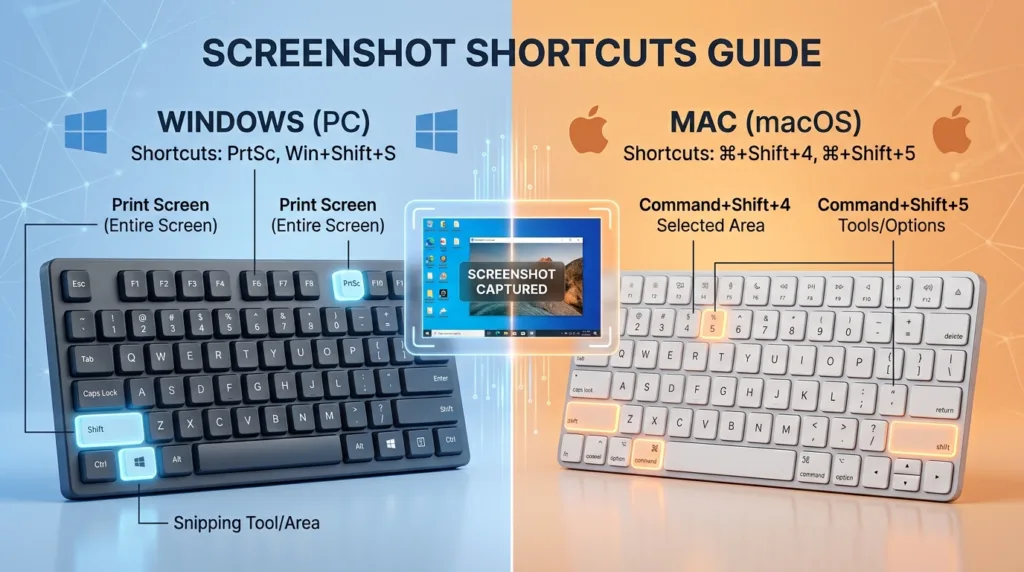
On Windows, Windows + Shift + S is a good place to start
On recent versions of Windows, one of the most practical screenshot shortcuts is:
Windows key + Shift + S
Press the three keys together and the screen will temporarily change while Windows opens its capture controls.
You can then select the area you want.
This is often better than capturing the entire screen because it gives you control over what appears in the image.
Suppose a small error message appears inside a program. You probably do not need to include your entire desktop, browser tabs, taskbar, or anything else happening in the background.
Selecting only the relevant area produces a cleaner screenshot and can also prevent you from sharing information unintentionally.
Windows uses the Snipping Tool for this kind of capture. Microsoft’s official Snipping Tool guide explains the available capture modes and editing options.
After you select an area, the screenshot may also be placed on the clipboard.
That means you can often open an email, document, or messaging application and press:
Ctrl + V
The screenshot appears directly where you paste it.
If the clipboard itself is still a new concept, How to Copy, Cut, and Paste on a Computer explains how temporary copied content works.
A screenshot on the clipboard and a screenshot file are not quite the same thing
This distinction can be confusing the first time you take a screenshot.
Sometimes you capture something and immediately paste it into a message.
Other times, you need an actual image file that you can keep.
Both are useful.
If your only goal is to show someone an error message in a chat, copying the screenshot to the clipboard may be enough.
If the image is something you want to use tomorrow, attach to a report, archive with a project, or store with other records, saving it as a file makes more sense.
The Snipping Tool allows you to save captures directly.
Where that file belongs depends on why you took the screenshot in the first place.
A work-related screenshot might belong inside a project folder.
A purchase confirmation could be stored with other purchase records.
A temporary screenshot used for a quick conversation may not need to be kept at all.
That last point matters because screenshots accumulate surprisingly fast.
A computer can become cluttered with dozens of images that were useful for thirty seconds and then forgotten. If your desktop or Downloads folder already looks that way, How to Organize Files and Folders on Your Computer can help you create a simpler filing system.
What does the Print Screen key do?
Many Windows keyboards include a key labeled PrtSc, PrtScn, or something similar.
It stands for Print Screen.
The key has been associated with screen captures for many years, and it remains useful, although its exact behavior can vary depending on Windows settings and the keyboard itself.
This is one reason Windows + Shift + S is often easier for beginners. It gives you visible controls and lets you choose exactly what you want.
Still, if you press Print Screen and it seems as though nothing happened, try opening an application that accepts images and pressing:
Ctrl + V
The screenshot may be waiting on the clipboard.
Nothing was necessarily lost; Windows simply did not save an obvious image file on the desktop.
Small distinctions like this become easier once common keyboard commands start feeling familiar. Keyboard Shortcuts Every Beginner Should Know covers the combinations that are most useful during everyday computer use.
Mac screenshots use different shortcuts for different situations
Apple provides several screenshot shortcuts, each designed for a slightly different purpose.
To capture the entire screen:
Shift + Command + 3
To capture only part of the screen:
Shift + Command + 4
After pressing Shift + Command + 4, the pointer changes into a crosshair. Drag across the area you want to capture and release.
Apple explains these controls in its official guide to taking screenshots on a Mac.
The selected-area option is often the most practical.
If you are showing someone one setting inside an application, there is little reason to include everything else on the desktop.
A smaller screenshot directs attention to the important part and makes the image easier to understand.
Capturing a single window on a Mac
Sometimes a rectangular selection is not quite what you want.
Perhaps you need a clean image of one application window.
There is a convenient shortcut for that.
Press:
Shift + Command + 4
Then press the Space bar.
The pointer changes to a camera icon.
Move it over the window you want to capture and click.
macOS will take a screenshot of that window without requiring you to manually drag around its edges.
This works particularly well for tutorials, support requests, presentations, or work instructions where one program needs to be shown clearly.
It is a small feature, but once you know it exists, carefully drawing around windows with the mouse starts to feel unnecessary.
Shift + Command + 5 gives you more control
If remembering several separate Mac shortcuts feels inconvenient, try:
Shift + Command + 5
This opens Apple’s Screenshot controls.
Instead of immediately taking a picture, macOS displays options that let you decide what to capture.
Depending on the version of macOS, you can choose the full screen, a selected window, or part of the screen. The same interface also includes screen-recording options.
Apple’s Screenshot app documentation explains these controls in more detail.
The interface is especially helpful when you want to use a timer.
Imagine trying to capture a menu that disappears as soon as you click somewhere else. A short delay gives you time to open the menu before the screenshot is taken.
Windows’ Snipping Tool also includes delayed-capture options, so this is useful on both platforms when the thing you need to photograph is difficult to keep on the screen.
Where does a screenshot go on a Mac?
By default, macOS commonly saves screenshots as image files on the desktop.
The filename includes information such as the date and time, making recent captures relatively easy to recognize.
This is convenient when you only take screenshots occasionally.
If you take many of them, the desktop can fill up quickly.
In that case, it may make sense to move screenshots you want to keep into the folders where they actually belong and delete temporary images after you no longer need them.
Mac users can also change screenshot-saving options through the controls opened with Shift + Command + 5.
You could choose a dedicated Screenshots folder, for example.
That can be useful for someone who captures images every day. If you only take one screenshot every few weeks, creating another folder may add more complexity than it solves.
Good file organization does not require a folder for everything.
It requires a system that makes important files easy to find.
Before sending a screenshot, look at the entire image
This may be the most valuable screenshot habit to develop.
A screenshot often captures more than the information you intended to show.
Imagine sending someone a browser screenshot because you want them to see one button.
The image may also reveal:
your open browser tabs,
your email address,
a notification,
a filename on the desktop,
your full name,
an order number,
part of another conversation,
or information from a work account.
You may not notice those details because your attention is focused on the part of the screen that matters to you.
The recipient, however, can see the whole image.
This is one reason selected-area screenshots are so useful. They reduce visual clutter and limit unnecessary information.
Before sharing anything, take a few seconds to inspect it.
If private information is visible, capture the screen again with a tighter selection or edit the image before sending it.
This habit is particularly important with screenshots involving online accounts, purchases, school information, workplace systems, or personal messages.
Screenshots can make technical support much easier
Technology problems are often difficult to describe.
You may know that something looks wrong without knowing the vocabulary needed to explain it.
Consider these two messages:
“My computer showed some kind of network error.”
and:
“I clicked Connect, and this message appeared.”
The second sentence becomes much more useful if it is accompanied by a screenshot showing the exact error.
A screenshot preserves details that are easy to forget: error codes, wording, buttons, warnings, and other clues.
This can make troubleshooting considerably easier for a coworker, friend, support technician, or anyone else helping you.
The image still benefits from a little context.
Mention what you were trying to do before the problem appeared.
For example:
“I was signing into the account. After I entered the password and clicked Continue, this appeared.”
The screenshot shows what happened. Your short explanation tells the other person how you got there.
Together, they provide much more useful information than either one alone.
A screenshot and a screen recording solve different problems
A screenshot captures one moment.
A screen recording captures a sequence.
The distinction becomes useful when something changes as you interact with the computer.
If an error message stays on the screen, a screenshot is probably enough.
If a menu disappears unexpectedly, a button stops responding after several steps, or an application behaves differently each time you click something, a short screen recording may communicate the problem more clearly.
On a Mac, Shift + Command + 5 can provide both screenshot and screen-recording options.
Windows also includes built-in tools capable of recording parts of the screen, depending on the version and features available.
There is no benefit in recording a video when one still image explains everything.
Screenshots are smaller, easier to review, and quicker to send.
Use video when the sequence itself matters.
Screenshots can often be pasted directly into everyday applications
Saving every screenshot as a file is not always necessary.
A capture stored on the clipboard can often be pasted directly into:
an email,
a chat,
a document,
a presentation,
a note,
or an image editor.
On Windows, Ctrl + V is usually the quickest route.
On Mac, there are also screenshot variations that place the capture on the clipboard rather than saving it directly as a file. If you do not use that workflow frequently, there is no need to memorize another shortcut. Saving the screenshot and attaching it normally works perfectly well.
The best method is the one that creates the fewest unnecessary steps.
If you are taking a screenshot only to send it immediately to a coworker, saving it, finding the file, attaching it, and then deleting it later may be more work than simply pasting the capture into the conversation.
If you need a permanent record, the opposite is true.
The purpose of the screenshot should determine the workflow.
Capture enough context, but not everything
A useful screenshot needs balance.
Crop too aggressively and the person viewing it may not understand what they are looking at.
Capture too much and the important detail gets lost among irrelevant information.
If you are showing an error message, include the message and enough of the surrounding application to make its location clear.
If you are explaining a setting, show the name of the setting along with the relevant choices.
If you are preserving a confirmation screen, make sure the useful details are visible while checking whether personal information should remain in the image.
The goal is not simply to photograph your computer screen.
It is to communicate something clearly.
Once shortcuts such as Windows + Shift + S or Shift + Command + 4 become familiar, screenshots stop feeling like a special feature. They become a practical part of everyday computer use — a quick way to preserve information, explain a problem, or show exactly what you mean.

Alex Carter is a technology writer with five years of experience in the tech field. He now focuses on creating clear, practical articles that help beginners in the United States better understand computers, smartphones, online services, and everyday digital technology.