
An email address can stay with you much longer than the device you use to create it.
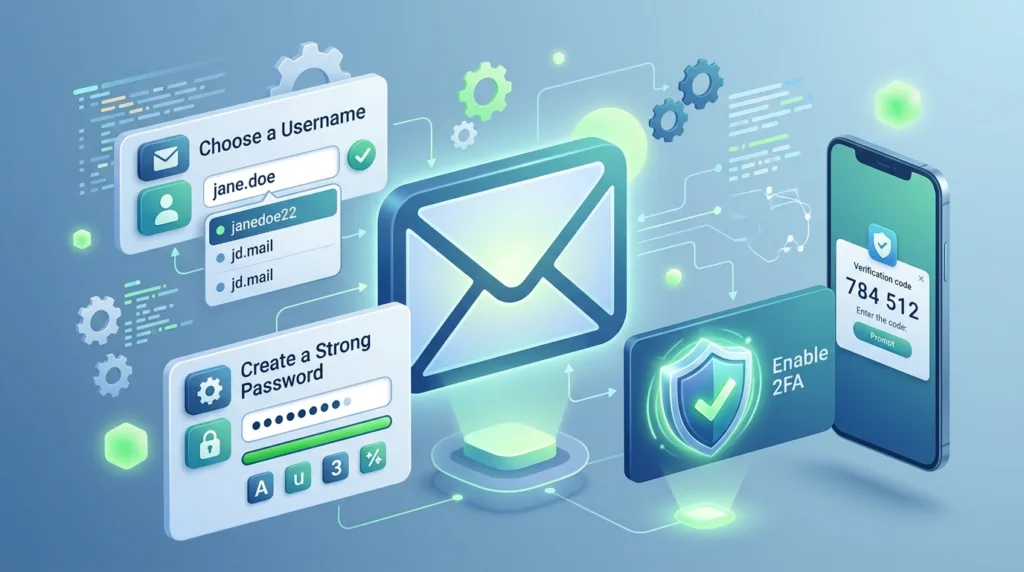
Phones are replaced, computers are upgraded, jobs change, and messaging apps come and go, while the same email address may continue receiving account-recovery messages, receipts, job applications, travel confirmations, school information, subscriptions, and conversations for years. That makes the first few decisions around a new account more consequential than the few minutes required to create one.
The signup process itself is rarely difficult. Services such as Gmail and Outlook guide you through choosing an address, creating a password, providing basic information, and verifying whatever details are required. The more useful work comes immediately afterward: making sure the address is appropriate for its purpose, adding reliable recovery information, protecting the account, understanding where important messages will appear, and testing the account before you begin depending on it.
A well-set-up email account should feel uneventful. Messages arrive where expected, the address is easy to give to other people, account recovery is available when needed, and the inbox does not become incomprehensible after six months of ordinary use.
Choose an address you will still be comfortable using later
Creating an email address often begins with the frustrating discovery that the first name you want has already been taken.
That can lead to improvisation: extra numbers, nicknames, unusual spelling, or a joke that seems harmless when the account is created. Some of those choices age better than others.
For a general-purpose address that may eventually appear on a résumé, school application, apartment inquiry, professional account, or business conversation, simplicity is useful. A variation of your name is usually easier for other people to recognize and type than an address filled with unrelated numbers or complicated punctuation.
Availability may make an exact name impossible, particularly for common names. Adding a middle initial, another part of your name, or a short meaningful variation can keep the address readable without making it look temporary.
There is nothing inherently wrong with maintaining a more casual address for gaming, communities, shopping, or other personal activities. In fact, having different accounts for different purposes can eventually make online life easier to organize. The point is to think about the future role of the address before creating it rather than discovering years later that your primary account carries a username you no longer want to give anyone.
The part after the @ also matters. An address ending in @gmail.com or @outlook.com belongs to that provider’s consumer email service, while school and workplace addresses are usually controlled by the corresponding organization. An employer or university account can be excellent for activities connected with that institution, though it may stop being available when your relationship with the organization ends.
For long-term personal accounts, using an address you control independently of a school or employer gives you more continuity.
Creating the account is only the beginning
Gmail is connected to a Google Account rather than existing as a completely separate identity. Google’s official Gmail account-creation guidance explains that creating a Google Account gives you access not only to Gmail but also to services such as Google Drive, Photos, and YouTube.
Microsoft works similarly. A Microsoft account can connect email with other Microsoft services, and people who want a new Outlook.com address can create one through Microsoft’s account setup. Microsoft’s current account-creation instructions describe the process for creating a new account and obtaining an Outlook.com email address.
That broader account relationship is worth remembering because your email login may eventually protect considerably more than an inbox. A Google Account can become connected to documents, photographs, browser data, subscriptions, and an Android device. A Microsoft account may connect with Windows, OneDrive, Microsoft 365 services, purchases, or other products.
Choose the password accordingly.
A new email account is a poor place to recycle the same password you already use for several other websites. Email frequently acts as the recovery channel for those other accounts, so losing control of the inbox can create opportunities to reset passwords elsewhere.
Our earlier guide How to Create a Strong Password You Can Actually Remember explains how password length, uniqueness, passphrases, and password managers fit together. For email specifically, uniqueness deserves particular emphasis because of the account’s central role.
Set up recovery while you still have full access
Account recovery is easy to ignore on the day an account is created because you already know the password and are sitting in front of a working device.
Its value appears later.
You may forget the password, replace a phone, encounter a suspicious login, or be asked to verify your identity from an unfamiliar device. Recovery information gives the provider another way to determine that the account belongs to you.
Google currently allows account holders to add recovery information such as a recovery email and phone number. Its account recovery guidance recommends using a recovery email that you access regularly and that is different from the address used to sign in to the Google Account.
The phrase different address matters. Using the account you are trying to recover as its own recovery destination would provide very little help when access to that account is precisely what you have lost.
A phone number can be useful as another recovery route, although recovery details need maintenance just like passwords do. A number you stopped using three years ago is much less valuable when the account suddenly asks you to verify ownership today.
Microsoft accounts similarly provide security information and verification methods through account security settings. Depending on the account, those methods can include another email address, an authenticator, a passkey, or other supported options.
Recovery information deserves occasional review, particularly after changing phone numbers or abandoning an older email address. Setup should create a route back into the account that your future self can actually use.
Add two-factor authentication before the account becomes important
There is a natural tendency to postpone security setup until an account contains something valuable. With email, value accumulates almost immediately.
A new inbox may begin with a welcome message and little else. Months later it can contain account registrations, password resets, personal conversations, billing notices, job-related messages, and links to cloud files. Nothing dramatic happens on the day when the account becomes important; significance builds gradually.
Adding another authentication factor early avoids having to remember later.
Two-factor authentication requires another form of verification in addition to the password. Depending on the provider and your setup, that may involve an authenticator, trusted device, passkey, security key, or another method.
This protection is particularly relevant to email because a stolen inbox can help an attacker reach other accounts. Someone who controls your email may be able to receive password-reset links or security notifications intended for you.
What Is Two-Factor Authentication and Why Should You Use It? covers the different approaches and explains why some verification methods provide stronger protection than others.
Once enabled, take recovery seriously as well. Backup methods or recovery codes should not exist only on the same phone whose loss would prevent you from signing in.
Your display name and your email address do different jobs
When someone receives an email from you, they usually see a display name alongside or above the actual address.
A professional message might appear as:
Jordan Lee jordan.lee@example.com
“Jordan Lee” is the display name. The address is the technical destination associated with the account.
Setting the display name correctly matters because it is one of the first things recipients see. A device nickname, old username, all-lowercase name, or another unexpected label can make perfectly legitimate messages look less polished or harder to recognize.
For a primary personal account, your normal name is usually the clearest choice. Specialized accounts may use a business, project, or organization name when that accurately represents who is sending the message.
It is worth sending yourself a test message to another address after setup. The recipient’s view often reveals small details that are easy to miss while looking only at your own inbox: the display name, formatting, signature, and even whether messages are reaching the inbox or being filtered elsewhere.
Testing also confirms that you know the account credentials before you begin using the address for registrations and other important services.
A signature can be useful without becoming a digital business card
Email signatures are frequently overloaded with information.
For ordinary personal use, you may not need one at all. Your name at the end of the message can be enough.
A professional or semi-professional address may benefit from a short signature containing your name and, where relevant, a role, company, or another appropriate contact detail. Five social links, several inspirational quotations, multiple phone numbers, oversized logos, and elaborate formatting can make a short email visually heavier than the message itself.
Context should determine what belongs there.
Someone using email primarily for job applications might include a full name and perhaps a relevant professional link. A small-business owner may reasonably include company details and a phone number. A student writing to professors often needs little beyond a name and, when helpful, a course or program reference.
Signatures are conveniences rather than credentials. Their purpose is to save you from repeatedly typing information the recipient genuinely needs.
Learn the difference between Inbox, Spam, Trash, Archive, and Sent
An email account becomes much easier to manage once these areas stop feeling like interchangeable folders.
The Inbox holds incoming messages that have not been filtered somewhere else. Sent contains mail you have sent. Drafts preserves messages that were started but not sent.
Spam or Junk is different because the provider places messages there when automated systems believe they may be unwanted or suspicious. Those systems are useful without being perfect. When you are expecting an important confirmation that never arrives, checking Spam is reasonable before assuming the sender never sent it.
Be cautious there, though. The fact that you expected a message does not make every message in Spam legitimate. Look at the sender and context before following links or opening attachments.
Trash usually contains messages marked for deletion and may be emptied automatically after a period defined by the service.
Archive deserves special attention because beginners sometimes assume that archiving and deleting mean the same thing. Archiving removes a message from the normal inbox view while retaining it in the account. That is useful for conversations you have finished with but may want to search for later.
Once archive becomes familiar, the inbox can function more like a place for current attention instead of permanent storage for every message ever received.
Do not build an elaborate folder system on the first day
A completely empty inbox can inspire ambitious organization.
You might imagine dozens of folders or labels for bills, shopping, travel, work, school, receipts, subscriptions, family, appointments, projects, accounts, and every other category that could conceivably appear.
Most of those categories will not matter yet.
Email search has become good enough that many people can maintain a relatively simple structure and find old messages by sender, subject, date, or keyword when necessary. Folders and labels become more useful after patterns emerge in the way you actually receive email.
Perhaps travel confirmations accumulate often enough to deserve a label. Maybe a specific project generates months of correspondence that should stay together. Receipts may warrant their own place because you return to them regularly.
Build organization around real behavior rather than predicting an entire future inbox.
The same principle applies to rules and filters. Automated sorting can be powerful once you understand what kinds of messages consistently arrive, whereas aggressive filtering on a brand-new account can hide messages before you even know where the service placed them.
Notifications do not need to announce every message
A new email account often arrives on a phone with notifications enabled.
At first, that may feel helpful. Every message is new, and there are not many of them.
As newsletters, shopping updates, account alerts, promotional messages, receipts, and ordinary conversations accumulate, allowing every email to interrupt the day can make the inbox feel much more demanding than it actually is.
Notification settings vary across providers and devices, but many email apps allow some degree of control over which accounts or categories produce alerts. A primary work or school account may justify different notification behavior from an address used mostly for shopping and subscriptions.
Turning off an unnecessary notification does not remove the email. The message remains in the inbox for you to read when you choose.
This distinction becomes particularly useful when managing multiple accounts, which we will explore later in How to Manage Multiple Online Accounts Without Getting Confused.
Use the new address carefully during its first few weeks
Where you use an email address influences what arrives there later.
Signing up for every promotion, giveaway, store discount, forum, newsletter, and temporary service with your primary address can quickly fill the inbox with low-priority mail. Some of that can be unsubscribed later, but prevention requires less cleanup.
This does not mean your primary account should be reserved exclusively for serious correspondence. Shopping receipts, reservations, subscriptions you actually value, personal messages, and account registrations are normal uses.
It is simply worth noticing the difference between giving an address to a service you expect to use for years and giving it to a page you may never visit again.
Be similarly cautious about publishing a personal email address openly on public pages unless there is a reason to do so. Public addresses can attract unsolicited messages and attempts to impersonate services you use.
The privacy principles in How to Protect Your Personal Information Online apply to email addresses as well: usefulness and exposure tend to accumulate together.
Send a message before you depend on the account
A small test at the end of setup catches a surprising number of mistakes.
Send an email to another account you control or to someone who can confirm receipt. Give the message an ordinary subject, write a sentence or two, and send it.
Then look at the result from the recipient’s side.
Does your display name look right? Is the address spelled the way you expected? Did the signature appear correctly? Did the message reach the inbox? Can you reply and receive the response?
Next, sign out and sign back in once while you still remember the setup clearly. Confirm that you know the password or that it is stored properly in the password manager you use. Review the recovery information and make sure it belongs to you and remains accessible.
None of these checks is technically sophisticated, which is exactly why they are useful. The goal is to discover basic account problems before the address becomes the recovery email for ten other services or the contact information on an important application.
A good email account should require less attention as it matures
The earliest setup decisions continue working in the background long after you stop thinking about them.
A sensible address remains comfortable to share. A unique password and another authentication factor protect an inbox that gradually becomes more valuable. Current recovery information gives you a path back in when a device or password fails. Basic organization keeps old messages searchable without requiring constant maintenance.
From there, email becomes ordinary infrastructure.
You write to someone, receive a confirmation, recover another account, search for an old receipt, or return to a conversation from months earlier without having to think about the system underneath it.
That is a useful standard for setup: the account should become easier to live with as more of your digital life begins to depend on it, rather than accumulating small problems that eventually have to be repaired.

Alex Carter is a technology writer with five years of experience in the tech field. He now focuses on creating clear, practical articles that help beginners in the United States better understand computers, smartphones, online services, and everyday digital technology.