
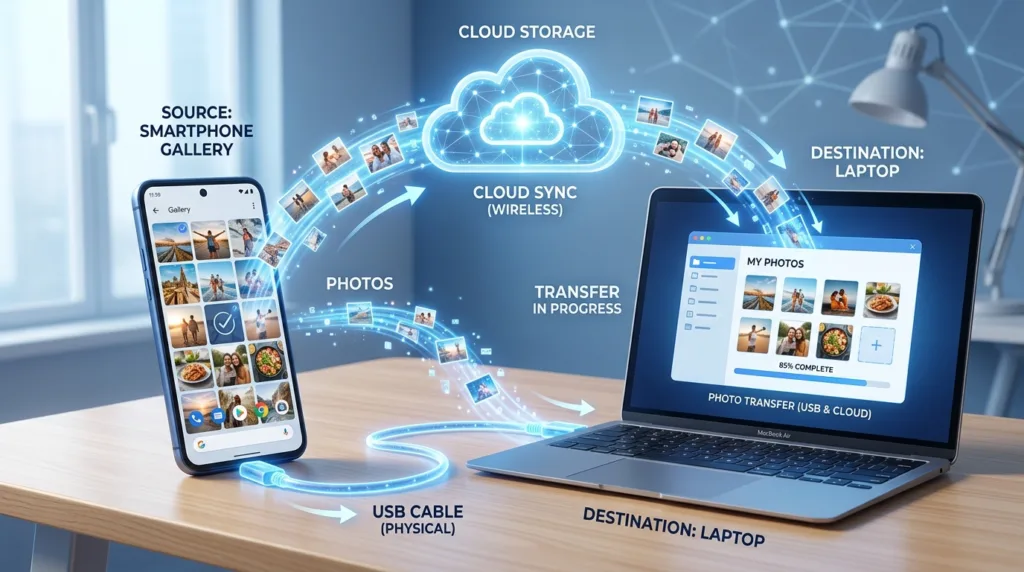
Photos tend to accumulate quietly.
A phone that once held a few vacation pictures can eventually contain years of family photos, screenshots, receipts, videos, downloads, and images from messaging apps. At some point, moving part of that collection to a computer becomes useful — perhaps because the phone is running low on storage, you want to edit or organize the images on a larger screen, or you simply want another copy somewhere other than the device in your pocket.
There are several ways to make that transfer, and the easiest one depends less on the brand of phone than on what you are trying to accomplish. A cable is useful when you want a direct copy and do not want to rely on the internet. Cloud services make photographs available across devices without a manual import each time. Apple devices can use AirDrop for quick wireless transfers, while Windows also includes tools that can import photos from both iPhones and Android phones.
Understanding those differences helps you choose a method rather than repeatedly improvising every time the phone fills up.
A cable remains one of the most dependable ways to move a large collection
Wireless transfer feels more modern, but a USB cable still has several advantages. It does not depend on upload speed, cloud-storage capacity, or the quality of the local Wi-Fi connection, and it can be particularly practical when hundreds or thousands of photos need to move at once.
On a Windows PC, Microsoft currently recommends connecting the phone with a USB cable capable of transferring data, unlocking the phone, opening the Photos app, and choosing Import from the connected device. The app can then let you choose which photos and videos to import and where they should be stored.
The phrase “cable capable of transferring data” matters more than it may seem. Some USB cables are primarily intended for charging and do not provide the same data-transfer capability. A phone that charges normally while never appearing on the computer may therefore have a cable problem rather than a phone or Windows problem.
The phone also needs to be unlocked during the initial connection because both Android and iPhone treat access from a computer as a permission decision rather than automatically exposing the contents of the device.
With Android, the phone may display a USB notification after the cable is connected. Google’s current Android guidance describes choosing File Transfer from the available USB modes when you want the computer to access files. Depending on the device, camera photos are commonly stored within folders associated with the camera or media library.
An iPhone behaves somewhat differently. The first time it connects to a computer, a prompt may ask whether you trust that computer. Approving the request allows the computer to access photos and other supported data while the phone remains unlocked.
For a large one-time transfer, that direct physical connection is still difficult to beat.
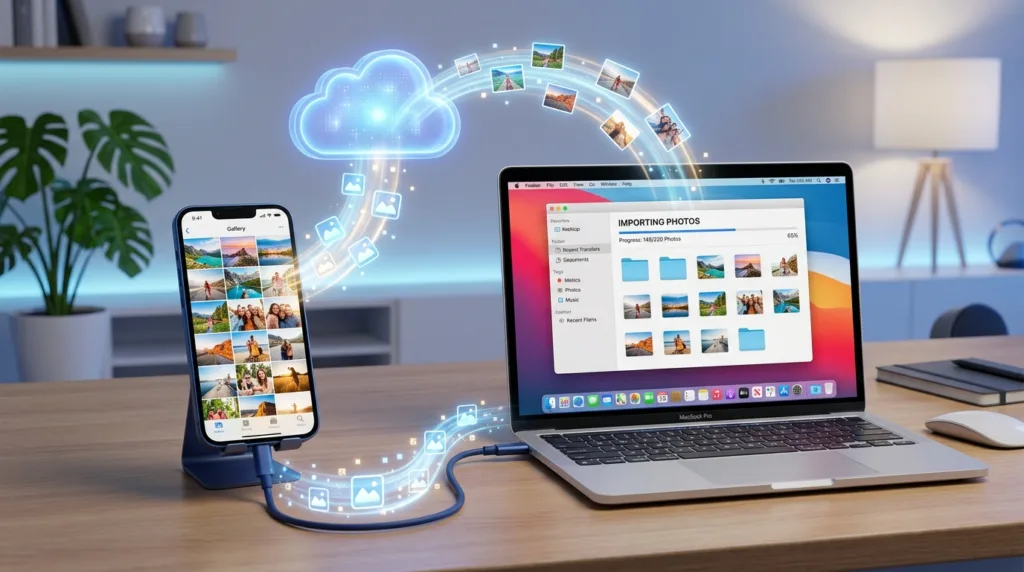
iPhone to Mac is more integrated because Photos already understands the device
Connecting an iPhone to a Mac brings the transfer into Apple’s Photos app.
Apple’s current instructions describe connecting the iPhone or iPad with a USB cable, opening Photos on the Mac, selecting the device in the sidebar, and choosing either individual images or Import All New Photos. You can also choose the album where the imported items should go before beginning the transfer.
This workflow is particularly useful when the Mac is meant to become part of the long-term photo library rather than merely a temporary destination for files.
Another Apple option is Image Capture, which is less focused on maintaining a Photos library and more useful when you want the actual image files placed directly into a folder of your choice. That distinction matters to people who prefer managing photographs through ordinary folders rather than importing everything into Photos.
AirDrop offers a third route for smaller selections. A few photographs can be selected on the iPhone and sent directly to a nearby Mac without a cable, making it convenient for a handful of images you want immediately.
Those methods are complementary. Importing hundreds of vacation photos by cable may be more efficient than repeatedly using AirDrop, while connecting a phone just to transfer one screenshot can feel unnecessarily elaborate.
An iPhone connected to Windows may involve both Apple and Microsoft tools
Windows can also import photos from an iPhone, though the relationship is not quite as integrated as it is between an iPhone and a Mac.
Apple currently recommends installing the Apple Devices app from the Microsoft Store, connecting the iPhone with USB, unlocking it, and approving the Trust This Computer request when it appears. From there, Microsoft Photos can handle the actual image import.
Microsoft’s own Photos documentation follows the same broad process: connect the phone, unlock it, open the Photos app, choose Import, select the connected device, and follow the prompts.
One complication can appear when iCloud Photos is enabled.
An iPhone may use optimized storage, keeping smaller device versions locally while the full-resolution originals remain in iCloud. In that situation, Microsoft notes that some photos may not be directly importable from the phone because the originals are not physically stored there.
Apple likewise explains that iCloud Photos can make the library available through iCloud and Windows rather than requiring every image to be manually imported over USB.
This is a useful reminder that a photo appearing on the phone screen does not always mean the complete original file is currently stored on the device. Modern cloud libraries can make local and remote storage appear almost seamless.
Android gives you more direct access to ordinary files
Android devices often behave more like removable storage when connected to a Windows computer.
After choosing the appropriate USB transfer mode, File Explorer can provide direct access to folders on the phone. Camera images are commonly found inside a DCIM directory, while screenshots, downloads, messaging images, and other media may appear in different folders depending on the phone and applications involved.
That direct access can be useful when you want more control over the folder structure.
Instead of importing every recent image into one photo library, you can open the relevant folder, select particular files, and copy them into an existing folder hierarchy on the PC. Someone who already organizes photographs by year, trip, project, or event may prefer that approach.
There is a small downside: Android file systems can look less friendly than a photo application. Folder names such as DCIM, Pictures, or app-specific directories are meaningful once you recognize them, but browsing through them for the first time can feel less polished than selecting thumbnails from an import window.
Microsoft Photos provides a more visual alternative. A connected Android phone can be imported through the same Photos application used for cameras and iPhones, which may be easier when the main objective is simply to bring a group of images onto the PC.
Google also supports transferring files through a Google Account rather than through USB, which becomes relevant once cloud storage enters the workflow.
Cloud photo libraries remove the need for repeated manual transfers
A phone that automatically uploads new photos to a cloud service changes the problem considerably.
Google Photos can back up images from supported Android devices — and from iPhones when the app and backup settings are configured — making the photographs accessible through a browser on the computer. Instead of connecting the phone, you sign into the same account and work with the cloud copy.
iCloud Photos provides a similar experience across Apple devices and can also make an iPhone photo library available on Windows through iCloud tools.
This can feel less like “transferring” because the photos are already being synchronized or backed up in the background. The computer becomes another place from which you access or download them.
The distinction matters when you intend to remove photos from the phone. Cloud photo services often synchronize changes, and deletion behavior can vary depending on the service and settings. Removing an image from one location may also remove it from other synchronized locations rather than leaving an independent archive behind.
That is why the previous Vandutz guide, How to Back Up Important Photos and Documents, separates backup from simple transfer. A photo copied independently to a computer or external drive can remain there even after the phone copy disappears; a synchronized library may behave differently.
Before deleting a large collection from your phone to save space, confirm where the full-resolution copies actually exist and whether those copies are independent of the phone’s library.
Wireless transfer is most attractive when the selection is small
The word wireless can make a method sound automatically easier.
For ten photographs, that may be true. For five thousand, perhaps not.
AirDrop between an iPhone and Mac is an excellent example of a tool whose convenience increases when the task is modest. Select a few images, choose the nearby Mac, accept the transfer, and the files arrive without searching for a cable.
Cloud downloads can serve the same role when the photos are already online. Opening Google Photos or iCloud from a computer and downloading a handful of selected images may be faster than physically connecting the phone.
Windows also offers integrations for accessing recent photos from supported mobile devices, although the exact implementation has evolved over time. Microsoft’s current Windows 11 experience increasingly exposes connected mobile-device photos through File Explorer rather than relying solely on the older Phone Link Photos view.
These tools are convenient because they reduce setup for everyday transfers. A cable becomes more attractive again when the number or size of files increases enough that transfer speed, reliability, or cloud bandwidth starts to matter.
The best method can therefore change even for the same person. One screenshot today and an entire photo archive next month do not need the same workflow.
Check where the imported photos actually went
A successful transfer can create a new problem when you cannot find the files afterward.
Import applications usually allow you to choose or identify the destination. Pay attention to that setting before transferring a large collection, especially when the computer already contains several photo folders.
A sensible folder name can include enough context to remain useful later:
2026-09 New York TripFamily Photos 2026Work Event SeptemberPhone Import 2026-09-13
The exact naming style matters less than consistency.
Immediately after the transfer, open the destination folder or photo library and inspect a few images. Confirm that they open correctly and that the expected date range appears. For videos or particularly important photographs, checking several files is worthwhile before treating the transfer as finished.
File organization becomes increasingly important when phone imports happen repeatedly. Ten folders named New Folder, Phone Photos, and Phone Photos 2 gradually recreate on the computer the same clutter you were trying to remove from the phone.
How to Organize Files and Folders on Your Computer provides a broader system for keeping those growing collections understandable.
Do not delete the originals immediately after the progress bar reaches 100%
A transfer completing successfully is encouraging. It is not the same as confirming that every important photo is safely preserved.
Open the destination first.
Check several photographs from different parts of the transfer. Make sure important videos play, particularly when they are large or were imported separately. Compare the number of items when the application provides a useful count.
For a valuable photo collection, consider whether the computer copy itself has a backup before you erase the originals from the phone. Moving the only copy from one device to another changes the location of the risk rather than eliminating it.
A laptop can fail just as a phone can.
This is especially relevant when the goal of the transfer is freeing storage. There is understandable pressure to start deleting immediately once the computer shows the new files, yet waiting long enough to verify them costs little compared with attempting to recover an irreplaceable image later.
Transfer preserves files; organization preserves usefulness
Once photos reach the computer, they gain possibilities that were less convenient on the phone. You can sort large collections on a bigger screen, move images into project folders, edit them with desktop software, copy them to an external drive, or prepare a smaller selection for sharing.
The metadata attached to photographs can also remain useful. Camera images commonly include capture dates and, depending on device settings, other information that photo applications can use for sorting. Renaming every photo manually is therefore unnecessary for many people; organizing the folders or library around meaningful events can be enough.
Avoid turning the first import into an enormous cleanup project. The immediate priority is getting the photographs transferred correctly and knowing where they are. Fine-grained organization can happen afterward.
A small amount of structure is still helpful at the beginning because today’s import will eventually sit beside next month’s, next year’s, and perhaps files from another phone entirely.
The computer provides more space to work with a photo collection, but space alone does not create order.
One good transfer method is enough until your needs change
There is no prize for using every available transfer method.
An iPhone and Mac owner who already uses iCloud Photos may rarely need a cable. Someone with an Android phone and a Windows desktop may prefer USB because it provides direct file access and avoids cloud-storage limits. Another person may use Google Photos for daily backup and connect a cable only once or twice a year to create an independent archive.
The workflow can remain simple.
Choose a method that reliably gets the photos where you want them, understand whether those files are independent copies or synchronized ones, and verify the result before removing anything from the phone.
The rest is mostly a question of scale. A few photographs favor convenience; an entire library favors reliability and organization.
By the time the files are safely on the computer, the transfer itself should become the least interesting part. What matters is that photographs which began as a growing collection on one small device are now available somewhere you can organize, protect, and actually use them.

Alex Carter is a technology writer with five years of experience in the tech field. He now focuses on creating clear, practical articles that help beginners in the United States better understand computers, smartphones, online services, and everyday digital technology.