
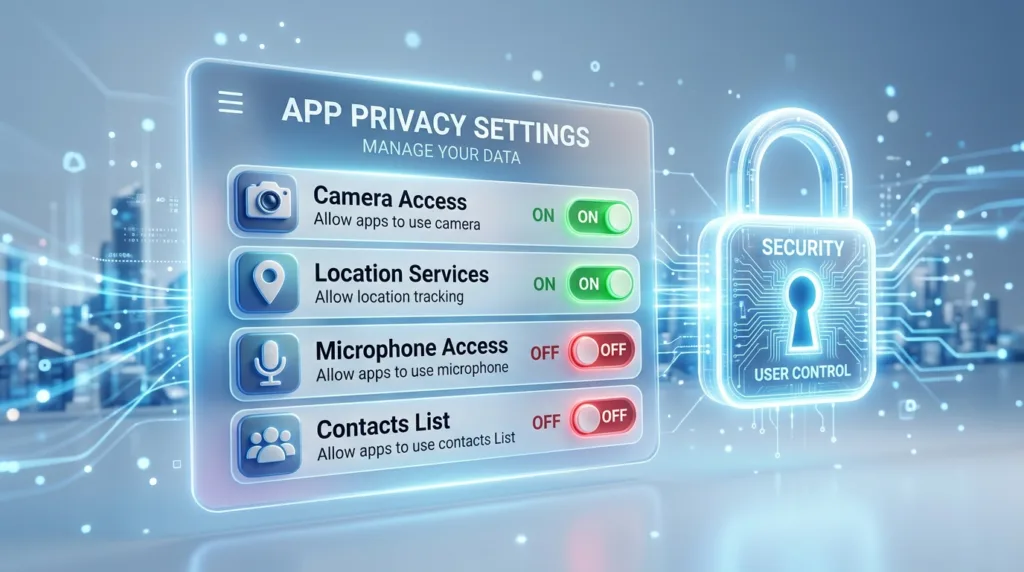
The first time a new app asks to use your camera, microphone, location, photos, or contacts, the easiest response is often to tap Allow and keep moving. The request interrupts whatever you were trying to do, and because many legitimate apps genuinely need access to parts of your device, granting permission can feel like a routine step rather than a privacy decision.
Over time, however, those small decisions accumulate.
A weather app may have access to your location. A social app may be able to see your photos and microphone. A navigation service might know where you are while you use it, while another app may have been granted location access months ago for a feature you no longer remember. None of this automatically means something improper is happening, but it does mean that app permissions deserve occasional attention rather than becoming permanent simply because you tapped a button during setup.
The useful question is not whether an app has permissions. Almost every useful app needs some access to the device. The better question is whether the permission makes sense for what the app actually does, and whether the level of access is broader than the feature requires.
Permissions are the boundaries between an app and your device
An app installed on your phone or computer does not automatically need unrestricted access to everything stored there. Modern operating systems create permission systems that allow certain types of access to be requested and controlled separately.
A video-calling app, for example, has an obvious reason to use your microphone and camera. A maps application can provide better navigation when it knows your location. A photo editor needs some way to open the images you want to edit, while a messaging app may ask for contact access so it can show which people you already know are using the service.
Those examples illustrate why permissions exist in the first place: useful features often depend on information or hardware outside the application itself. Apple explains in its iPhone privacy controls guide that third-party apps request access the first time they want to use information or capabilities such as Contacts, Photos, Calendar, camera, microphone, or location, and that users can later change those decisions through Privacy & Security settings.
Android follows a similar model. Google’s app permissions guidance explains that applications can request access to features such as the camera or contact list and that those permissions can later be allowed or denied individually.
The presence of a permission request, therefore, is not inherently suspicious. It is a mechanism intended to put at least part of the decision in your hands.
Context matters more than the permission name
“Camera access” sounds sensitive, but whether it is appropriate depends entirely on the application.
For a QR code scanner, camera access is central to the service. For a video meeting app, the reason is equally obvious. If a calculator requests camera access without offering any feature involving images, scanning, or visual input, the request deserves more scrutiny because the connection between the permission and the app’s purpose is less apparent.
Location works the same way.
A navigation application cannot provide real-time directions very effectively without knowing where the device is. A weather app may use location to display a local forecast automatically. A flashlight app, by contrast, would need a particularly clear explanation for why continuous location access is necessary.
The point is not to memorize which permissions are “safe” and which are “dangerous.” A permission is neither good nor bad in isolation. Its appropriateness depends on purpose, timing, and scope.
This way of thinking is more useful than automatically denying everything, because excessively restrictive permissions can prevent legitimate features from working. It is also more useful than automatically approving everything, because convenience alone is not a reason for every app to retain access indefinitely.
The moment when an app asks can tell you a lot
A permission request makes more sense when it appears at the moment the related feature is being used.
Suppose you install a video app and tap the button to start your first call. The app then asks for camera and microphone access. The connection between action and request is obvious.
Now imagine opening a simple note-taking app for the first time and immediately receiving requests for contacts, precise location, microphone, and all your photos before you have used any feature that appears to require them. There may be legitimate explanations for individual permissions, but asking for broad access before the need becomes apparent gives you less context for evaluating the request.
Well-designed applications increasingly request permissions when a feature actually requires them rather than demanding every possible permission during the first launch. This makes the decision easier because you know what you were trying to do immediately before the prompt appeared.
When the purpose is unclear, denying or postponing the request is often reasonable. In many cases, you can grant the permission later if a feature turns out to need it.
A permission prompt is not necessarily a one-time exam that you must answer correctly forever.
iPhone lets you review permissions by the type of information being accessed
On an iPhone, Apple groups many privacy controls under:
Settings > Privacy & Security
From there, you can review categories such as Location Services, Contacts, Calendars, Photos, Bluetooth, Microphone, and Camera. Selecting one category shows which apps have requested access and, depending on the permission, what level of access each app currently has.
This category-based view can reveal patterns that are difficult to remember app by app.
You may know that several applications asked for your location over the years, but opening Location Services lets you see them together and ask whether all of those permissions are still necessary. The same is true for microphone or photo access.
Apple’s privacy controls documentation explains that access can be enabled or disabled for individual applications, which means changing one app’s camera permission does not require disabling the camera for everything.
Location settings can also be more granular than a simple on/off switch. Depending on the app and iOS version, you may encounter options that limit access to situations such as while you are actively using the app rather than allowing continuous background access.
This distinction can matter substantially. A navigation app may reasonably need location throughout a trip, while another service may only require your approximate location briefly to provide local results.
Android offers both an app-by-app view and a permission-by-permission view
On Android, the exact wording and menu layout can vary somewhat among manufacturers and versions, but Google’s current guidance describes a common route:
Settings > Apps > select the app > Permissions
From there, you can see which permissions have been allowed or denied and modify them individually.
Android also allows permissions to be reviewed by category on supported devices, which can be useful when you want to know every app that currently has access to something specific, such as the microphone or location.
Google notes that permissions such as location, camera, and microphone may include more nuanced options than a simple permanent Allow. Depending on the Android version and permission type, an app may be permitted only while it is being used, denied entirely, or granted another limited form of access.
This flexibility matters because privacy is often about reducing unnecessary scope rather than completely disabling a useful capability.
If a restaurant app uses location only to find nearby locations while you are browsing, it may not need the same background access as a navigation tool that is actively guiding you during a trip.
The operating system gives you choices precisely because those use cases are different.
Photo permissions deserve a closer look than they used to
Years ago, allowing an app to access photos often meant granting access to the entire photo library.
Modern mobile systems increasingly offer more limited choices.
An app may need one particular image because you want to upload a profile picture. That does not necessarily mean it needs ongoing access to every photograph stored on the phone.
On iPhone, Apple provides controls that can allow apps to work with selected photos rather than giving unrestricted access to the entire library in supported situations. Similar privacy improvements have appeared on Android, where newer permission models can restrict the media an application is allowed to access.
These options are useful because the photo library frequently contains far more than casual pictures. Screenshots may include account information, photographs can reveal locations and personal relationships, and saved documents may contain details you would never intentionally provide to an unrelated app.
When an app only needs one or two images, a limited selection can provide the functionality you want without granting broader access than necessary.
This is an example of a general privacy principle that applies beyond photographs: when the system gives you a meaningful choice, grant the amount of access needed for the task rather than automatically choosing the broadest option.
Location permissions are not all equivalent
Location deserves particular attention because it can be requested for very different reasons.
A map needs to know where you are to calculate directions. A ride-sharing app needs your position to arrange pickup. A camera app may use location to attach geographic information to photographs. A retail app might use it to identify nearby stores or offers.
Those purposes are not equally important, and they may not require access for the same amount of time.
If an app only needs your location while you are actively using one particular feature, allowing continuous background access may be unnecessary. On the other hand, a navigation service operating during a trip may need ongoing location updates even when its interface is not occupying the entire screen.
You may also encounter a distinction between precise and approximate location. An application that needs turn-by-turn navigation benefits from precision; a service that only needs to know the general area for local content may be able to function with approximate location.
Rather than treating location permission as one decision, think of it as several questions: Does the app need location at all? Does it need your exact location? Does it need it only while the app is in use, or does the feature genuinely depend on background access?
That level of scrutiny is more useful than simply turning location services off for the entire device and discovering later that several useful features no longer work.
Microphone and camera access should correspond to something you recognize
People naturally notice camera permissions because the purpose is visible: video calls, photos, scanning, augmented reality, or similar features.
Microphone access can be less obvious because many applications use audio for voice messages, calls, recordings, speech input, or content creation.
Again, context helps.
If you tap Record Voice Message and the app asks for microphone permission, the reason is self-evident. If an unrelated application requests microphone access during routine browsing, it is reasonable to ask why.
Both iOS and Android also provide indicators when certain sensitive hardware is actively being used. The exact visual design varies by platform, but these indicators are intended to make camera or microphone activity less invisible.
Seeing an indicator does not automatically mean someone is spying on the device. A legitimate app may simply be using the feature you just activated. What matters is whether the activity matches what you are doing.
If the microphone indicator repeatedly appears while you are using an app that should not be recording audio, reviewing its permissions is a sensible next step.
Permissions on Windows work somewhat differently
App privacy controls are not limited to phones.
Windows 11 allows users to manage access to capabilities such as location, camera, microphone, contacts, and other categories through:
Settings > Privacy & security
Microsoft’s App permissions documentation explains that you can select a permission category and control which supported applications are allowed to use that capability.
There is, however, an important difference between some Microsoft Store apps and traditional desktop software. Microsoft notes that desktop applications do not always appear in the same privacy-permission lists and may access information differently from Store apps. Its Windows desktop apps and privacy guide specifically advises users to consider the application’s own settings and privacy policy because Windows privacy controls may not govern every type of desktop software in the same way.
This means that seeing an app absent from one Windows permission list does not necessarily prove that the program has no access to that type of information.
Desktop software has a longer and more complex history than modern mobile apps, and the privacy model reflects that difference.
For beginners, the practical response is straightforward: install programs from sources you trust, pay attention to the application’s own privacy controls, and avoid assuming that every Windows program follows exactly the same permission model as a phone app.
How to Install and Uninstall Programs Safely covers that broader question of software trust and installation.
Removing a permission does not mean you are uninstalling the app
People sometimes hesitate to change permissions because they assume denying access may damage the application permanently.
Usually, it is much less dramatic.
If you disable camera access for a video app, the app itself remains installed; the camera-dependent feature may simply stop working until permission is granted again. If you remove location access from a weather app, you may need to enter a city manually rather than receiving automatic local forecasts.
This makes permission review relatively low risk in many ordinary situations. If you remove access and later discover that a feature legitimately depends on it, you can return to settings and enable the permission again.
The relationship between permission and feature is often easier to understand this way because you can see what actually changes when access is removed.
There are exceptions, particularly with specialized apps whose core purpose depends heavily on certain device capabilities. Still, denying one privacy permission is not generally equivalent to deleting the app or losing your account.
That reversibility is one reason it makes sense to be conservative when a request feels unnecessary. You can always reconsider later.
A privacy review does not need to become a weekly ritual
It is possible to become overly meticulous about permissions.
You do not need to inspect every setting each morning or treat every app as though it is waiting for an opportunity to misuse your device.
A more practical approach is to review permissions occasionally, particularly after you have installed many new apps, changed phones, noticed unexpected camera or microphone activity, or realized that an application you no longer use still has broad access.
Location, microphone, camera, photos, and contacts are sensible categories to review because they reveal meaningful information about your life or provide access to sensitive device features.
Apps that you stopped using months ago deserve particular attention. If you no longer need the app, uninstalling it may be cleaner than maintaining a complex set of denied permissions. If you still use it but no longer use one particular feature, reducing its access may be enough.
Privacy improves through maintenance rather than perfection.
Permission control works best when the decision follows the feature
There is a simple way to make permission decisions less abstract: connect each request to the feature in front of you.
You opened the camera inside an app, and it asks for camera access. That relationship is easy to understand.
You asked a navigation app for directions, and it requests location. Again, the reason is visible.
You chose a photograph to upload, and the app asks for access to that photo.
The harder decisions are the ones where the relationship is missing. A permission appears before you understand why the app needs it, the requested access seems broader than the function you are using, or a feature continues requesting information after you have stopped using it.
Those moments deserve a little more attention.
You do not need to distrust the entire application merely because one permission seems unnecessary, nor should you assume that installing the app means accepting every request it may ever make. Modern permission systems exist precisely because access can be evaluated separately.
That is the mindset worth carrying forward: permission should follow purpose.
Once that becomes habitual, privacy settings stop looking like an intimidating page filled with switches. They become a record of small decisions about which applications are allowed to reach which parts of your device — decisions that you are free to revisit whenever the relationship between the app and its permissions no longer makes sense.

Alex Carter is a technology writer with five years of experience in the tech field. He now focuses on creating clear, practical articles that help beginners in the United States better understand computers, smartphones, online services, and everyday digital technology.