
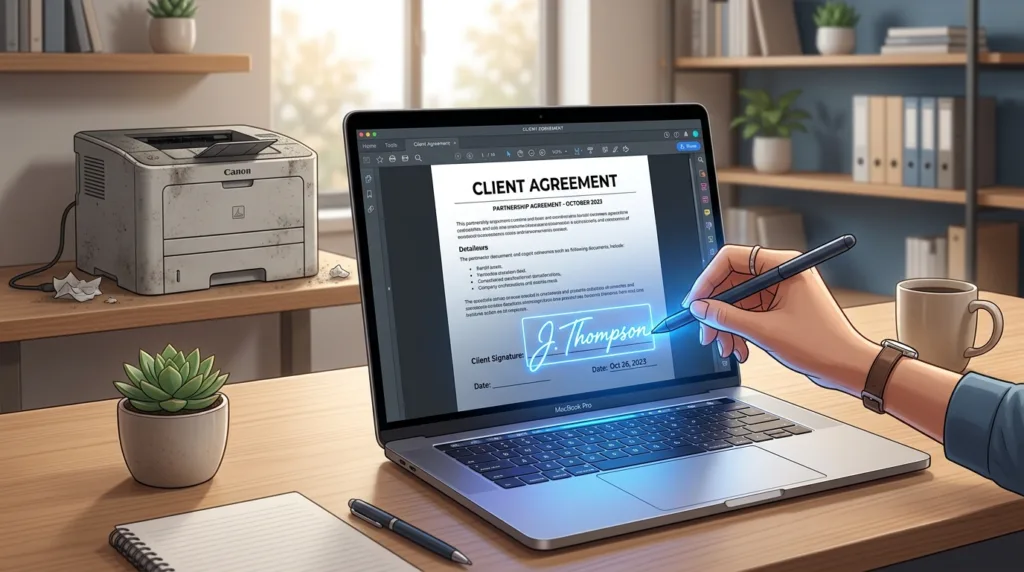
A PDF does not need to make a round trip through a printer and scanner just because someone left a blank line above the word “Signature.” In many cases, you can open the existing file, add a signature directly, save the completed copy, and return the same PDF without creating a paper version at all.
The part that deserves attention is not drawing your name. It is knowing what kind of document you received, whether the PDF already contains interactive fields, what sort of signature the sender expects, and whether the file you save afterward still contains everything it should.
First, see whether the PDF was designed to be filled in
PDFs can look similar on screen while behaving very differently.
Some forms contain actual fields. Click a blank line and a text box becomes active. Checkboxes can be selected. A signature area may already be defined.
Other PDFs are essentially fixed pages. The document contains a visual line for your name, but nothing happens when you click it.
That does not necessarily prevent you from signing. It changes which tool you need.
Adobe Acrobat, for example, can add text, checkmarks, initials, and signatures even when you need to place them manually on the page. Adobe’s current Fill and Sign guidance also distinguishes interactive fields from forms where you add information yourself.
Before doing anything else, scroll through the entire document.
Look for:
- every field that needs information;
- initials requested on individual pages;
- checkboxes or selections;
- more than one signature line;
- a date beside the signature;
- instructions specifying a particular signing method.
Finding those requirements before adding your signature is easier than discovering them after saving what you thought was the finished file.
If the document you received is not yet a PDF, How to Turn a Document Into a PDF explains how to create one without relying on a physical printer.
For an ordinary PDF, the tools already on your device may be enough
You do not always need dedicated signing software.
On a Mac, Preview can create and reuse a signature
Apple’s Preview app includes PDF signing tools.
Open the PDF in Preview, display the Markup Toolbar, and choose the Sign control. Apple’s Preview documentation explains that a signature can be created using the Mac trackpad, captured with the camera, or provided through an iPhone or iPad.
Once the signature exists, place it over the appropriate line and resize it so it fits naturally within the document.
The camera method can be useful if drawing with a trackpad feels awkward. You sign your name on paper, hold it in front of the camera, and Preview captures the shape so it can be placed digitally in the PDF.
That is very different from printing the entire document. The paper is being used only as an input method for the signature.
Preview can retain created signatures for later use, so consider whether you want a signature stored on a computer shared with other people.
On iPhone or iPad, Markup can add a signature directly to a PDF
Apple’s Markup tools can add signatures to PDF documents on iPhone and iPad.
Depending on where the file is open, use Markup, choose the option to add content, select Add Signature, and create or choose the signature you want to place. Apple’s Markup instructions document adding a signature to PDF documents directly from supported apps.
A touchscreen makes this method particularly natural because you can draw the signature with your finger or an Apple Pencil on supported devices.
After placing it, zoom in before saving.
A signature that looked correctly positioned while the full page was visible can turn out to overlap a date, extend outside a box, or sit above rather than on the intended line.
On Windows or another computer, a browser-based signing tool can be the simpler route
Adobe Acrobat provides Fill and Sign tools both in its applications and through Acrobat on the web.
With the web version, you upload the file, open the electronic-signature tools, and create a signature by typing it, drawing it, or using an image. Adobe’s Acrobat web instructions describe placing and resizing the signature before saving the completed file.
The convenience comes with an important practical difference: a web service requires the document to be uploaded to that provider.
That may be perfectly reasonable for an ordinary form.
For documents containing sensitive personal, business, financial, medical, or confidential information, consider whether the organization that sent the file requires or provides a particular signing system rather than automatically uploading the document to whichever online PDF tool appears first in a search.
A local application keeps the workflow different from a browser-based service.
That distinction is worth noticing even when both produce a signed-looking PDF at the end.
Android gives you more than one route depending on what the document requires
Android is less uniform because phones can come with different manufacturer software and PDF applications.
Google Drive provides PDF annotation tools on supported Android devices. Google’s PDF annotation documentation explains that you can open a PDF in Drive and draw on it using a finger or stylus, then save the changes to the original or create another copy.
For a simple document where the sender only expects a visible handwritten signature, annotation may be sufficient as a practical method of placing that mark on the page.
It is not the same as a dedicated electronic-signature workflow.
A signing application such as Acrobat can create a reusable signature and place it more deliberately in the document. A document sent through a formal signature service may instead give you a specific field and signing process that should be followed rather than manually drawing on the PDF.
The document tells you which level of tool you need.
If all you have is a paper form rather than a digital PDF, the workflow starts one step earlier. How to Scan Documents Using Your Smartphone explains how to create a usable PDF from the physical page before filling or signing it.
A drawn signature and a certificate-based digital signature are not identical
The vocabulary around PDF signing can become confusing because “electronic signature” and “digital signature” are often used casually as though they mean exactly the same thing.
For an everyday form, an electronic signature might be your name typed in a signing interface, a signature drawn with a mouse or finger, or an image of your handwritten signature placed on the document.
A certificate-based digital signature adds another technical layer.
Adobe’s digital-signature documentation describes using a Digital ID to sign a PDF and verify information associated with the signer and the integrity of the signed document.
That does not mean every PDF requires a Digital ID.
Most routine forms people encounter do not ask them to configure a certificate before signing.
What matters is the instruction attached to the document.
If someone says simply, “Please sign this PDF and send it back,” an ordinary electronic-signature tool may be what they expect.
If the organization specifically requires a digital certificate, Digital ID, a named electronic-signature platform, or another defined verification process, adding a handwritten-looking image to the page may not satisfy that requirement.
Do not choose the most technically complicated method by default.
Do not assume the simplest visual method is always interchangeable with a required signing process either.
Follow the instructions of the organization receiving the document.
Save a separate signed copy before you send anything
Once the signature is in place, the temptation is to hit Save and immediately attach the document to an email.
A better habit is to preserve a clean distinction between the unsigned original and the completed version.
For example:
rental-application.pdf
can remain the original.
The finished document might become:
rental-application-signed.pdf
This gives you a fallback if you later discover that a field was filled incorrectly or that another person needs to sign the same original document separately.
Some tools let you use Save As, Save a Copy, or an equivalent command. Others may modify the PDF you opened.
Know which behavior you are getting before you overwrite the only copy.
This matters even more when several stages are involved.
A form may need your information first, a signature second, and someone else’s approval later. Preserving a clear original and a clearly named completed copy reduces confusion about which version should be sent.
The broader naming and file-type concepts in What Is a File Extension? A Simple Guide to JPG, PDF, DOCX, ZIP, and More are useful here: changing a filename helps distinguish versions, while keeping .pdf preserves the intended file format.
Open the saved PDF again before attaching it
A successful Save command does not guarantee that the document looks exactly as you intended.
Close the editing or signing view.
Then open the actual file you plan to send.
Go to the signature page.
Is the signature still there?
Is it the correct size?
Did it cover text?
Is the date present?
Scroll through the other pages.
Did filled fields remain populated?
Did checkmarks disappear?
Are any pages missing?
If the document had several signature or initial locations, confirm all of them.
This second opening is particularly useful when moving a PDF between apps. A file can look correct inside an editing interface while the exported or saved copy behaves differently.
Also look at the filename and location.
It is surprisingly easy to sign a copy in a Downloads folder and then attach the untouched original from Documents because both files look almost identical in the attachment window.
Open the attachment itself when the message or upload interface allows it.
That final verification takes seconds and catches mistakes that have nothing to do with handwriting or signature technology.
If a PDF will not let you sign it, identify the restriction before fighting the file
Not every PDF can be edited freely.
A file may have security restrictions.
It may use a form technology that a particular application does not support.
It may already have been signed in a way that restricts later changes.
The signature field itself may require certificate-based signing rather than an ordinary Fill and Sign mark.
Adobe’s documentation for its web tools notes that protected PDFs and some specialized form types are not supported by ordinary Fill and Sign workflows.
If the controls remain unavailable, switching randomly among ten online PDF editors is not always the right solution.
Check whether the document includes instructions.
Try the application recommended by the sender.
If it came from an employer, school, government agency, bank, insurer, or another organization with its own portal, return to that portal and see whether the document was intended to be completed there.
There is an important difference between a PDF that does not have convenient form fields and a PDF intentionally configured to restrict certain edits.
The first can often be handled with annotation or Fill and Sign tools.
The second may be telling you that a different workflow is required.
The last step is deciding what copy leaves your device
Signing is only part of completing a PDF.
The more useful habit is to treat the signed file as a new document that deserves one final inspection before it becomes someone else’s copy.
Keep the unsigned original when it may still be useful.
Name the completed file so you can recognize it.
Open that completed copy independently.
Check the signature, fields, pages, and date.
Then attach or upload that exact file.
When the recipient opens it, they should not have to guess whether you sent the draft, the blank form, or the version you intended to sign.
A good digital signing workflow ends quietly: no printer, no rescanning, and no mystery about which PDF is finished.

Alex Carter is a technology writer with five years of experience in the tech field. He now focuses on creating clear, practical articles that help beginners in the United States better understand computers, smartphones, online services, and everyday digital technology.