
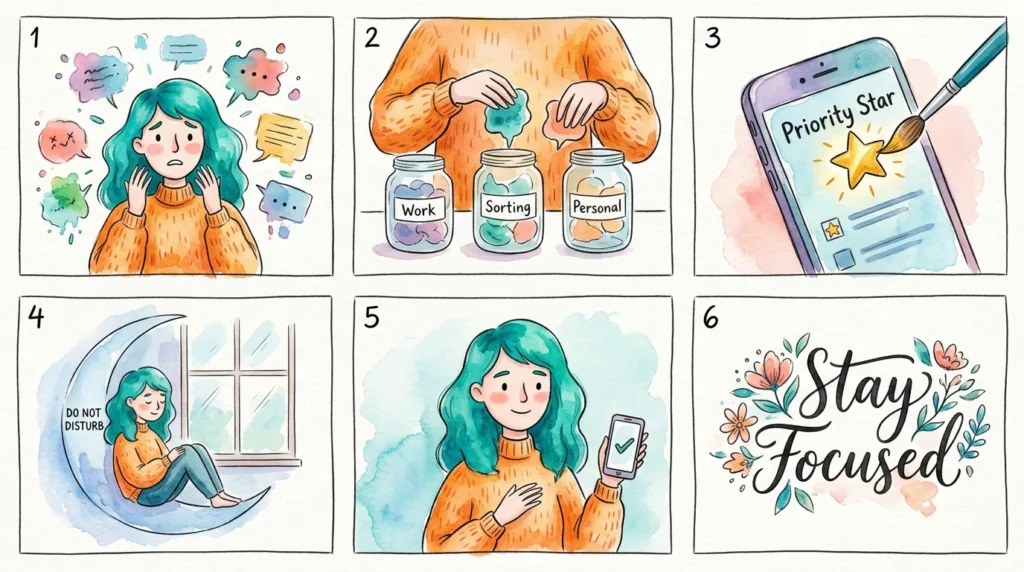
Notifications are useful because they bring information to you before you remember to look for it. A message from a family member, a calendar reminder, a security alert, or a delivery update can genuinely deserve attention at the moment it arrives.
The problem is that the same channel also carries shopping promotions, social reactions, game rewards, restaurant offers, news headlines, app suggestions, and reminders from services you barely use. When everything arrives with the same sound, vibration, badge, and Lock Screen presence, the phone stops distinguishing importance for you.
A better notification setup does not try to eliminate interruptions. It creates a hierarchy so that urgent information can still reach you while low-priority updates become quieter and easier to check on your own schedule.
Start with the notifications that already interrupted you today
Instead of opening Settings and reviewing every installed app alphabetically, begin with recent interruptions.
On Android, the notification settings can show recently active apps, and supported devices may also offer notification history. Google’s Android notification guidance explains that individual apps can be adjusted from Settings or directly from a notification, with some devices allowing specific notification categories to be made alerting or silent.
On iPhone, notifications can be managed directly from the Lock Screen or Notification Center. Apple’s current iPhone notification guidance describes options such as temporarily muting an app, changing its notification settings, or disabling alerts altogether.
That makes today’s notification stream a useful audit.
Look at what actually appeared.
Which alert made you pick up the phone unnecessarily?
Which notification was useful even though it did not need to make a sound?
Which one would have been a problem to miss?
This approach is more realistic than deciding in advance that an entire category of apps is “important” or “unimportant.” A banking app may send critical security alerts and routine marketing from the same application. A messaging app may contain both close family conversations and noisy group chats.
The useful unit of attention is sometimes smaller than the app itself.
Give notifications three different jobs
A simple mental model is to divide alerts into three levels.
1. Interrupt me
These are notifications where delay can matter.
Examples might include:
- calls or messages from people who may need you urgently;
- account-security warnings;
- calendar alerts for appointments you would otherwise miss;
- alarms and time-sensitive reminders;
- certain home-security or safety notifications;
- delivery or transportation alerts when timing matters.
These notifications may justify sound, vibration, prominent Lock Screen visibility, or permission to come through a Focus or Do Not Disturb mode.
The group should stay relatively small.
If thirty apps qualify as urgent, the category has lost its meaning.
2. Show me, but do not interrupt me
Many useful notifications belong here.
A package shipped.
A bank transaction posted.
A podcast released a new episode.
A work app has an update that can wait until you next look at the phone.
On supported Android devices, notification categories can often be configured as silent, allowing the alert to remain available without making sound or vibration. Google’s documentation explicitly distinguishes alerting notifications from silent ones.
iPhone gives you different presentation controls as well. Depending on the app and settings, you can decide whether notifications appear on the Lock Screen, in Notification Center, as banners, or with sounds and badges.
This middle category is often the key to reducing overload without losing useful information.
3. I will check this when I open the app
Some apps do not need to notify you at all.
Shopping promotions, most game alerts, social-media engagement prompts, restaurant discounts, “we miss you” messages, and generic content recommendations are common candidates.
Turning those notifications off does not remove the app or its content.
The information remains available the next time you open the service.
This is one of the easiest ways to make a phone quieter without sacrificing anything you genuinely depend on.
People and apps should not always have the same priority
A messaging app illustrates the problem well.
You may want a partner, parent, child, or coworker to reach you immediately while preferring that a forty-person group chat remain quiet.
Treating the entire messaging app as either “on” or “off” is too crude for that situation.
Both major smartphone platforms provide ways to make attention more selective, although the exact tools differ by app and operating system. Some messaging services allow individual conversations to be muted, while system-level Focus or Do Not Disturb features can allow particular people or apps through.
On iPhone, Focus lets you choose which people and apps are allowed or silenced for different situations such as Work, Personal, or Sleep. Apple’s Focus documentation also allows Focus modes to activate according to schedules or other conditions.
This suggests a more useful question than “Should Messages be allowed?”
Ask:
Who should be able to interrupt me in this context?
During a workday, a team chat may deserve priority while social groups remain quiet.
At night, you may want only family calls or emergency contacts to break through.
On a weekend, the hierarchy can change again.
Notification management becomes much more natural when it follows the context of your day instead of one permanent global rule.
Lock Screen visibility is partly a privacy decision
A notification can be useful without showing its full contents to anyone who glances at your phone.
Messages, authentication codes, banking alerts, health information, calendar appointments, email subjects, and other notifications can reveal more than people expect when previews appear on the Lock Screen.
iPhone lets users control notification previews and where notifications appear. Android also provides Lock Screen controls, although the exact options can vary by manufacturer and device.
Think about visibility separately from urgency.
You may want to know immediately that a message arrived while keeping the message text hidden until the phone is unlocked.
A banking notification can be valuable without displaying the account activity in full.
A two-factor authentication code deserves another level of care because it is part of a login process. What Is Two-Factor Authentication and Why Should You Use It? explains why verification codes and other second factors should be treated as security credentials rather than ordinary messages.
App permissions are a related but separate question. Notification access does not automatically tell you what else the app can use. How to Check and Change App Privacy Permissions covers camera, microphone, location, contacts, photos, and other permissions in more detail.
A good notification setup decides both whether something should interrupt you and how much of it should be visible before you unlock the device.
Focus and Do Not Disturb work better when they filter rather than silence everything
A common use of Do Not Disturb is to turn it on only when notifications have become intolerable.
That works, but it ignores the feature’s more useful purpose.
Focus modes can create different notification rules for different parts of the day.
For example:
Work
- coworkers and work apps can alert;
- social apps remain silent;
- family can still reach you.
Sleep
- ordinary apps stay quiet;
- emergency contacts or selected callers remain available;
- alarms continue according to the platform’s settings.
Personal time
- work applications stop demanding attention;
- family, friends, and personal reminders regain priority.
Apple’s Focus system is explicitly designed around this kind of contextual filtering. It can allow or silence selected apps and people and can be scheduled for particular situations. Android devices offer Do Not Disturb and related controls as well, though details can vary by manufacturer.
The key is to avoid creating rules so complicated that you stop trusting them.
Start with one situation where interruptions are predictably annoying — perhaps sleep or focused work — and build from there.
After a few days, notice whether anything important was silenced.
Adjust the exceptions.
A useful Focus mode should reduce the number of decisions you make manually without making you nervous that something essential disappeared.
Badges can create pressure even when the phone stays silent
Sound is only one form of interruption.
A red badge showing 147 unread items can create its own kind of urgency every time you look at the Home Screen.
The number rarely means that 147 things require action.
It may include promotional messages, old notifications, automated updates, newsletters, or activity that accumulated simply because the app counts everything.
For some applications, badges are useful. A badge on a messaging app may remind you that a conversation still needs a reply. A missed-call indicator can be important.
Other badges add little beyond visual pressure.
This connects directly with How to Organize Apps on Your Phone. A carefully organized Home Screen can still feel crowded when every icon carries dots, numbers, and alerts.
Consider disabling badges on apps where the count does not help you make a decision.
The goal is not to create a perfectly empty Home Screen.
It is to make visual signals meaningful enough that you still notice them.
Notifications can also affect battery and attention in less obvious ways
One notification uses very little battery by itself.
Hundreds of notifications can contribute to more screen wake-ups, vibration, network activity, and repeated interaction with the device. More importantly, every alert creates another opportunity to unlock the phone and remain there longer than intended.
This is why notification management often feels like a battery improvement even when the direct energy savings are modest.
Fewer unnecessary alerts mean fewer reasons for the screen to light up and fewer occasions when a quick glance becomes ten minutes inside another app.
The upcoming Vandutz guide How to Make Your Smartphone Battery Last Longer will cover the factors that matter most for battery life, including display use, connectivity, background activity, and battery health.
For notifications, the more immediate benefit is attention.
A phone that interrupts less frequently becomes easier to trust.
When it does make a sound, the sound means more.
Review notifications when your life changes, not on an arbitrary schedule
There is no need for a monthly notification audit.
Your priorities change naturally.
A travel app can become important during a trip and irrelevant when you return home.
A school app matters during the semester.
A project-management tool may deserve immediate alerts during a deadline and far less attention after the project ends.
A new family situation can change which calls need to come through at night.
The notification system should be allowed to evolve with those changes.
One of the easiest maintenance habits is to adjust an app when it annoys you.
When an unnecessary notification appears, deal with it then rather than swiping it away for the hundredth time.
Make it silent.
Disable the promotional category.
Turn off the badge.
Mute the conversation.
Or remove notifications from the app entirely.
That turns frustration into gradual improvement.
Over time, the notification stream begins to reflect your priorities instead of every app developer’s desire to bring you back into an application.
A well-managed phone will still interrupt you.
It will simply have a better reason for doing so.

Alex Carter is a technology writer with five years of experience in the tech field. He now focuses on creating clear, practical articles that help beginners in the United States better understand computers, smartphones, online services, and everyday digital technology.