
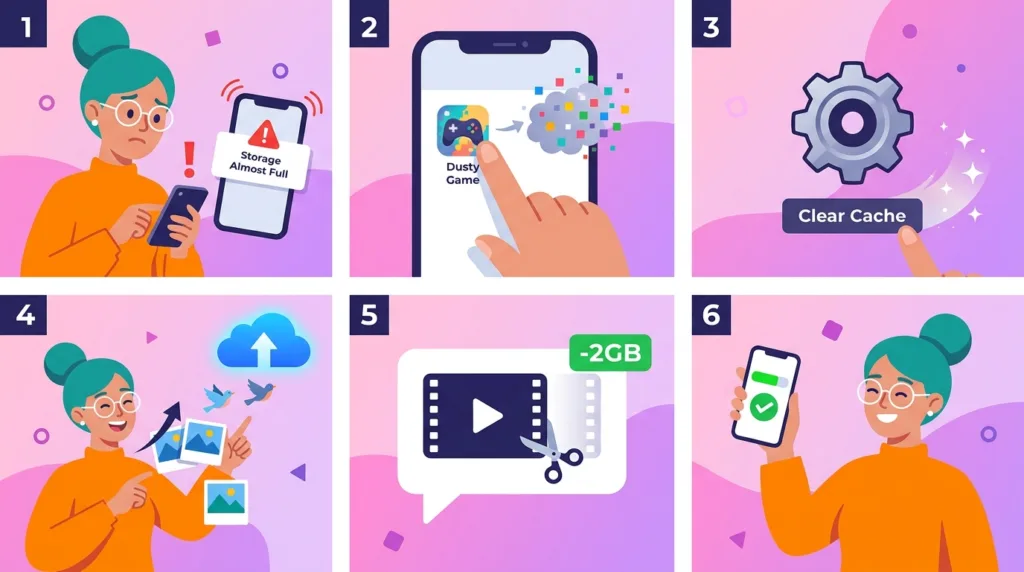
A nearly full phone often creates the urge to start deleting whatever is easiest to see: a few photos, an old app, perhaps some messages. That can free a little space, but it is also how people spend twenty minutes cleaning and discover that the storage meter barely moved.
A better approach is to treat storage as a diagnosis problem. Before removing anything, find out which category is actually using the space. Ten large videos can matter more than hundreds of documents, one downloaded movie can outweigh dozens of apps, and an application that looks small on the Home Screen may have accumulated gigabytes of local data.
Start with the storage screen, not your photo gallery
Both iPhone and Android provide a storage overview that breaks usage into categories.
On an iPhone, go to Settings > General > iPhone Storage. Apple’s current iPhone storage guidance shows the available space and lists apps according to how much storage they use. The screen can also surface recommendations when iOS sees obvious opportunities to save space.
On Android, the exact menu can vary slightly by manufacturer, but Google’s Android storage guidance directs users to Settings > Storage on supported devices, where categories reveal what is occupying the phone.
Spend a minute looking before touching anything.
Is Photos and Videos dominating the device?
Are several large games installed?
Does one messaging app occupy far more space than expected?
Are downloads, music, podcasts, or offline video responsible?
This first inspection changes the rest of the cleanup. A phone with 40 GB of videos needs a different solution from one with 25 GB tied up in apps you stopped using two years ago.
It also prevents a common mistake: deleting things that matter because they are visible while leaving the actual storage problem untouched.
Photos and videos usually offer the biggest gains, but they deserve the most care
Camera libraries grow quietly because each new item feels small.
A single photo may not seem important from a storage perspective, but thousands of photos accumulate. Video is more dramatic. Longer clips, high-resolution recordings, slow-motion video, and repeated takes can consume several gigabytes surprisingly quickly.
Do not begin by selecting hundreds of memories at random.
Start with material that is easier to evaluate:
- long videos you no longer need;
- accidental recordings;
- repeated takes of the same moment;
- screenshots that served a temporary purpose;
- screen recordings;
- downloaded images you could obtain again;
- obvious duplicates.
A five-minute review of large videos can sometimes free more space than an hour spent deleting individual photographs.
Cloud photo services introduce another option.
On iPhone, iCloud Photos can keep full-resolution originals in iCloud while the device uses smaller versions when Optimize iPhone Storage is enabled. Apple explains this in its photo storage guidance: the phone can retain space-saving versions locally while originals remain available from iCloud.
Android users who back up media with Google Photos can also use storage-management features to remove device copies of photos and videos that have already been backed up.
That distinction needs to be understood before pressing Delete.
A synchronized photo library is not automatically the same as an independent backup. Depending on the service and the action you take, deleting a photo from the library can also remove it from the cloud collection.
Our guide How to Back Up Important Photos and Documents explains why backup, synchronization, and simply moving files are related but different.
When storage pressure is high, freeing space should not come at the cost of discovering later that irreplaceable photos existed in only one usable place.
Large apps deserve inspection before automatic deletion
The biggest application on your phone is not necessarily the best one to remove.
A game can consume 15 GB and still be something you use every day. A smaller app that has not been opened in eighteen months may be the more obvious candidate.
Look at size and usefulness together.
Both major platforms now offer a middle ground between keeping every app fully installed and deleting it completely.
On iPhone, unused apps can be offloaded
Apple allows iPhone to Offload Unused Apps. When an app is offloaded, the application itself is removed to save space while its documents and data are retained. The icon remains on the Home Screen and the app can be downloaded again if it remains available.
That is useful for software you rarely use but may want to return to without starting from scratch.
You can also remove individual apps manually after checking their storage use in iPhone Storage.
Android can archive apps instead of fully removing them
Current Android versions support app archiving on compatible devices. Google’s Android app archiving documentation explains that archiving removes much of the installed app while retaining its icon and personal app data, allowing it to be restored later while the app remains available through the relevant app store.
Android can also offer automatic archiving for apps that are rarely used.
These features are convenient, but they do not make app decisions entirely automatic. An app might contain offline media, local project files, or downloaded content that matters to you.
Open important apps before deleting them and understand where their data lives.
Downloads are easy to forget because they disappear from daily view
The Downloads folder is one of the least glamorous places to recover storage, which is exactly why it is often neglected.
A PDF saved for a flight months ago still exists. So does the ZIP archive downloaded for a project, the installation file you no longer need, the video someone sent through a browser, and the large document you opened only once.
Streaming apps create a similar blind spot.
Netflix episodes, Spotify playlists, podcast episodes, YouTube downloads, maps saved for offline navigation, language lessons, and other offline content can occupy substantial space without appearing in the ordinary photo library.
This kind of storage is often relatively painless to clean because much of it can be downloaded again.
Look especially for:
Downloads you already used.
Tickets, manuals, attachments, PDFs, and temporary files can remain long after their purpose has ended.
Offline entertainment.
Several movies or a season of a television series can occupy gigabytes.
Downloaded music and podcasts.
Automatic podcast downloads can accumulate faster than expected when old episodes are never removed.
Offline maps.
Useful while traveling, but sometimes forgotten for months afterward.
Messaging attachments.
Long conversations can accumulate videos, images, documents, voice messages, and other media locally.
This category is a good example of why checking storage first matters. Someone can have a relatively small photo library and still be nearly full because several apps quietly maintain offline collections.
Cache can help, but it should not become the entire cleanup strategy
Temporary files are attractive because deleting them feels low-risk.
Applications and browsers create cache so that frequently used material can load faster without being downloaded from scratch every time. Over time, that temporary storage can grow.
On Android, Google distinguishes between Clear cache and Clear storage. Its storage documentation explains that clearing cache removes temporary data, while clearing an app’s storage removes the app’s data more broadly.
Those actions are not equivalent.
Clearing cache may cause an app to load a little more slowly the next time it runs because resources need to be downloaded again.
Clearing storage can behave much more like resetting the app. Depending on the application, you may lose local settings, downloaded information, or other device data and need to sign in or configure the app again.
That difference is important enough that “clear every app’s data” is poor general advice for beginners.
On iPhone, the system manages considerable temporary data automatically, and individual apps differ in how much control they expose. Removing and reinstalling an app can sometimes reduce accumulated local data, but doing that indiscriminately creates more work and can remove content that was stored only within the app.
Cache is worth considering when a particular app has become unusually large or is behaving incorrectly.
It is rarely the first place I would look when videos, unused apps, or large offline downloads are consuming tens of gigabytes.
Messaging apps can hide a second photo library inside your phone
A photograph received through a messaging app may exist separately from the copy in your normal photo library.
The same conversation can accumulate hundreds of videos, GIFs, voice messages, documents, and images over several years. Group chats make this particularly noticeable because media arrives even when you did not personally create or request every file.
The app’s total storage use can therefore become surprisingly large.
Before deleting the entire application, look inside its own storage or data-management tools when available. Messaging services often provide ways to inspect large files, conversations consuming the most space, or media that can be removed selectively.
This is safer than attacking the problem blindly from the operating system.
A family group may contain years of photographs you genuinely want. Another conversation may contain dozens of forwarded videos you would never miss.
Context matters more than file count.
The same principle applies to social and creative apps. Video editors, podcast tools, drawing applications, document scanners, and social platforms can maintain drafts or downloaded assets inside their own storage.
A large number beside an app’s name in the storage screen is a clue to investigate, not an instruction to delete it immediately.
Move valuable files before treating the phone like permanent storage
A smartphone is convenient enough that it gradually becomes an archive.
Photos stay there because there is space. PDFs remain because finding them again seems easier than organizing them. Old videos are never moved because the phone is always nearby.
Eventually the device fills up.
For files you want to keep but do not need to carry every day, moving them elsewhere can be better than deleting them.
A computer can hold original photos and videos. An external drive can preserve archives. Cloud storage can keep documents accessible without requiring every file to remain downloaded locally.
How to Transfer Photos From Your Phone to Your Computer covers direct photo transfers, including cable and cloud-based approaches.
What Is Cloud Storage and When Should You Use It? explains the broader tradeoffs between local and cloud storage.
The useful question is whether the file needs to be available on the phone right now.
A tax PDF from three years ago may deserve preservation without needing permanent local storage. The original video files from a completed project might belong in an archive rather than on the device you use for everyday calls and messages.
Separating “keep” from “keep on this phone” can free considerable space without forcing you to choose between clutter and loss.
Clean in the order that produces meaningful results
When storage is critically low, random cleanup is frustrating because progress is difficult to see.
A more efficient order is:
- Check the storage breakdown.
- Inspect very large videos and obvious media waste.
- Review large apps you rarely use.
- Remove offline movies, music, podcasts, maps, and downloads you no longer need.
- Inspect messaging apps and other apps storing large local collections.
- Consider cache or temporary data when a particular app is unusually large.
- Move valuable files elsewhere rather than deleting them merely for space.
You do not need to complete every step.
If removing four old videos frees 18 GB, continuing to hunt for tiny temporary files may not be worth the time.
Likewise, a phone that is nearly full because of one enormous game does not require a complete audit of every screenshot.
Storage cleanup becomes less stressful when the goal is not “make the phone perfectly clean.”
The goal is to recover enough space without removing things you will regret losing.
Leave some breathing room instead of waiting for zero
A phone works better when storage management happens before the final gigabyte becomes an emergency.
Operating systems and apps need room for updates, temporary files, new photos, message attachments, and other routine activity. Waiting until a software update cannot install or the camera refuses to save another video turns a manageable cleanup into an urgent one.
You do not need to watch the storage meter every week.
Occasionally look at it when you are already reviewing settings, before a long trip, before recording a large amount of video, or when the phone begins warning that space is low.
Small maintenance is easier than emergency deletion.
More importantly, understanding what occupies the device changes the habit altogether. Instead of seeing storage as one mysterious number, you begin to recognize several collections competing for the same space: photos, applications, offline media, downloads, messages, and temporary data.
Once you know which collection is growing, freeing space becomes a decision rather than a guessing game.

Alex Carter is a technology writer with five years of experience in the tech field. He now focuses on creating clear, practical articles that help beginners in the United States better understand computers, smartphones, online services, and everyday digital technology.