
Incognito mode is useful, but its name can create the wrong expectation. Opening a private window does not make you anonymous on the internet or hide your activity from every website and network. Its main job is much narrower: it changes what the browser keeps on the device after that private session ends.
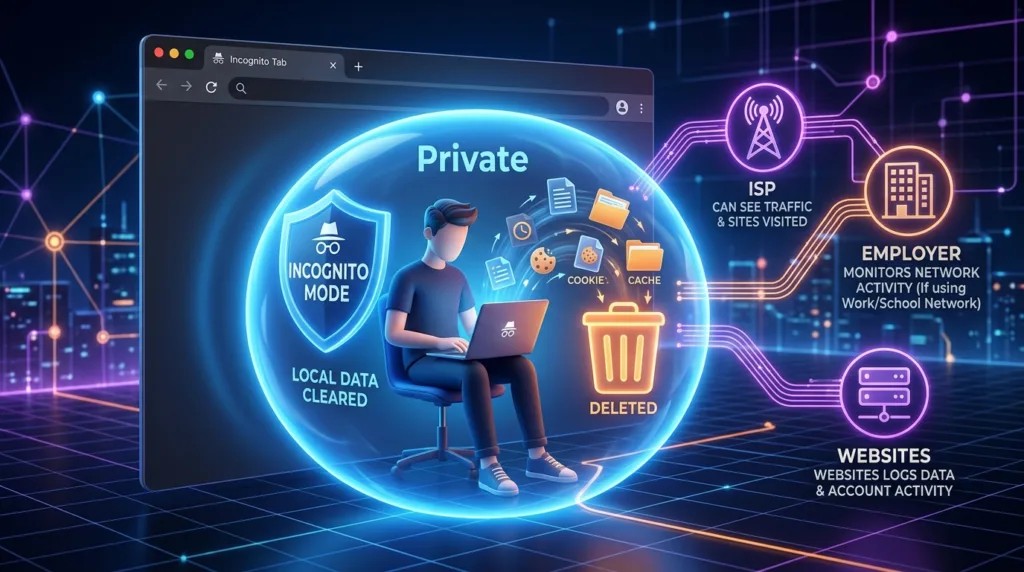
The easiest way to understand incognito mode is to look at what changes
Different browsers use different names. Google Chrome calls it Incognito, Microsoft Edge uses InPrivate, Firefox calls it Private Browsing, and Safari uses Private Browsing as well.
The details vary slightly, but the basic idea is similar.
| During or after a private session | What generally happens |
|---|---|
| Browsing history | Pages from the private session are not added to the browser’s normal history |
| Cookies and site data | Temporary session data is generally removed when all private windows are closed |
| Form information | The browser usually avoids keeping new entries in the same way as a normal session |
| Downloaded files | The files remain on the device |
| Bookmarks | Anything you deliberately bookmark remains saved |
| Your public IP address | It does not become invisible |
| Activity seen by websites | Websites can still receive information about your visit |
| Activity on a work or school network | The network may still be able to observe or log traffic |
Google’s official Chrome Incognito documentation describes the feature in similar terms: Chrome does not save browsing history, cookies and site data, or information entered in forms after the Incognito session ends, while downloads and bookmarks remain.
That local-session focus is the key to understanding the feature correctly.
Think about what happens after you close the window
Suppose you normally use a shared family computer.
You open Chrome, visit several websites, sign into an account, search for a birthday gift, and then close the browser. In a normal session, the browser may retain history entries, cookies, login state, and suggestions based on what happened during that session.
A private window reduces much of that local residue.
After all private windows are closed, another person using the same browser should not be able to open the ordinary browsing history and find the list of pages you visited in that session. Sites should not remain signed in through the temporary cookies created only for that private session.
That makes incognito mode useful for situations where you want a temporary browser session without mixing it into the normal profile.
For example, you might use it to:
- sign into a second account temporarily;
- use a shared computer without leaving an ordinary browsing history behind;
- check how a website behaves when you are not already signed in;
- search for something without adding it to the browser’s local history;
- troubleshoot a website without some of the cookies from your normal session interfering.
These are modest advantages, but they are genuinely useful.
The feature becomes misleading only when those advantages are mistaken for complete online privacy.
Websites do not suddenly lose the ability to recognize your connection
Opening an incognito window does not change the fact that your browser still has to contact websites.
The website needs your connection in order to send the page back to you. It can therefore still receive information associated with the visit, including the IP address used by your connection and technical information sent by the browser.
Signing into an account makes the distinction even clearer.
Imagine opening an incognito window and then signing into YouTube, Amazon, Reddit, or another service. The browser may avoid keeping that session after you close the private window, but the service itself still knows that the signed-in account used the website during that session.
Private browsing does not tell the website to forget what happened on its own systems.
That is why searching Google while signed into a Google Account inside an Incognito window is different from using Google without signing in. Incognito changes browser storage behavior; signing into a service identifies you to that service.
Firefox makes this limitation explicit in its Private Browsing documentation, noting that Private Browsing does not make a user anonymous on the internet and does not prevent websites or internet service providers from learning information about activity.
Your internet provider, employer, or school is outside the browser
Another common misunderstanding comes from imagining incognito mode as a layer placed over the entire internet connection.
It is not.
If you use a company laptop on a company network, the organization may have monitoring, security, filtering, or logging systems operating independently of the browser’s history. A school network can work similarly.
Your internet service provider also carries the traffic between your connection and destinations on the internet. Private mode does not transform that network into an invisible tunnel.
HTTPS changes part of this picture because it encrypts the contents exchanged between your browser and an HTTPS website. Someone observing the network generally cannot read the full contents of an encrypted webpage in the same way they could with an unencrypted connection.
Even then, incognito mode is not the reason for that encryption. HTTPS is.
This distinction matters because two privacy features can operate at different layers without doing the same job. Incognito controls what the browser retains locally. HTTPS protects communication between the browser and the site. Other privacy tools can address still other parts of the connection.
Treating all of them as interchangeable leads to unrealistic expectations.
Downloads, screenshots, and bookmarks do not disappear with the session
Private mode affects browser data. It does not erase ordinary files you deliberately create or save.
Download a PDF in an Incognito window and the browser may remove the download from its private-session history after the session closes, but the actual PDF can remain in the Downloads folder.
Save an image and the image remains.
Take a screenshot and that screenshot belongs to the operating system or screenshot tool, not to the browser’s private history.
Create a bookmark and it is intentionally saved for later.
This is worth remembering on a shared computer. Closing the Incognito window may remove the obvious browser trail while leaving downloaded files sitting in a folder that anybody using the same account can open.
The browser cannot know that you intended those files to disappear simply because they were downloaded during a private session.
A similar idea applies to activity outside the browser. If you copy information into a document, send an email, upload a file, or complete a purchase, those actions do not reverse themselves when the Incognito window closes.
Private browsing is temporary browsing state, not a temporary reality.
One of the best uses for private browsing has nothing to do with secrecy
Incognito mode is surprisingly useful for troubleshooting.
Websites store cookies and other local data for many legitimate reasons. They can keep you signed in, remember preferences, maintain shopping carts, or store parts of an application’s state.
Occasionally that stored information becomes part of a problem.
A page may behave strangely under one account. A website could keep redirecting you based on an old session. You might want to check whether a public page actually works for someone who is not signed in.
Opening a private window gives you a relatively fresh browser session without requiring you to clear all the cookies and site data from the normal profile.
This is useful for website owners, students, office workers, and ordinary users alike.
Suppose a friend tells you that a shared document asks them to request access, while it opens normally for you. Your usual browser may already be signed into the account that owns the document. Opening the link privately lets you see more closely what a visitor without that existing session encounters.
Or perhaps a website keeps automatically choosing the wrong account. A private window can provide a quick way to start without the normal account cookies.
In these situations, private browsing is less about hiding activity and more about temporarily separating browser state.
Incognito mode can reduce local traces without eliminating tracking
There is a middle ground between “incognito provides complete privacy” and “incognito does nothing.”
Neither description is useful.
Removing cookies and browser history after a session reduces certain kinds of persistence on the device. That matters, especially on shared computers or when you do not want one temporary session mixed into your ordinary browsing profile.
At the same time, websites have other ways to recognize visits or gather information. Account sign-ins are an obvious example. IP addresses and browser characteristics can provide additional context. Advertising and analytics systems may also receive data during the session depending on the websites involved and the browser’s privacy protections.
Some browsers add privacy protections beyond simply deleting local history. Those protections continue to evolve, which is another reason not to treat “private mode” as one identical technology across every browser.
The useful question is not whether Incognito makes you “private” in some absolute sense.
Ask what you are trying to keep separate.
If the goal is preventing the next person who uses the browser from seeing your ordinary browsing history, private browsing can help.
If the goal is stopping a website you sign into from knowing that you used your account, it does not accomplish that.
If the concern is a workplace monitoring system, the browser’s private window is not the relevant boundary.
Once the privacy goal is specific, the feature becomes much easier to evaluate.
Common questions about incognito and private browsing
Can my employer see what I do in Incognito mode?
Potentially, yes. Incognito mode does not disable company network monitoring, device-management tools, security software, or other systems controlled by an employer. What an employer can actually observe depends on the network, device, and tools being used.
Does Incognito mode hide my IP address?
No. Websites still need network information in order to communicate with your device. Incognito mode does not replace or conceal your public IP address simply by opening a private window.
Does closing an Incognito window delete downloaded files?
No. Files you downloaded normally remain wherever they were saved on the device. The private browsing session and the downloaded file are separate things.
Can I use Incognito mode to sign into two accounts at once?
Often, yes. A normal browser window can remain signed into one account while a private window starts with a separate temporary cookie environment. That can be convenient for short-term use of another account, although browser profiles are usually better for identities you use regularly.
Is Incognito mode safer for online banking?
It can reduce leftover browser data on a shared computer, but it does not transform an untrusted device or network into a trusted one. For sensitive accounts, using your own updated device and a connection you trust is generally more important than whether the browser window is private.
Private browsing is most useful when its job is clearly defined
Incognito mode solves a fairly specific problem well: it creates a temporary browser session that leaves less of that session stored in the normal browser profile after you close it.
That can be exactly what you need.
You may want a clean login session, a quick troubleshooting environment, less browsing history on a shared device, or a temporary separation from the accounts and cookies already active in your normal browser.
The confusion begins when that temporary local privacy is interpreted as invisibility.
Websites can still interact with you. Accounts can still record activity. Networks still carry the connection. Downloads remain on the computer. Actions you take online can continue to have consequences after the window closes.
Incognito mode is therefore neither a privacy shield nor a useless gimmick. It is a browser tool with a limited, practical purpose — and once that limit is understood, it becomes much easier to use it for the situations where it actually helps.

Alex Carter is a technology writer with five years of experience in the tech field. He now focuses on creating clear, practical articles that help beginners in the United States better understand computers, smartphones, online services, and everyday digital technology.