
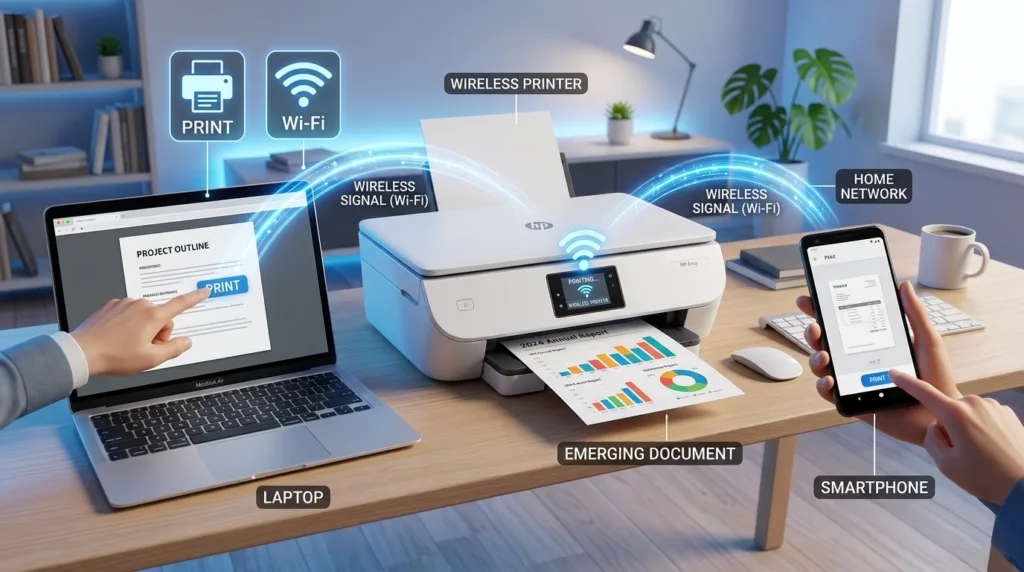
Printing feels simple when everything is already configured: open a document, choose Print, and wait for the paper to appear. The difficulty usually begins somewhere else. Perhaps the computer cannot find the printer, the phone shows no printing option, the document is coming out in the wrong orientation, or a twenty-page file is about to use far more paper than you intended.
Most printing problems become easier once you separate two parts of the task. First, the device has to communicate with the printer. After that connection is working, the print window controls what actually reaches the paper — which pages, how many copies, the orientation, color settings, paper size, and other choices available for that printer.
That distinction is useful across Windows, macOS, iPhone, and Android. The menus differ, but the underlying job remains much the same.
Look at the preview before looking at the printer
A print preview is easy to dismiss because it appears after you have already finished the document. In practice, it is one of the most useful places to catch mistakes.
Microsoft Word, for example, shows a preview when you choose File > Print, along with settings for copies, page ranges, orientation, and other print options. Microsoft’s current Word printing guidance recommends reviewing the pages before printing, particularly when you intend to print only part of a document.
The preview can reveal a blank final page, a table extending beyond the margin, an image that has been pushed onto another sheet, or text that looks different from what you expected on screen. Documents created for digital reading also sometimes contain backgrounds, comments, tracked changes, or other elements whose print behavior deserves attention.
Page count is worth checking for a more ordinary reason as well. A document you thought was five pages may actually be fifteen. Discovering that before pressing Print saves paper, ink, and the frustration of stopping a job halfway through.
For documents whose layout matters, this review belongs naturally near the end of the workflow. How to Turn a Document Into a PDF covers a similar habit when producing a digital final copy: what appears correct while editing should still be inspected in its finished form.
Most print settings answer a practical question
Print dialogs can contain an intimidating number of controls, especially when the printer supports duplex printing, multiple trays, different paper sizes, photo modes, finishing options, or specialized quality settings. You rarely need to touch all of them.
A few settings account for most everyday printing:
- Copies determines how many sets you want.
- Page range lets you print only selected pages instead of the entire document.
- Orientation chooses portrait or landscape.
- Paper size should correspond to the paper actually loaded in the printer.
- Color or grayscale determines whether color ink or toner is used where supported.
- Two-sided or duplex printing can place content on both sides of the sheet when the printer supports it.
These settings interact with the document rather than simply with the printer. A wide spreadsheet may fit more naturally in landscape orientation, while a letter or essay usually works in portrait. Printing only pages 4 through 7 makes sense when you need one section of a report rather than another full copy.
Two-sided printing can reduce paper use considerably for longer documents, although the exact option depends on the printer. Some devices can turn pages automatically; others may require the user to reinsert paper manually for the second side.
The names can vary slightly between applications and operating systems, so understanding what each choice changes is more useful than memorizing one precise menu layout.
On Windows, the application usually sends the job to a printer Windows already knows
Once a printer has been added to Windows, applications such as Word, browsers, PDF readers, and many other programs can usually access it through their normal Print command.
In Word, the common path is File > Print. From there, choose the intended printer, inspect the preview, adjust any necessary settings, and send the job.
The selected printer deserves a quick glance, particularly when a computer has used several printers in the past. A laptop may remember an office printer, a home printer, a PDF printer, or another device that is currently unavailable. Sending the job to the wrong entry can make it appear that nothing happened when the file was simply directed somewhere else.
Windows can work with both USB and network printers. A USB printer communicates directly through the cable, while wireless or network models must be available through the relevant network connection. Printer manufacturers may provide their own setup software, although many modern printers can be added using Windows’ built-in controls.
Once the printer is established, application-specific differences matter more than the operating system itself. A browser may organize print settings differently from Word, yet both ultimately allow you to choose a printer and define what should appear on the page.
A Mac print window is shared across many different apps
macOS provides a fairly consistent print dialog across applications. With a document open, File > Print usually brings up the printer selection, page preview, copies, page range, paper handling, and other available controls.
Apple’s Mac printing guide explains that the options displayed can vary according to both the app and the printer. That variability is normal: a basic black-and-white laser printer does not offer the same controls as a photo printer with several paper trays and quality settings.
Wireless printing is especially straightforward with printers that support AirPrint. Apple’s AirPrint overview explains that compatible printers can work with Macs and other Apple devices without requiring separate printer drivers for ordinary use.
When a Mac cannot find a wireless printer, the first question is often whether both devices are actually connected to the same network. Printers sometimes remain connected to an older Wi-Fi network after a router is replaced, while the computer has already moved to the new one. From the Mac’s perspective, the printer then appears to have disappeared even though the printer itself is turned on and functioning.
A printer connected directly by USB avoids that particular problem, but wireless printing is usually more convenient when several computers or phones need to use the same device.
Printing from an iPhone is often shorter than printing from a computer
An iPhone does not have a universal File > Print menu because mobile apps organize their controls differently. In apps that support printing, the command is commonly found under Share, an actions menu, or another app-specific control.
Apple’s current AirPrint instructions describe the typical sequence: open the item, find Print, choose an AirPrint-enabled printer, adjust settings such as copies or page selection, and send the job. Apple also notes that the iPhone and printer generally need to be on the same Wi-Fi network for AirPrint.
The absence of a Print option does not necessarily mean the printer is broken. Not every app supports direct printing, and some applications place the command somewhere less obvious than others.
A PDF, photo, email, or webpage can often be printed directly from the corresponding app. When direct printing is unavailable, saving or exporting the material into another app that supports printing can sometimes provide a cleaner route than searching the phone’s settings for a global print button.
AirPrint also removes much of the traditional driver setup associated with computers. When the printer supports it and both devices are correctly connected, the printer can often appear automatically in the selection screen.
Android printing depends partly on the app you are using
Android also supports printing from compatible applications, although manufacturers and Android versions can organize the system controls somewhat differently.
Google’s documentation for printing from Google Docs, Sheets, and Slides on Android uses a straightforward route: open the file, enter the app’s menu, choose Share & export, select Print, and follow the printer-selection controls.
Android devices can also use print services that connect supported apps to network printers. On Google’s Pixel devices, for example, printing controls appear under connection preferences and can manage available printing services.
For a beginner, the application itself remains the most useful starting point. Open the document, photo, email, or webpage and look for Print within its menu or sharing options. Moving directly into system settings before confirming that the app supports printing can make a simple task feel unnecessarily complicated.
Printer manufacturers sometimes provide their own Android apps as well, particularly when they want to support scanning, ink management, setup, maintenance, or features beyond basic printing. Such an app may be useful without being required for every print job.
When the printer is visible but nothing comes out
A printer appearing in the menu tells you that the device has been discovered at some point. It does not guarantee that the printer is currently ready to complete the job.
Paper and consumables are the obvious places to look, but several other conditions can interrupt printing. A paper tray may be empty or loaded with a different size from the one selected in the document. A cover can be open. A previous paper jam may not have been fully cleared. Ink or toner may be exhausted, and some printers pause when one cartridge reaches a critical state.
The print queue is also worth checking. A failed older job can occasionally sit ahead of the document you are trying to print, leaving newer jobs waiting behind it. Canceling an obviously stuck job and trying again may be more effective than repeatedly clicking Print and adding several copies to the queue.
Network printers introduce another possibility: the computer or phone may still remember the printer even though the printer has dropped off Wi-Fi. Turning the printer off and back on can allow it to reconnect, while checking the printer’s network screen or manufacturer documentation can help when the connection does not return.
Restarting every device immediately is rarely necessary. A quick look at the printer display, paper, connection, and queue often reveals the source of the problem with much less disruption.
Paper size causes more trouble than it deserves
A document and a printer can both work perfectly while producing an awkward result because their paper expectations do not match.
In the United States, Letter paper at 8.5 by 11 inches is extremely common. Other regions frequently use A4, which has different dimensions. A document created for one size may be scaled, shifted, or broken across pages when printed on the other.
This becomes particularly noticeable with forms designed to fit precisely on one sheet, labels, certificates, spreadsheets, and documents containing elements close to the page margins.
When a preview looks unusually small or part of the document appears cut off, check both the document’s paper size and the paper loaded in the printer before adjusting margins or redesigning the file.
Applications may offer choices such as Fit, Scale to fit, or a percentage adjustment. Those controls can solve legitimate size differences, but they should not become the first response when the real problem is that the wrong paper format was selected.
A document prepared specifically for someone else to print is often safer as a PDF because its intended layout is easier to preserve across systems. That does not eliminate paper-size differences, but it reduces some of the reflow that can occur when editable documents open in another program.
Printing from a phone becomes useful in places where the computer is inconvenient
Mobile printing is sometimes described as though its main advantage were novelty — printing without turning on a computer. Its practical value is more mundane.
A boarding document arrives by email while you are away from your desk. A signed PDF needs a physical copy. You photograph something that needs to be printed immediately. A family member sends a document through a messaging app. In all of those cases, moving the file to a computer merely to reach the printer adds an unnecessary transfer.
Phones also pair naturally with the scanning workflow we covered in How to Scan Documents Using Your Smartphone. A paper document can be scanned into a PDF, emailed or stored, and later printed again without requiring a traditional scanner or desktop computer at any stage.
There are still jobs for which a larger screen is more comfortable. Printing a long report with several page ranges, checking detailed spreadsheet scaling, or managing unusual printer settings is easier when the preview is large enough to inspect carefully.
The device you start from should reflect the complexity of the job rather than a rule that printing belongs exclusively to computers or phones.
A printer is mostly predictable once three things line up
Many frustrating print jobs come down to a mismatch among the document, the printer, and the connection between them.
The document determines what should reach the page: page size, orientation, ranges, color, and layout. The printer determines what it can physically produce: available paper, duplex capability, color support, trays, and finishing options. The connection determines whether the job reaches the printer at all.
Looking at those three pieces in that order often turns a vague “the printer isn’t working” problem into something specific enough to fix.
A bad preview belongs to the document side. A low-toner warning belongs to the printer. A device that suddenly vanished after the Wi-Fi network changed belongs to the connection. Once the problem has a category, you can spend your time in the right place rather than changing settings at random.
Printing remains one of those digital tasks that still ends with a very physical result. That is exactly why the final few seconds before pressing Print matter: the screen is your last chance to decide what will become paper.

Alex Carter is a technology writer with five years of experience in the tech field. He now focuses on creating clear, practical articles that help beginners in the United States better understand computers, smartphones, online services, and everyday digital technology.