
Google Maps can be useful long before you are actually moving.
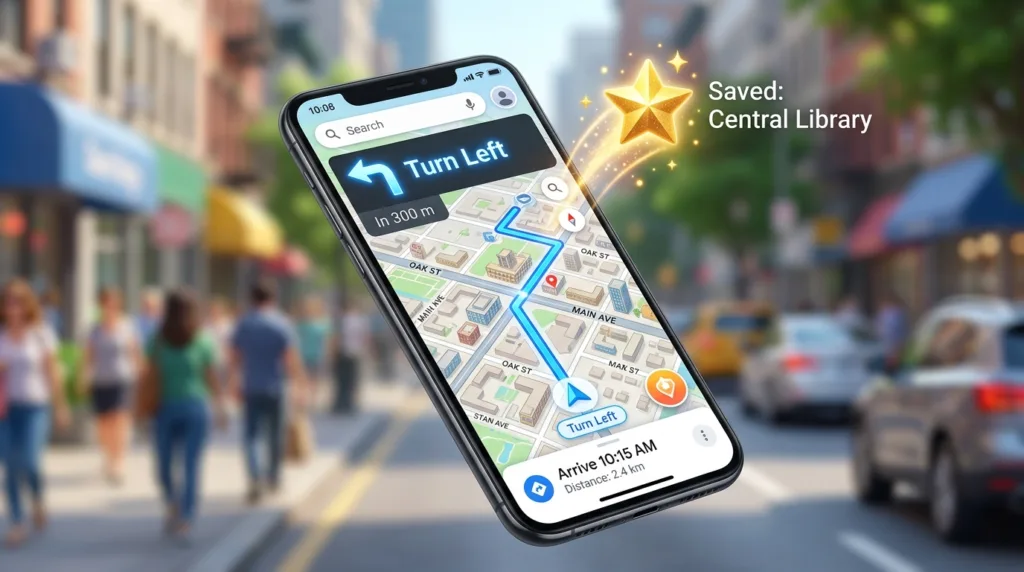
You might open it at home to compare two routes across town, check whether a restaurant is close to a train station, estimate how long a trip will take after work, or save several places you want to visit during a weekend. Later, the same app can shift into navigation mode and guide you turn by turn. After the trip, those locations can remain organized in saved lists so you do not have to search for them again.
That broader view makes Maps easier to understand. It is not only a navigation screen that tells you when to turn; it is also a place for planning, comparing, remembering, and returning to locations that matter to you.
Google currently organizes much of that experience around the Explore and You areas of the app. Explore helps you search and discover places, while the You tab brings together saved places, lists, frequent trips, and other personalized information. Google’s current overview of the Maps app reflects that structure.
Once those pieces make sense, most everyday use becomes fairly intuitive.
Finding the right place is more important than starting navigation quickly
Suppose you want directions to a restaurant with a common name. Typing the name into Maps may return several locations, especially in a large city or when the business has multiple branches. Before tapping Directions, look at the address, neighborhood, business details, and map position to make sure the result is actually the place you intended.
That small verification can prevent a surprisingly frustrating mistake: following perfectly accurate directions to the wrong branch.
The same care helps with apartment buildings, hospitals, schools, shopping centers, airports, and businesses located inside larger complexes. A place name can be correct while the entrance you need is on another street or in another section of the property. When available, photos, reviews, business descriptions, and user-provided information can provide useful context before you leave.
For an exact residential address, entering the full address is often clearer than searching only for a street name. For a business or landmark, the place listing itself is usually more useful because it may include operating hours, entrance information, contact details, or other context.
Once the destination is correct, tap Directions and pay attention to the starting point. Maps commonly uses your current location, but you can replace it with another address when you are planning a trip for later or comparing routes from somewhere else.
This planning mode is easy to overlook because many people associate directions only with immediate travel. In practice, checking the route before leaving can reveal travel time, possible alternatives, transfers, tolls, or other details that affect when and how you want to go.
The first route shown is a recommendation, not a command
Google Maps often displays one route prominently and shows alternatives alongside it. On supported directions, Google’s route guidance describes the recommended route in blue, with alternatives shown differently on the map.
The recommended option may reflect travel time, current traffic, road conditions, route availability, and other information. That does not mean it will always be your preferred route.
One option might be a few minutes faster but involve tolls. Another may use highways you prefer to avoid. A public-transit route may arrive slightly later while requiring fewer transfers, which can be more comfortable when you are unfamiliar with the area. Walking directions may differ considerably depending on crossings, access points, or paths that are available to pedestrians.
Before starting, glance at the alternatives rather than treating the first line as the only possible journey. A route that looks slower on paper can still fit your circumstances better.
Transportation mode changes the calculation entirely. Maps supports directions for several modes, including driving, walking, cycling, public transit, ridesharing, and others depending on the location. The available options vary geographically, so the icons you see in one city may not be identical elsewhere.
Public transit deserves a little extra attention because the route is also tied to time. A train or bus that works well at 2:00 p.m. may not be available late at night, and service frequency can change by day of the week. When planning ahead, adjust the departure or arrival time rather than assuming the route displayed right now will apply later.
Navigation becomes useful once the route meets the real world
After choosing a route and starting navigation, the map changes from planning tool to live guidance. Your location moves along the route, and the app provides upcoming instructions through the screen and, when enabled, spoken directions.
Keeping the phone where it can be glanced at safely matters more than continuously watching the map. While driving, road signs, traffic signals, lane markings, and actual conditions take priority over whatever is displayed on the screen. Google itself cautions users to remain aware of their surroundings and follow real traffic regulations when using directions.
Navigation is also dynamic. Missing a turn rarely means the trip is ruined; Maps can usually recalculate and offer another route from the new position. Traffic conditions may change during the journey as well, causing the estimated arrival time to move or the app to suggest another path.
That flexibility is useful precisely because a planned route is only an estimate of how the trip will unfold. Construction, congestion, temporary closures, transit delays, and other real-world conditions can alter the journey after you leave.
For walking directions, physical surroundings deserve even more attention because digital maps cannot capture every temporary obstruction or safety consideration. A path may technically exist while being poorly lit, blocked by construction, or simply uncomfortable in the current circumstances. The map provides guidance; your surroundings provide the final context.
Saving a place is different from saving a trip
This distinction is easy to miss because both features involve locations you may want to use again.
Saving a place means keeping a location — a restaurant, park, hotel, store, address, or landmark — in one of your Maps lists. Google’s saved places guidance explains that saved places can be added to lists and later found from devices where you are signed into your Google Account.
Saving a trip is oriented toward a route you use repeatedly. Google’s current saved-trip feature can store frequent trips on mobile so you can return to travel estimates and route information more quickly. According to Google’s trip-management documentation, saved trips are available on mobile and support certain travel modes.
For most beginners, saving places is the more broadly useful habit.
Open a location in Maps, tap Save, and choose a list. Google provides familiar list types such as Favorites and Want to go, while custom lists let you organize locations around whatever matters to you.
A place can also belong to more than one mental category over time. A restaurant might begin in a “Want to try” list and later become a favorite. A hotel saved during trip planning can remain useful after the trip because you may want to recommend it to someone else.
The value of saving is cumulative: Maps gradually becomes less dependent on remembering exact names and addresses.
Lists become useful when they have a purpose
Saving every mildly interesting place into one giant list quickly produces a new problem: the list itself becomes difficult to use.
A small amount of structure goes a long way.
A weekend trip might have one list containing restaurants, museums, coffee shops, and parks you are considering. You do not necessarily need a separate list for every category because seeing all of them together on the map can reveal which places are naturally close to one another.
For everyday life, a list such as Places to Try can collect recommendations from friends, articles, or social media without requiring you to remember where you first heard about them. Another might contain reliable places you frequently recommend to visitors.
Google Maps currently allows users to create their own lists and, depending on the sharing settings, keep them private or share them with other people. Google’s list-management documentation also supports adding descriptions and managing whether lists appear on the map.
Shared lists can be particularly helpful when several people are planning together. Instead of exchanging addresses through a long message thread, a group can maintain a collection of possible stops and see their geographic relationship directly.
That spatial relationship is one of the reasons lists in Maps feel different from a simple note on your phone. Five restaurant names written in a note tell you what the options are; five saved markers can immediately show that four are in one neighborhood and the fifth is forty minutes away.
Saving places changes how you plan a day
Consider a visit to a city you do not know well.
You save a museum, two restaurants, a market, a park, and the hotel before the trip. Looking at them together may reveal that three places are within walking distance of one another, while the market is across town. Instead of treating each destination as an isolated journey, you can begin grouping the day geographically.
That can reduce unnecessary travel and make plans easier to adapt. A restaurant turns out to be full, but another saved place is five minutes away. Rain makes the park less attractive, so the nearby museum becomes the better option. You discover that something you wanted to visit is far from everything else and decide to leave it for another day.
Maps becomes especially useful here because planning and navigation are connected. The saved place is already available when you need directions; there is no need to search for the address again or reconstruct where it was located.
This kind of planning also works close to home. You might save several furniture stores before a Saturday shopping trip, keep a list of restaurants friends recommended, or mark places connected with a project that will require several visits over time.
The app becomes more valuable as those small bits of organization accumulate.
Your current location is useful, but it also changes the kind of information Maps can provide
Directions from “Your location” depend on the device knowing where you are. Location permission allows the app to estimate that position and provide nearby search results, live navigation, and travel times starting from where you are standing.
The permission can feel unusually broad because location is sensitive information, yet it is central to many of Maps’ most useful features. The relevant privacy controls depend on the device and operating system, and permissions can generally be reviewed later rather than treated as an irreversible decision.
Our guide How to Check and Change App Privacy Permissions explains those controls in more detail.
Google also offers features such as Timeline and personalized recent places that depend on account activity and settings. Those are separate from simply saving a place to a list. The You tab can contain saved locations, recent activity, trips, Timeline information, and other personalized content depending on the settings associated with your account.
You do not need to activate every personalized feature in order to use directions or save useful locations. Understanding that these features are separate makes it easier to choose the level of personalization that fits how you actually use the app.
A route is easier to trust when you understand what can change
Estimated travel time looks precise because Maps can display a specific arrival time, yet travel remains a moving target.
Traffic can worsen after you leave. A transit connection can be missed. A road may temporarily close. Walking speed varies. Parking at the destination may take longer than expected, and the pin itself may mark a building rather than the entrance you actually need.
A useful habit is to look at the estimate as part of planning rather than as a promise.
For an appointment that matters, allow enough time for uncertainty outside the route calculation. For a familiar trip, the estimate may be useful mainly as a quick traffic check. For an unfamiliar city, the route can help you understand how places relate to one another before the day begins.
The map is giving you a model of the journey based on the information available at that moment. Your own schedule still needs room for everything the map cannot predict.
Perguntas Frequentes
Do I need a Google Account to use Google Maps?
You can use many basic Maps features without signing in, including searching for places and getting directions. A Google Account becomes more useful when you want saved places, lists, and other personalized information to remain associated with your account across devices.
What is the difference between Favorites and Want to go?
Both are saved-place lists. The distinction is organizational rather than technical: Favorites is useful for places you already value, while Want to go is convenient for locations you may visit in the future. Custom lists can be created when those categories do not match the way you organize places.
Can other people see the places I save?
Saved places are not automatically public. Google provides different sharing options for lists, so a list can remain private or be shared depending on how you configure it. Review the list’s sharing setting before using it for locations you would prefer to keep personal.
Why does Google Maps sometimes change my route while I am driving?
Navigation can respond to updated traffic information, road conditions, or a missed turn. A newly calculated route may therefore differ from the one you saw before starting. Road signs and actual traffic regulations should still take priority over the app’s guidance.
Can I use Google Maps when I do not have an internet connection?
Google Maps supports offline maps for certain areas and features, but offline use has limitations compared with a live connection. Downloading the area in advance can be useful when you expect weak service, although current traffic and some other real-time information may not be available.
A useful map gradually becomes your own map
The first few times you use Google Maps, the app can feel like a search box attached to navigation. You type an address, follow the route, and close it when you arrive.
Saved places change that relationship over time.
The restaurant you heard about last month remains available when you finally visit the neighborhood. A list built before a trip becomes a visual plan rather than a collection of names. Frequent destinations require less searching, while alternative routes become easier to compare because you already know what the destination looks like in relation to the rest of the city.
You still need to evaluate the journey in the real world — choosing the right destination, noticing conditions around you, allowing time for uncertainty, and following actual signs and regulations. Maps simply reduces the amount of geographic information you have to remember at once.
Used that way, directions and saved places are parts of the same habit: understanding where something is before you need to get there, and keeping that knowledge available for the next time it becomes useful.

Alex Carter is a technology writer with five years of experience in the tech field. He now focuses on creating clear, practical articles that help beginners in the United States better understand computers, smartphones, online services, and everyday digital technology.