
A video meeting invitation can make a fairly ordinary conversation look surprisingly technical. The email may contain a long link, a meeting ID, a passcode, dial-in numbers, calendar information, and the name of a platform you have never used. Once the link opens, another set of choices may appear: continue in the browser, install an app, allow the microphone, allow the camera, choose an audio device, type your name, or wait for someone to admit you.
Most of that complexity comes from flexibility. Services such as Zoom, Google Meet, and Microsoft Teams need to accommodate personal computers, work accounts, smartphones, schools, companies, guests, conference rooms, headsets, webcams, and different security policies. A first-time participant sees many of those possibilities at once, even though the meeting itself may require little more than listening and speaking.
The experience becomes considerably easier once you recognize the few moments that actually deserve attention. The invitation tells you where to go. The screen before joining gives you time to check your name, camera, and audio. A lobby may temporarily hold you outside the conversation. Once admitted, a handful of controls cover most ordinary participation.
The names and positions of buttons will change over time; that basic sequence tends to remain familiar.
Let the invitation lead you to the meeting
An invitation sent by the organizer is usually the simplest starting point because the meeting link already identifies the particular session you are supposed to join. Searching the web for “Zoom,” “Teams meeting,” or “Google Meet” may take you to the correct platform, although you would still need the meeting details afterward.
Zoom currently allows invited participants to join meetings without creating an account in many situations, provided the host has not configured authentication requirements that prevent guest access. Its official guest-joining guidance explains that the meeting ID identifies the session and that organizer settings can determine whether signing in is required.
Google Meet also supports joining through a meeting link, Google Calendar, Gmail, or a meeting code. Participants without a Google Account may be able to request admission, depending on the meeting and the organizer’s settings. Google’s current instructions for joining a Meet call document those different entry routes.
Microsoft Teams follows a comparable model. Many meetings allow a guest to continue in a supported browser without installing the desktop application, while organizational policies can require verification or an authorized account. Microsoft’s guide to joining a Teams meeting without an account describes both browser participation and the additional verification that certain meetings may request.
Those variations are one reason opening the invitation several minutes before an important first meeting is useful. You are giving yourself time to discover how that particular organizer configured the session rather than trying to solve an unfamiliar screen while everyone else has already started talking.
The pre-meeting screen is more useful than it looks
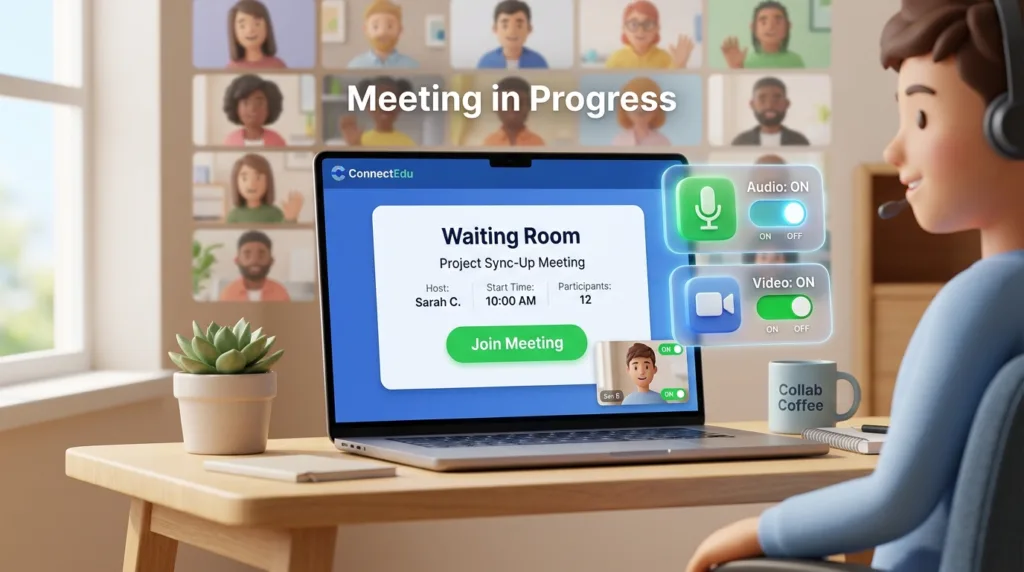
Most major platforms pause before placing you in front of the other participants. You may see a preview of your camera, your display name, microphone and camera buttons, perhaps a background control, and an option such as Join, Join now, or Ask to join.
This screen is effectively a small rehearsal room.
Look first at the name other people will see. A personal computer may already display the correct name because you are signed into an account, while a borrowed device or guest session can show something vague such as “User,” an old nickname, or the device owner’s name. During a casual family conversation that may not matter much; during an interview, class, client meeting, or professional call, a recognizable name makes it easier for the organizer to know who is waiting.
The camera preview serves a similarly practical purpose. You can see whether the camera is active and whether the image is usable before anybody else sees it. A laptop placed very low on a desk can produce an awkward angle, while a bright window behind you may turn your face into a silhouette. Moving the computer slightly or changing where you sit often improves the image more than experimenting with filters or buying additional equipment.
Audio deserves even more attention because computers can have several microphones and speakers available simultaneously. A laptop might detect its built-in microphone, Bluetooth earbuds, a USB headset, a webcam microphone, and speakers built into an external monitor. The meeting application may select the right combination automatically, although a device left over from an earlier setup can occasionally become the default.
A pre-join audio test, when the platform offers one, is worth using on a first call. Speaking a few words lets you confirm that the microphone is receiving sound, while a test tone reveals whether the meeting audio is going to the speakers or headphones you expected. A problem discovered here is much easier to diagnose than one discovered after somebody has asked you a question.
Camera and microphone permission prompts may also appear at this stage. Browsers and operating systems restrict access to those devices, so a meeting service needs permission before it can use them. That request is consistent with the activity you initiated: a video meeting has an obvious reason to need the microphone and, when you want video, the camera. You can still enter muted or keep the camera off after granting access. The broader logic behind these controls is covered in How to Check and Change App Privacy Permissions.
Muted does not mean disconnected
Microphone controls are a frequent source of first-meeting confusion because several different things can produce silence.
Your microphone may have permission to work and be correctly selected while the meeting application has it muted. A headset may also have its own physical mute switch. On some laptops, a keyboard button can disable the microphone at the system level. Those layers all affect the same final result — whether other participants hear you — yet they are controlled in different places.
Inside the meeting software, a microphone icon with a slash usually indicates that you are muted. Clicking or tapping that control normally toggles your meeting audio without changing the computer’s broader microphone permissions.
Entering a larger meeting muted is generally comfortable because a barking dog, keyboard noise, nearby conversation, or moving chair does not suddenly become part of the call. Small conversations are more fluid, and people often leave microphones open when their environment is quiet. The appropriate behavior emerges from the meeting itself rather than from a universal rule that everyone must constantly mute and unmute.
Headphones can help when the laptop’s speakers create an echo or when other people are nearby, though they are not a requirement for ordinary participation. Many modern laptops handle speaker and microphone audio adequately for a simple meeting.
What matters more is recognizing the controls well enough that an audio problem does not become mysterious. When other people can hear you but you cannot hear them, investigate the speaker or output side. When you hear everyone clearly but nobody hears you, the microphone selection, permission, or mute state deserves attention first.
Waiting outside the meeting can be completely normal
Pressing Join does not always place you immediately into the conversation.
Zoom can use a waiting room, Teams can place guests in a lobby, and Google Meet may require a participant to request admission. These controls let organizers decide who enters, which is especially useful for interviews, classes, external meetings, or events where the invitation link may have been distributed broadly.
The screen usually tells you what is happening. Messages such as “Please wait, the meeting host will let you in soon” or “Someone in the meeting should let you in shortly” mean that the technical connection has progressed far enough for the meeting to recognize you; admission is simply pending.
Repeatedly closing the page and reopening the link seldom helps. Give the organizer a reasonable amount of time, particularly around the scheduled start when several people may be arriving together. A long delay can justify checking the invitation for the correct time or sending the organizer a message through another channel.
This is also where a clear display name becomes unexpectedly valuable. An organizer deciding whether to admit “Alex Morgan” has more information than one deciding whether to admit a participant identified only as “iPhone.”
The first few minutes are easier when you ignore most of the interface
A meeting window can contain far more controls than a first-time participant needs.
There may be buttons for reactions, captions, breakout rooms, recording, layouts, backgrounds, apps, polls, whiteboards, hand raising, transcription, participant management, chat, screen sharing, and several features available only to organizers. Learning the interface by clicking through all of them during the meeting creates more distraction than confidence.
For an ordinary participant, the microphone and camera controls carry most of the immediate responsibility. The chat becomes useful when somebody shares a link, when you need to leave a short written question, or when speaking would interrupt a presentation. The participants panel can help you see who has joined, and the Leave control becomes relevant at the end.
Conversation itself takes a little adjustment because online calls remove some of the subtle cues people use in the same room. A tiny network delay can cause two people to begin speaking at once, while audio processing may briefly suppress one voice when several participants talk over each other. Leaving a fraction more space before responding often makes the conversation smoother without requiring anyone to consciously follow a special etiquette system.
Large meetings introduce their own rhythm. Chat and hand-raise features allow participants to signal a question without interrupting the speaker, while classes or webinars may keep most participants muted for long stretches. A small team discussion can feel much closer to an ordinary face-to-face conversation.
You will generally understand that rhythm after listening for a minute or two.
Screen sharing deserves a moment of preparation
Screen sharing changes the meeting from “people can see your camera” to “people can see information from your device,” so the choice of what to share deserves a little more care.
Meeting platforms commonly offer several possibilities. You may be able to share an entire desktop, one application window, a browser tab, a presentation, or another source. Sharing only the window or tab needed for the conversation often keeps unrelated material out of view.
An entire desktop can expose more than people expect. Message notifications may appear in a corner, an email preview can reveal a subject line, personal browser tabs may remain visible, and filenames on the desktop can contain information unrelated to the meeting. Closing unnecessary windows and silencing notifications takes very little time and makes the presentation cleaner.
A presentation involving sound introduces another detail: some platforms have a specific option for sharing computer audio. A video may appear perfectly on other screens while participants hear nothing when that option was left disabled. Platform-specific controls vary, so checking them before an important presentation is preferable to discovering the limitation halfway through the clip.
When you finish presenting, stop the share explicitly rather than merely switching to another application. That returns the meeting to its normal view and removes ambiguity about what participants can still see.
When the call behaves badly, describe the symptom before changing everything
Video meetings depend on several systems simultaneously: the internet connection, browser or app, operating system permissions, microphone, camera, speakers, and sometimes Bluetooth hardware. Randomly changing all of them at once makes it difficult to tell which adjustment actually solved the problem.
A more useful starting point is the symptom.
Video that freezes while audio remains understandable often points toward a connection struggling with the larger amount of data required by the camera stream. Turning the camera off temporarily can reduce that load and keep the conversation usable. Robotic or frequently interrupted audio may also indicate an unstable connection, in which case moving closer to the Wi-Fi router or changing networks can help.
Complete silence has a different character. Check the selected speaker or headphones and make sure the computer itself is not muted. A microphone that never registers your voice deserves the corresponding review on the input side.
Bluetooth devices occasionally introduce another wrinkle because earbuds can be connected to the computer while the meeting continues using the laptop’s built-in audio devices. Opening the meeting’s audio settings usually reveals exactly which microphone and speaker are active.
Restarting the browser or application can solve temporary software problems, but that is generally more useful after checking the obvious controls than as an immediate reaction to every minor issue. When you leave and rejoin, remember that the organizer may need to admit you again.
A completely unstable connection may leave the telephone dial-in information from the invitation as a useful fallback when the organizer’s meeting plan supports it. Some platforms and account types provide phone access, while others do not, so the invitation itself remains the best source for that particular meeting.
Leaving the meeting is intentionally uncomplicated
At the end, look for Leave, Leave meeting, or the equivalent control. Participants normally leave only their own session; organizers may have additional controls that can end the meeting for everyone.
There is rarely any cleanup required afterward. A browser or app may retain the camera and microphone permissions you granted so that the next call does not need to request them again. Those permissions can still be reviewed later through browser, operating-system, or app settings when you no longer want them.
The second video meeting usually feels dramatically easier than the first because most of the uncertainty has disappeared. You recognize the invitation link, know what the preview screen is for, understand that a lobby is normal, and can identify the few controls that matter without studying the rest of the interface.
That familiarity is more durable than memorizing where Zoom, Meet, or Teams currently places every button. Interfaces will move, names will change, and organizations will configure meetings differently, while the practical experience remains recognizable: reach the correct meeting, check how you will be seen and heard, enter with the access the organizer allows, and use the controls that the conversation actually requires.

Alex Carter is a technology writer with five years of experience in the tech field. He now focuses on creating clear, practical articles that help beginners in the United States better understand computers, smartphones, online services, and everyday digital technology.