
Email works remarkably well until the file you want to send becomes larger than the attachment limit.
A short document or a few photographs usually travel without much friction, but a long video, a folder full of project files, a high-resolution presentation, or several scanned documents can quickly turn a simple message into a failed upload. Compressing the material may help in some cases, although there comes a point where making the file smaller is less practical than changing the way it travels.
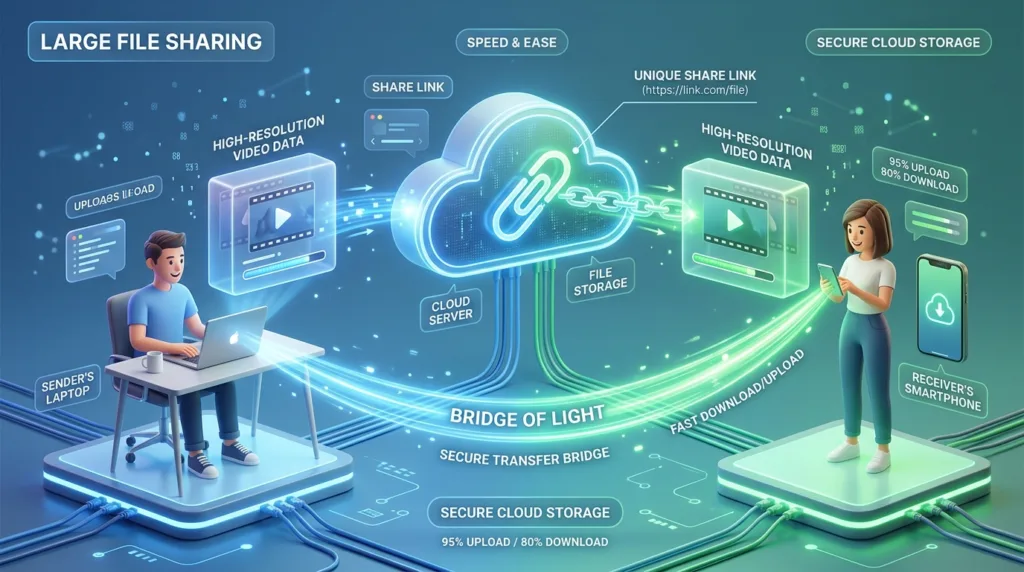
Cloud sharing solves that problem by separating the message from the file itself. Instead of placing the entire file inside the email, you upload it to a storage service and send a link that gives the recipient access. The email remains small, while the actual file stays in cloud storage until the other person opens or downloads it.
That basic idea is simple. The part worth thinking about is everything around the link: who can open it, whether they can edit the file, whether they need an account, what happens when the link is forwarded, and whether you still want the material accessible several months later.
A successful transfer is not merely one in which the upload finishes. It is one in which the other person can reach the correct file without unnecessary confusion.
Think about the recipient before choosing the service
When people share files, they naturally focus on the upload because that is the part happening on their own screen. The recipient experiences the process from the opposite direction.
They receive a message, click a link, perhaps encounter a sign-in screen, determine which file they are supposed to open, and decide whether to preview it online or download it. Every extra requirement along that path creates an opportunity for confusion.
For a colleague who already uses the same company’s Microsoft environment every day, a OneDrive link may fit naturally into the workflow. Someone outside the organization may benefit from a view-only link that does not require editing privileges. A family member receiving vacation videos may care much more about having an obvious download option than about collaborative features.
The file-sharing service matters, but the friction it creates for the recipient matters just as much.
This is one reason cloud links are often more convenient than dividing a large file into several email messages. One link can point to a single coherent folder or file, while a chain of messages named “Part 1,” “Part 2,” and “Part 3” leaves the recipient responsible for reconstructing the package.
How to Compress a File Before Sending It explains why compression can still be useful when several related items belong together. A ZIP archive placed in cloud storage combines the organizational benefit of one package with a delivery method that is not constrained by ordinary attachment limits.
A sharing link is an access decision
The phrase Copy link looks harmless because copying a URL feels like a technical action. In reality, the important action happened one step earlier: the service decided what someone possessing that link is allowed to do.
Microsoft’s current OneDrive sharing documentation distinguishes between links intended for broader access and sharing directed toward specific people. It also allows owners to choose whether recipients can edit or only view the material. OneDrive files remain private until they are shared, which means creating the link changes the access boundary around that file.
That boundary deserves a moment of attention.
A link that works for anyone who has it can be convenient when the recipient should not have to sign in. The same convenience means that a forwarded copy of the link may also work for another person. A link restricted to specific accounts gives you tighter control, although the recipient may need to authenticate before gaining access.
Neither approach is universally correct. A large public brochure being sent to several people has different requirements from an employment document containing personal information.
The permission should reflect the material and the relationship with the recipient rather than whatever default happens to appear first.
View and edit are very different permissions
A surprising amount of accidental sharing begins with granting more permission than the recipient needs.
Someone who only needs to read a document usually does not need permission to modify it. Editing access may allow changes to the contents, additions to a shared folder, deletion of items, or further collaboration depending on the service and configuration.
Microsoft explicitly separates Can view and Can edit access in OneDrive and allows the file owner to change or stop sharing later.Dropbox makes a similar distinction between viewer and editor access in its sharing controls.
For a finished PDF, video, photograph collection, or final report, view-only access is often sufficient. Collaborative Word documents, spreadsheets, design files, and active project folders may genuinely benefit from editing.
This small distinction becomes more important when several people receive the same material. A folder shared with broad edit access can change over time because multiple recipients have the ability to alter its contents, whereas a view-only link keeps the owner’s version more stable.
Before sending a link, ask what the recipient is expected to do after opening it. Reading, downloading, commenting, and editing are different activities, and the permission can often be narrowed accordingly.
One file and one folder create different experiences
A single large video has an obvious destination: share the video.
A project containing a presentation, spreadsheet, images, notes, and supporting documents raises a different question. You could generate five separate links, create one ZIP archive, or place the material inside a shared folder.
A folder is useful when recipients need to browse individual files, when new items may be added later, or when the collection is part of an ongoing project. The shared location remains useful as the contents evolve.
A ZIP file creates a snapshot. The recipient downloads one package containing whatever was present when the archive was created. Changes made to your original folder afterward do not automatically appear inside the ZIP that was already sent.
Those behaviors serve different purposes.
For a completed group of application documents, the fixed nature of a ZIP can be desirable because everyone receives the same version. For a team collecting material during a project, repeatedly rebuilding archives is unnecessarily cumbersome compared with maintaining a shared folder.
Folder permissions also deserve closer inspection because access usually applies to the contents inside that folder. OneDrive warns that people granted edit access to a shared folder can interact with its contents, while its documentation recommends separating files when you intend recipients to see only certain items.
Organization therefore becomes part of permission design. A folder containing ten files should not be shared merely because the eleventh file inside it happens to be the one somebody requested.
Google Drive, OneDrive, and Dropbox solve the same basic problem in slightly different environments
The large cloud platforms differ in interface and account structure, but their everyday file-sharing model is broadly recognizable: upload or select a file, open the sharing controls, decide who receives access, adjust permissions, and send the resulting link.
For many people, the easiest choice is the service they already use.
A Google account often makes Drive readily available. Windows users may already have OneDrive integrated into File Explorer. Someone whose work or personal workflow is built around Dropbox may prefer to keep files there rather than duplicate them in another cloud service solely for one transfer.
There is little benefit in maintaining three separate storage systems simply because all three can create sharing links.
What deserves attention is the exact sharing configuration in the service you choose. Interfaces change over time, organizational accounts can impose restrictions that personal accounts do not have, and workplace administrators may limit external sharing.
Dropbox, for example, currently allows links that can be opened by people outside Dropbox in supported sharing situations, including view-only links where the recipient may not need a Dropbox account to preview the material. OneDrive similarly provides several link scopes and permission options whose availability can vary between personal and organizational accounts.
Instead of memorizing one exact sequence of buttons forever, become familiar with three controls that appear repeatedly across these systems: who has access, what they can do, and how that access can later be changed.
Those concepts survive interface redesigns better than screenshots do.
Large uploads introduce time into a task that attachments often hide
Uploading a large file is not instantaneous merely because the final email contains only a link.
A 10 MB PDF may reach cloud storage quickly on an ordinary connection. A multi-gigabyte video can take considerably longer, particularly when the upload speed of the internet connection is much slower than the download speed advertised by the provider.
That difference can catch people by surprise. Home internet plans are frequently discussed in terms of download performance because streaming and browsing depend heavily on it, yet uploading large files travels in the opposite direction.
Closing the laptop, allowing it to sleep, disconnecting from Wi-Fi, or moving away from a mobile hotspot before the upload finishes may interrupt the process depending on the application and platform.
For an important transfer, wait until the service clearly indicates that synchronization or uploading has completed before sending the link. A link to a file that is still partially uploading can create confusing errors for the recipient, particularly when you assume the problem is on their side.
Very large transfers also deserve a stable connection when one is available. Uploading several gigabytes over limited mobile data can consume a meaningful portion of a plan, and unstable public Wi-Fi may prolong the process considerably.
The convenience of cloud sharing does not eliminate transfer time; it simply moves that transfer away from the email attachment itself.
A filename can do work that the message should not have to do
Opening a cloud folder containing final.pdf, final2.pdf, final-new.pdf, and final-new-corrected.pdf forces the recipient to solve a problem that the sender could have prevented.
Useful filenames become particularly important when a sharing link remains active for weeks or months, because the conversational context surrounding the original email gradually disappears.
A report might include its project name and date. A video can include the event or subject. Application documents can identify both the person and the file type. The exact convention matters less than being able to distinguish the correct item without opening several candidates.
This becomes even more useful when files are sorted alphabetically or chronologically inside a folder. A stable naming pattern can make a collection understandable without requiring an explanatory message for every item.
The same principle appeared when we discussed scanned documents in How to Scan Documents Using Your Smartphone. Once physical or local files begin moving between people and platforms, naming is part of usability rather than cosmetic housekeeping.
The link can outlive the conversation
An email attachment is a copy. Once it has been sent, changing the original file on your computer does not change the attachment sitting in the recipient’s inbox.
A cloud link behaves differently.
When the link points to a file that you later replace, edit, move, or delete, the recipient’s experience can change. Collaborative documents may update in real time, while removing access can make an old message contain a link that no longer works.
That persistence can be extremely useful. A team can keep referring to the same shared location instead of sending a new attachment every time the document changes. It can also create forgotten access when a link remains available long after its original purpose ended.
OneDrive allows file owners to review access and stop sharing or disable links later. Comparable access-management controls exist in other major cloud systems, although exact options depend on the service and account type.
For material shared temporarily — a large event video, a project delivered to a client, or a set of documents sent to one outside collaborator — reviewing old sharing links occasionally is reasonable. You may discover that some no longer serve a purpose.
This does not require treating every cloud link as a security emergency. It simply recognizes that sharing can have a longer lifespan than the message that originally introduced it.
Sensitive files deserve a more deliberate route
Large files are sometimes large because they contain scans, photographs, presentations, records, or datasets that include personal or confidential information.
Convenience should not automatically determine the permission model for that material.
An unrestricted link placed in a message can sometimes be forwarded beyond the intended recipient. Restricting access to identified people can reduce that possibility, although it may introduce a sign-in step. Workplace material may also be governed by company policies that determine which storage systems are approved.
The sharing platform itself is only part of the picture. Consider the contents of the folder as well. A project directory can contain drafts, background documents, exports, and private notes that were never meant to leave your workspace even though the final deliverable is safe to share.
Creating a separate folder containing only the intended files is often cleaner than opening access to a larger working directory and trying to remember which items are inside it.
For personal records, the principles in How to Protect Your Personal Information Online remain relevant. Restricting unnecessary exposure becomes especially useful when digital files can be copied and redistributed much more easily than their paper equivalents.
Test the link from the recipient’s side when the transfer matters
A sharing link can look perfectly normal to the person who owns the file because that account already has access.
That does not guarantee that somebody else will see the same thing.
Permission settings may require an account, an organizational login, or access that was never granted correctly. The file may sit inside a folder whose restrictions differ from what you expected. A link copied from the browser’s address bar may also behave differently from one generated through the service’s actual Share control.
For an important delivery, test the experience before announcing that the file is ready.
A private or incognito browser window can sometimes help because it removes the advantage of already being signed into the owner’s account, although services may still behave differently depending on the permission model. Another option is to send the link to a separate account that does not already own the file.
You are looking for ordinary usability: does the intended page open, is the correct file visible, and does the recipient appear to have the level of access you intended?
This brief check becomes especially worthwhile when submitting work near a deadline. A beautifully written email containing an inaccessible file is still an incomplete delivery.
Sometimes the cleanest transfer is the one with the fewest moving parts
Large-file sharing can easily become more complicated than the original problem.
You can compress folders, divide archives, create several links, adjust permissions, synchronize directories, invite collaborators, and build elaborate shared workspaces. Those capabilities are valuable when the situation calls for them, although sending one completed video to one person rarely requires that much infrastructure.
A useful sharing method matches the life of the file.
A finished item that someone only needs to download may call for a simple view-only link. An evolving project can benefit from a shared folder. Several related files may be clearer as one ZIP archive. Sensitive documents may justify access restricted to named recipients, even when that adds a login step.
The recipient’s experience remains a useful test throughout the process. They should know which file to open, have enough permission to do what you expect, and avoid receiving unnecessary access to everything else stored around it.
Email attachment limits often provide the initial reason to learn cloud sharing, but the larger advantage becomes apparent afterward: the file and the message no longer have to travel as one object. Once they are separated, you gain more control over access, versions, organization, and the amount of material that needs to move through someone’s inbox.
That flexibility is what makes a sharing link more than a workaround for a file that was too large to attach.

Alex Carter is a technology writer with five years of experience in the tech field. He now focuses on creating clear, practical articles that help beginners in the United States better understand computers, smartphones, online services, and everyday digital technology.