
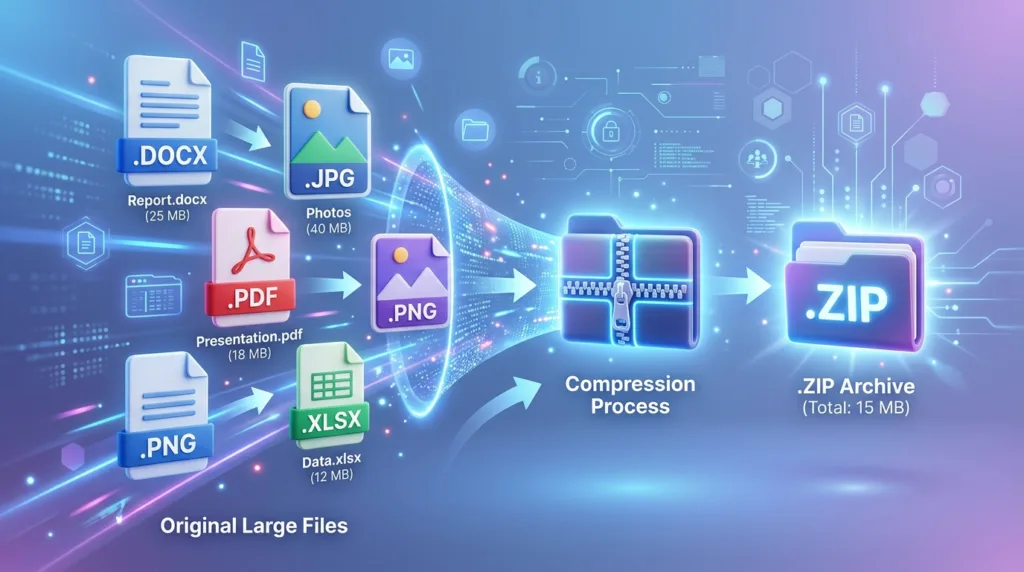
A file that is too large to attach to an email creates a deceptively simple problem: make it smaller.
That sounds straightforward until you right-click the file, create a ZIP archive, and discover that a 24 MB photo collection has become a 23.7 MB ZIP file. The compression technically worked, yet it barely changed the result. In other situations, several documents may shrink noticeably, while a video or collection of JPEG images remains almost the same size.
The difference comes from what the files already contain.
“Compressing a file” can refer to several related operations that solve different problems. ZIP compression looks for ways to represent the same data more efficiently while preserving the original files exactly when they are extracted. Image, video, and PDF compression may go further by reducing quality, resolution, or embedded data in exchange for a smaller result. Creating a ZIP archive also has another useful function that has little to do with saving space: it can turn twenty separate files into one package that is easier to send.
Knowing which problem you actually have saves a great deal of trial and error.
ZIP compression preserves the original files
A ZIP archive is a container that can hold one file, many files, or entire folders. During the compression process, compatible data is stored more efficiently; when the recipient extracts the archive, the original files are reconstructed rather than converted into lower-quality versions.
That makes ZIP useful for documents, spreadsheets, text files, project folders, and collections of miscellaneous files that need to remain unchanged. It is also convenient when you have fifteen attachments that belong together, because the recipient receives one archive instead of a crowded email containing fifteen separate downloads.
Windows includes this capability without requiring additional software. Microsoft’s current ZIP guidance explains that compressed folders can both reduce storage requirements and combine several files for easier sharing. On Windows 10 and Windows 11, the familiar route is to select the file or folder, right-click it, and use the compressed-folder option available through File Explorer.
The recipient does not normally need specialized software merely to open an ordinary ZIP archive. Windows can extract it through Extract All, while macOS can expand a ZIP simply by opening it.
The useful part is what ZIP does not do: it does not deliberately discard detail from an image or lower the quality of a document. That preservation makes it safe for files whose contents need to remain exactly as they were before compression.
Why some files barely become smaller
Compression works best when a file contains information that can be represented more efficiently. Many modern media formats have already gone through their own compression process before you ever see them.
JPEG photographs are a classic example. A camera or smartphone generally stores JPEG images in a format designed to reduce photographic data substantially compared with an uncompressed image. MP3 and AAC audio, MP4 video, and many other common media formats follow similar principles.
Trying to ZIP an already compressed file can therefore produce surprisingly little improvement.
Microsoft explicitly notes in its Windows documentation that JPEG images are already highly compressed, so placing a collection of JPEGs into a ZIP archive may leave the total size close to that of the original collection.
This explains a situation that can otherwise feel as though the computer ignored your request. The ZIP file may be completely valid even though its size hardly changed. The compressor simply found little additional redundancy to remove without altering the contents.
Text-heavy material behaves differently. Plain text, certain document structures, source-code folders, or collections containing many repetitive elements may compress much more effectively. There is no reliable percentage that applies to every file, which makes promises such as “ZIP reduces files by 50%” misleading.
The file format and its contents matter more than the compression button you choose.
Windows can create a ZIP directly from File Explorer
For ordinary ZIP compression on Windows, there is little reason to begin with an online service.
Locate the file or folder in File Explorer and select it. Depending on the Windows version and menu layout, right-clicking gives access to the option for creating a compressed ZIP folder. Microsoft currently documents the Windows 10 and 11 route as Show more options > Send to > Compressed (zipped) folder. A new .zip file is then created in the same location as the original item.
Nothing happens to the original files during this process; they remain where they were, while Windows creates an additional archive containing copies of the selected data. You can therefore compare the size of the ZIP with the originals before deciding whether the reduction is meaningful.
When several files are being sent together, select them all before creating the archive. The resulting ZIP gives the recipient one item to download and keeps the collection together during transfer, which can be worthwhile even when the reduction in size is modest.
Renaming the archive also helps. Project-Files.zip or Tax-Documents-2026.zip communicates more than the generic name Windows or another application may generate automatically.
Before sending an important archive, open it once and make sure the expected files are present. That quick check is particularly worthwhile after selecting many items from a crowded folder.
On a Mac, compression is built into Finder
macOS handles ordinary ZIP creation directly in Finder.
Apple’s current Mac compression guide instructs users to Control-click a file or folder and choose Compress. A single item produces a ZIP carrying the original name, while compressing several items together creates an archive containing the selection.
Opening a ZIP on the Mac is equally straightforward: double-clicking it expands the archive and places the extracted contents in the same location.
That simplicity makes built-in compression sufficient for most everyday sharing. Dedicated archive applications can provide additional formats, encryption options, or advanced settings, but those features are not necessary merely to package a few documents for email.
For a beginner, the native tool also has an advantage that is easy to underestimate: it keeps the operation local. The files do not need to be uploaded to a third-party website simply to be compressed and downloaded again.
Photos usually need a different kind of reduction
Suppose you need to email six smartphone photographs, each several megabytes in size. Putting them into a ZIP archive may organize them nicely, but the archive can remain far beyond the attachment limit because the photographs were already compressed when the phone saved them.
A meaningful size reduction often requires changing the images themselves.
Reducing pixel dimensions is one approach. A photograph that measures several thousand pixels across may contain far more detail than necessary when its only purpose is to appear inside an email, presentation, or ordinary web page. Exporting a smaller version reduces the amount of image data while leaving the original photograph untouched.
Quality settings offer another tradeoff. JPEG compression can usually make an image smaller by discarding some visual detail, with increasingly aggressive compression producing progressively smaller files. Moderate changes can be difficult to notice in casual viewing, while excessive compression eventually creates visible artifacts and loss of fine detail.
That means the intended use should influence the decision. A photograph being sent so someone can identify an item does not require the same fidelity as an image destined for professional printing.
Whenever possible, keep the original file and create a smaller copy for sharing. That preserves the high-quality version while allowing the transmitted copy to be optimized for the task.
This distinction between archiving and reducing media quality is one of the most useful concepts to remember. ZIP aims to restore the original file exactly; image compression can intentionally create a different, smaller version.
PDFs can be small or enormous for completely different reasons
Two PDF files with the same number of pages can differ dramatically in size.
A ten-page PDF containing mostly selectable text may be relatively small, whereas ten scanned pages stored as high-resolution color images can occupy many megabytes. Photographs, embedded fonts, illustrations, and other resources also influence the final size.
As a result, zipping a PDF may or may not accomplish much. Many PDFs already compress parts of their content internally, leaving less work for a ZIP archive to do.
When the PDF itself needs to become substantially smaller, a PDF-specific optimization tool can be more effective because it can reduce image resolution, recompress embedded images, remove unnecessary data, or otherwise rebuild the file more efficiently. Those operations may alter the document internally in ways ordinary ZIP compression does not.
Quality still matters. A document intended only for screen reading may tolerate lower-resolution images, while architectural drawings, portfolios, forms with small handwriting, or scanned evidence may become difficult to use after excessive reduction.
The safest workflow keeps the original PDF and creates an optimized copy, followed by a quick inspection of the smaller version before it is sent.
The previous Vandutz guide, How to Turn a Document Into a PDF, explains how source documents become PDFs in the first place, which can also influence the eventual file size.
Sometimes compression is solving the wrong problem
Email attachment limits are one of the main reasons people start searching for compression tools. That does not automatically mean the file should be compressed.
A 200 MB video is unlikely to become a conveniently small email attachment merely because it was placed in a ZIP archive. Recompressing the video heavily enough to make that happen could significantly reduce its quality, and splitting it into several archives only transfers the inconvenience to the recipient.
A shareable cloud link can be a cleaner solution because the file remains stored in one place while the email contains only the link needed to access it.
This becomes even more useful when the file may change. Sending a new attachment after every revision creates several competing copies; sharing access to one cloud-based file can keep everyone working from a clearer source.
The next Vandutz article, How to Share Large Files Without Email Attachments, will examine those options in detail.
Compression remains useful in that workflow as well. A folder containing dozens of related project files may be easier to upload and download as a single ZIP even when cloud storage, rather than email, handles the actual transfer.
The tool should follow the transfer problem rather than the other way around.
Be careful with files that are already encrypted or sensitive
Compression and security are separate concepts.
Creating a standard ZIP archive does not automatically make the contents private. Anyone who receives an ordinary unencrypted ZIP and has permission to access the file can generally extract its contents.
Windows documentation also calls attention to an additional detail: adding encrypted files to a conventional zipped folder can affect their encryption state after extraction, potentially creating unintended exposure of sensitive material. Microsoft specifically recommends caution around zipping encrypted files for this reason.
For ordinary homework, photos, public documents, or project files, this distinction may not matter. Sensitive business records, identity documents, financial information, and confidential material deserve more thought about the sharing method itself.
A smaller file is easier to transmit; it is not inherently safer.
That broader distinction parallels the advice in How to Protect Your Personal Information Online: convenience, storage, and privacy often involve different decisions even when they occur during the same task.
Check the result before attaching it
File size is visible before an email is sent, so there is little reason to discover after several failed attempts that the archive is still too large.
Compare the size of the new file with the original material. A substantial reduction means the compression achieved what you wanted. A tiny difference means the content was probably already compressed or simply does not respond well to ZIP.
Open the archive as well. Confirm that the expected files are present and that the archive can be accessed normally before deleting or moving anything important.
For an image, PDF, or video that has been recompressed rather than merely zipped, perform a different review: open the smaller version and inspect its quality. Text should remain legible, photographs should still serve their purpose, and pages should not become difficult to read merely to meet an arbitrary size target.
That final comparison often makes the correct next move obvious. A modestly oversized document may benefit from further optimization; a huge media file may belong in cloud storage instead; a folder containing many small documents may already be perfectly suited to ZIP.
Compression becomes much easier once “make this smaller” stops being treated as one universal operation. A ZIP archive can reduce some files and conveniently package many others, while images, videos, and complex PDFs may require a different form of compression to achieve a meaningful reduction. In cases where the file remains large because the information itself is large, changing the delivery method can be more sensible than repeatedly degrading the content.
The useful question is therefore not how aggressively you can compress a file, but how much of the original information needs to survive the journey — and what form makes that journey easiest for the person receiving it.

Alex Carter is a technology writer with five years of experience in the tech field. He now focuses on creating clear, practical articles that help beginners in the United States better understand computers, smartphones, online services, and everyday digital technology.