
A paper document does not need a traditional scanner to become a clean digital file. For many everyday situations — submitting a form, saving a receipt, emailing a signed page, keeping a copy of a letter, or sending paperwork to a school or employer — the camera already built into a smartphone is capable of producing a perfectly usable scan.
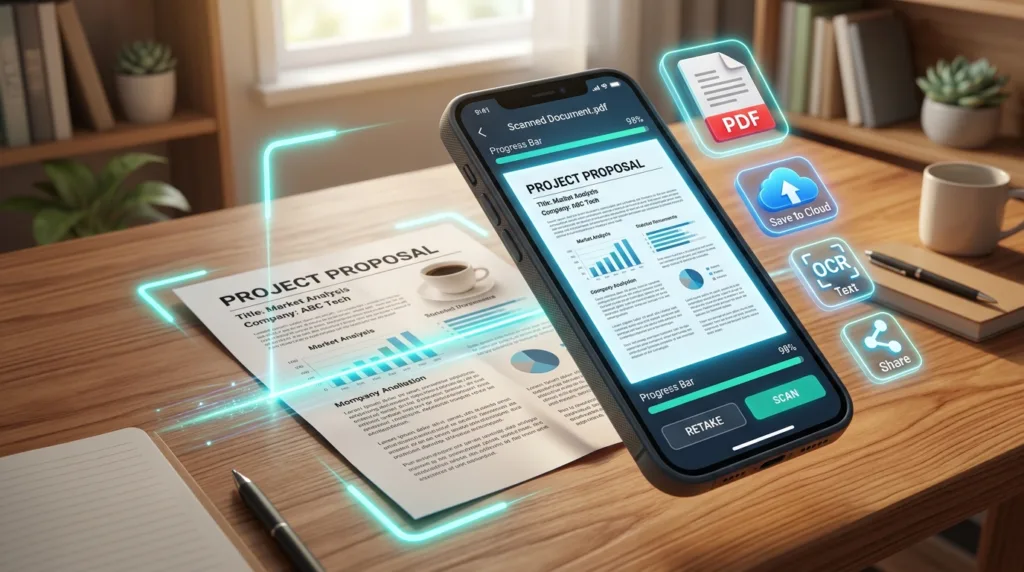
The result, however, depends on more than pointing the camera at a sheet of paper and taking a photograph. A regular photo captures everything the camera sees: the table underneath the page, uneven lighting, shadows from your hands, perspective distortion, and whatever happens to be around the document. A scanning feature works differently because it tries to identify the edges of the page, straighten the perspective, crop away the background, improve contrast, and often combine several pages into a single document.
That difference becomes obvious the first time you compare a quick photograph of a form with a properly scanned version. The photograph may be readable, yet the scan generally looks more like the original page and behaves more naturally when it is opened, printed, or converted into a PDF.
Most people therefore do not need a separate scanning app for basic work. iPhones already include document scanning through Apple apps, while Android users can scan directly through Google Drive on supported devices. A few minutes spent preparing the page and reviewing the result usually matters more than installing another piece of software.
Start with the paper, because the camera can only work with what it sees
The quality of a scan is influenced surprisingly heavily by the physical setup.
Place the document on a flat surface where its edges are clearly distinguishable from the background. A white sheet on a white desk can make automatic edge detection less reliable, while a darker or contrasting surface gives the phone a clearer boundary to identify. Flatten folded corners and smooth pages that have been crumpled, especially when text sits close to the edges.
Lighting deserves similar attention. Bright, even light usually produces better results than a single lamp shining from one side, which can create a strong shadow across the page. Overhead room lighting may be enough, although moving closer to a window during the day can improve readability without introducing the glare that sometimes appears under direct lamps.
Glossy documents create a different challenge. Laminated forms, photographs, identification cards, or pages with shiny coatings can reflect a ceiling light directly into the camera, leaving a bright patch over important information. Moving the document slightly, changing the angle of the phone, or using softer surrounding light often fixes the problem without requiring any editing afterward.
The phone should remain approximately parallel to the document while capturing it. Scanning software can correct a surprising amount of perspective distortion, although a sharply tilted photograph forces the software to reconstruct the page more aggressively and may reduce clarity near one side. Holding the phone directly above the page produces a cleaner starting point.
All of this takes only a few seconds once it becomes habitual, and those seconds are usually more valuable than trying to repair an unnecessarily poor scan later.
On an iPhone, the scanning tools are already built in
Apple currently provides document scanning through both Notes and Files, which gives you two useful routes depending on what you plan to do with the document.
In Notes, open an existing note or create a new one, tap the attachment control, and choose Scan Documents. The camera begins looking for the edges of a page and can capture automatically while the phone is held steady. Manual capture remains available when the automatic mode struggles with the document or background.
After the page is captured, the corners can be adjusted so that the crop follows the actual edges of the paper. Additional pages can be scanned into the same document before finishing, which is useful for contracts, applications, class notes, or any other paperwork that belongs together.
Apple’s current document-scanning instructions also describe scanning directly through the Files app. That route can be convenient when your intention is to save the document into a particular folder rather than attach it to a note. Files allows you to choose a storage location after scanning, while Notes keeps the scan associated with the note where it was created.
The distinction is small, yet it affects organization. Someone scanning a temporary receipt might find Notes convenient, whereas a person digitizing application documents may prefer Files so that the PDF sits alongside related documents in an existing folder.
You can also review the page before saving it. A clean scan should contain the entire document without cutting into text or leaving a large border around the page. Automatic detection is good enough that adjustments are often minor, although taking a moment to inspect the edges prevents unpleasant surprises after the file has already been sent.
Android offers a convenient scanning route through Google Drive
Google Drive includes a document scanner on Android, which is especially useful when the finished file is going to be stored or shared from Drive anyway.
Open the Drive app and use the camera option to begin scanning. Google outlines the detected page with a border so that you can see how the final crop is likely to appear. After capture, the document can be adjusted before saving: the scanning area can be cropped or rotated, color treatment can be changed, another page can be added, and a poor capture can be taken again.
Google’s current Drive documentation also includes a Clean option designed to remove small visual distractions such as stains or fingers that accidentally entered the frame. The finished document can be saved as either a PDF or JPG, and the user can choose both the filename and the Drive location before saving.
For ordinary paperwork, PDF is usually the more practical choice because multiple pages can remain together as one document and the result is easier to handle as a conventional digital document. JPG can still be useful when the purpose is specifically to create an image rather than a multipage file.
Because the scan is saved directly into Drive, there is also less risk of creating a document and then forgetting where the phone placed it. Naming the file properly during this step makes retrieval much easier later, particularly when you scan several similar receipts, forms, or statements in a short period.
A good scan should preserve the page, not beautify it
Document scanners often provide filters that increase contrast, convert pages to grayscale, or make text appear darker against the background. These controls can rescue a faint receipt or improve a page photographed under imperfect lighting, although stronger processing is not automatically better.
A form printed in ordinary black text on white paper often needs very little adjustment. Increasing contrast too aggressively can make thin characters disappear, flatten handwriting, or obscure subtle markings. Color scans may be appropriate when stamps, signatures, highlights, charts, or other colored elements carry meaning.
Receipts are a useful example because thermal printing can fade and the paper itself may have a gray cast. A contrast-oriented filter can make the text easier to read, whereas a full-color scan may preserve unnecessary discoloration without improving legibility.
The practical standard is straightforward: open the page and read it at normal size. Names, dates, numbers, signatures, checkboxes, and small print should remain distinguishable. A document can look aesthetically clean while still being a poor scan when one critical number has become blurry.
That matters particularly for paperwork being submitted to another person. The recipient is rarely concerned with whether the page looks dramatic or perfectly white; they need the information to remain complete and legible.
Multiple pages should usually behave like one document
A common mistake is to scan every page separately and end up with IMG_4821.jpg, IMG_4822.jpg, IMG_4823.jpg, and several more files that the recipient must open individually.
A multipage scanner avoids that fragmentation.
Both Apple’s scanning tools and Google Drive support adding additional pages before the document is completed. When the pages form one logical item — a three-page contract, a five-page application, or both sides of a signed agreement — keeping them together usually makes the final file easier to understand.
Page order becomes important at this point. Scan the pages in the same sequence someone would read the physical document and review the thumbnails before saving. A missing second page or two pages accidentally reversed can be harder to notice later, particularly once the paper originals have already been filed away.
For documents assembled from several different sources, you may eventually need broader PDF-management tools. The previous Vandutz guide, How to Turn a Document Into a PDF, explains some of the ways PDF files can be created from documents and images. Smartphone scanning is simpler when the material begins on paper because the scanner can capture and organize the pages in one workflow.
The filename becomes part of the document once the paper disappears
Physical documents are often recognizable by appearance. You know which envelope contains a lease, which folder contains school records, or which receipt belongs to a particular purchase.
Digital files lose those visual cues unless you replace them with useful organization.
A filename such as scan_001.pdf says almost nothing three months later. Something like Apartment-Lease-2026.pdf, Tuition-Receipt-August-2026.pdf, or Insurance-Form-Signed.pdf gives the file enough context to be identifiable without opening it.
Dates can help when you expect several versions of the same type of document. A consistent format such as 2026-09-13-Expense-Receipt.pdf also sorts predictably when filenames are viewed alphabetically.
The best level of detail depends on the document. There is no reason to create a thirty-word filename for a one-time form, while vague names become increasingly inconvenient when the folder accumulates hundreds of scans.
Folder placement deserves the same consideration. A scan saved to the first available location is technically finished, yet it can become practically useless once you cannot find it. Choosing a meaningful folder at the moment of capture usually requires less effort than reorganizing a large pile of generic files months later.
This connects naturally with How to Organize Files and Folders on Your Computer, because scanned documents quickly become part of the same broader file-management problem as downloads, photos, PDFs, and work documents.
Sensitive documents deserve a little more care
Many of the papers people scan contain personal information: identification numbers, addresses, signatures, financial information, health records, employment forms, or legal details. The convenience of having a digital copy should therefore come with some awareness of where that copy is being stored and who can access it.
Cloud storage can be useful because the document remains available across devices and is less vulnerable to the loss of a single phone. The account protecting that storage consequently becomes important. A cloud drive filled with identity documents is more consequential than one holding only public school notes or casual files.
Sharing also deserves attention. Sending a scan through the wrong group conversation or generating a public sharing link creates a very different exposure from attaching it directly to the intended recipient. Before sending sensitive paperwork, confirm both the document and the destination rather than relying only on the filename.
The broader account-security practices covered in How to Protect Your Personal Information Online become especially relevant once physical records are converted into searchable, portable digital files.
For highly sensitive material, it is also reasonable to remove temporary copies that no longer serve a purpose. A document may end up in the scanner app, cloud storage, downloads, email attachments, or messaging apps during the course of sending it. Keeping every redundant copy forever adds little convenience while increasing the number of places where the information exists.
Review the final file as though you were the person receiving it
The most valuable quality check takes place after the scanning itself is finished.
Open the saved PDF and move through every page. Confirm that nothing has been clipped at the edges, that text remains readable when the page is viewed normally, and that pages appear in the correct order. Look closely at signatures, handwritten notes, account numbers, dates, and any small elements whose absence could make the document incomplete.
File size can also matter. A long color scan made from high-resolution pages may become large enough to exceed an email or upload limit. Repeating the entire scanning process is rarely necessary; compression or another sharing method may solve the problem more efficiently. The later Vandutz guides How to Compress a File Before Sending It and How to Share Large Files Without Email Attachments will address those situations separately.
One final question is worth asking before you send the file: does the recipient actually need a scanned document?
A casual photo may be enough for showing a friend a receipt or asking someone to read a handwritten note. A structured scan becomes more useful when the document will be archived, printed, uploaded to a portal, signed, reviewed professionally, or combined with other paperwork.
Once the use justifies the format, the process becomes remarkably ordinary. Prepare the page so the camera can see it clearly, use the scanning feature already available on the phone, review the crop and readability, keep related pages together, and save the result somewhere you will still understand later.
The smartphone has already replaced a surprising number of small office devices. For everyday paperwork, the scanner is one of them.

Alex Carter is a technology writer with five years of experience in the tech field. He now focuses on creating clear, practical articles that help beginners in the United States better understand computers, smartphones, online services, and everyday digital technology.