
A well-organized phone does not need every app arranged into perfectly named folders. It needs to make the things you use often easy to reach while keeping everything else available without demanding your attention every time you unlock the screen.
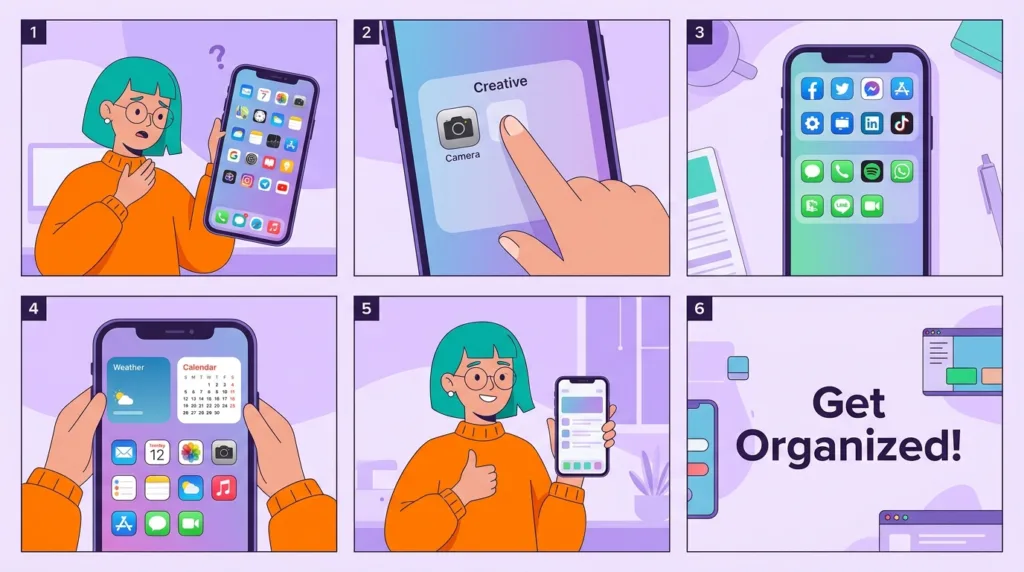
Give your Home Screen a smaller job
The Home Screen works better when it stops trying to represent your entire phone.
Think about what happens during an ordinary day. You probably open a relatively small group of apps repeatedly: messages, email, maps, camera, music, calendar, perhaps a work app or two. Dozens of others may be useful only occasionally.
There is little advantage in giving both groups equal visual priority.
An airline app needed twice a year can remain installed without occupying the first screen. The same is true of parking apps, hotel apps, scanners, store apps, utilities, and services you keep because you may need them again.
This becomes easier because modern phones provide other ways to reach installed apps.
On iPhone, the App Library automatically organizes installed apps and lets you search for them even when they are not shown on a Home Screen page. Apple’s Home Screen and App Library guidance also explains that individual apps or entire pages can be removed from the Home Screen without necessarily deleting the apps themselves.
Android commonly uses an app drawer or similar all-apps view. Google’s Android Home Screen guidance distinguishes Remove from Uninstall: removing an icon from the Home Screen leaves the application installed, while uninstalling removes it from the device.
That distinction creates freedom. Your Home Screen can be selective because it no longer has to double as a complete inventory.
Try a reset based on frequency instead of categories
If your phone already has several crowded pages, reorganizing one icon at a time can turn into an hour-long puzzle.
A quicker reset is to begin with frequency.
- Keep your most-used apps on the first screen. These should be apps you reach for almost every day.
- Reserve the dock or fixed bottom row for a very small number of essentials. Choose apps you want available regardless of which Home Screen page is open.
- Move occasional apps away from the first page. Do not uninstall them simply because they are infrequent.
- Group obvious families only when a folder genuinely helps. Travel, Work, Banking, or Photo Tools can make sense when several related apps coexist.
- Remove obsolete widgets and shortcuts. They consume visual space just like apps do.
- Leave some empty space. A completely filled screen is harder to scan than one with visible separation.
- Use the phone normally for several days before making more changes. You will quickly notice what you keep searching for and what you never touch.
The last step matters.
People often design an elaborate organization system based on what they think they use. Daily behavior provides better information.
You may discover that the calendar deserves the first page while a social app you assumed was essential can live elsewhere. A folder that seemed logical may require more taps than simply searching for the app by name.
The layout should adapt to use, not to an abstract idea of neatness.
iPhone and Android give you different kinds of freedom
The same organizing principle works on both platforms, although the tools are not identical.
On iPhone, the App Library can carry much of the inventory
You do not need an icon for every installed app on an iPhone Home Screen.
Apps can remain available through the App Library, and iOS lets you choose whether newly downloaded apps automatically appear on the Home Screen or go only to the App Library.
This makes a minimalist layout practical.
You might keep one main page containing communication, navigation, calendar, camera, and a few daily tools. A second page could hold widgets or another cluster of frequently used apps. Everything else can remain searchable in the App Library.
Apple also allows entire Home Screen pages to be hidden. That can be useful when a page accumulated a collection of apps that you still want installed but no longer need constantly visible.
Search is another reason you do not need perfect filing. When you know the name of an app, typing a few letters can be faster than remembering whether you placed it in a folder called Utilities, Tools, or Productivity.
Android can make the Home Screen even more selective
Android Home Screens are also separate from the complete list of installed apps on many devices.
You can place selected apps, shortcuts, folders, and widgets on the Home Screen while leaving other installed apps in the app drawer. Google’s current Android guidance also supports creating folders by dragging one app or shortcut onto another.
The exact appearance varies more than it does on iPhone because manufacturers can customize Android. A Samsung Galaxy may organize certain controls differently from a Google Pixel or Motorola phone.
That variation is normal.
The useful principle remains the same: the Home Screen is where you place deliberate shortcuts, not necessarily where every installed application needs to live.
This also prevents organization from becoming a maintenance chore. Installing an app does not have to trigger a decision about which of seven folders should contain it.
Folders are useful until you need folders to remember your folders
Folders solve a visual problem by placing several icons behind one icon.
They are particularly effective when the relationship is obvious.
A Travel folder might contain an airline, hotel, train, translation, and trip-planning app. Work might contain communication and business tools used together. A Finance folder could hold several banking or budgeting apps that you do not need on the main screen individually.
Problems begin when folders become too abstract.
Utilities
Other
Useful
Stuff
Apps
Those names usually mean that the category no longer helps you predict where something is.
Too many folders create another problem: interaction cost. An app that you use ten times a day should probably not require opening a folder every time simply because it fits a category neatly.
Frequency can override category.
Your camera technically belongs with photography apps, but burying it inside a Photo folder may make little sense if you open it constantly. A rarely used photo editor can live there instead.
Folders also do not need equal sizes. One might contain three genuinely related apps while another contains nine. Forcing symmetry makes the phone look organized at the expense of making it easier to use.
Widgets earn their space by replacing an action
A widget occupies more room than an ordinary app icon, so it should provide something in return.
A weather widget can show current conditions without opening the weather app. A calendar widget can expose the next appointment. A reminders widget can keep a short list visible. Music controls can reduce the need to open the full player.
Those are useful because the information is valuable before you enter the app.
A giant widget displaying information you rarely look at is mostly decoration.
This makes widgets worth reviewing separately from apps. Ask whether seeing the information directly changes what you do.
A calendar widget may be valuable to someone who regularly misses appointments. The same widget can be unnecessary for a person who already checks a work calendar on a computer throughout the day.
Android supports adding and resizing compatible widgets directly from the Home Screen. Google’s official documentation also notes that available widgets depend on the apps installed on the device. iPhone offers its own widget system and can combine multiple widgets in the same broader Home Screen layout.
Do not feel compelled to fill empty space with widgets. Empty space can improve orientation because important icons are easier to recognize when they are not surrounded by visual competition.
Notifications can make an organized screen feel disorganized again
Moving icons solves only the spatial part of phone clutter.
A beautifully arranged Home Screen can still feel chaotic when dozens of apps display badges and notifications throughout the day.
Organization therefore has two layers: where an app lives and how often it asks for your attention.
An app can stay installed in the background without earning permission to interrupt you every few hours.
Shopping apps, games, social platforms, restaurant apps, news services, and many other applications can gradually accumulate notification privileges because accepting the prompt was easier than deciding what you actually wanted.
The upcoming Vandutz guide How to Manage Smartphone Notifications Without Missing Important Alerts will deal with that issue directly.
For now, simply notice the relationship.
If an app was important enough to place prominently because you need to check it often, notifications may be helpful. If you deliberately removed the app from view because it matters only occasionally, allowing it to demand constant attention can undermine the purpose of the reorganization.
Permissions deserve a similar periodic check. An app’s position on the Home Screen tells you nothing about what it can access behind the scenes. How to Check and Change App Privacy Permissions explains how to review access to location, camera, microphone, photos, and other data.
Organization and deletion are separate decisions
A cluttered Home Screen can create the impression that too many apps are installed.
Sometimes that is true.
Sometimes the phone simply displays too many of them.
Removing an icon from the Home Screen can make the device easier to navigate without freeing meaningful storage because the application remains installed. Uninstalling the application is what removes the app itself and, depending on the app and platform, some or all of its local data.
That distinction matters after the storage cleanup covered in How to Free Up Storage Space on Your Smartphone.
If storage is the problem, look at storage usage.
If visual clutter is the problem, reorganize the interface.
If you genuinely stopped using the app, uninstalling may solve both.
Combining those questions too early can lead to deleting something useful just because its icon happened to be in the way.
There is also no need to finish the job in one session. Moving the obvious daily apps first and gradually removing visual clutter is often more sustainable than designing a perfect five-page folder system and then forgetting how it works.
Common questions about organizing phone apps
Should I put every app into a folder?
No. Folders are useful when they reduce visual clutter without making common apps harder to reach. Frequently used apps often work better directly on the Home Screen, while occasional related apps are stronger candidates for folders.
Does removing an app from the Home Screen delete it?
Usually not when you specifically choose the option to remove only the Home Screen icon. On iPhone, an app can remain in the App Library. On Android devices that separate the Home Screen from the app drawer, removing a Home Screen shortcut can leave the installed app available elsewhere. Read the option carefully because Uninstall or Delete App is different.
How many Home Screen pages should I have?
There is no ideal number. One person may work comfortably with a single page and search, while another benefits from two or three purposeful pages. A better test is whether you can reach common apps without hunting through several screens.
Let the phone become easier to predict
A useful phone layout develops a kind of memory.
Your thumb knows where Messages is. The calendar remains visible where you expect it. A travel folder has a clear purpose. Apps used once every few months are still available without competing with the things you use every morning.
That predictability matters more than visual perfection.
You can change the layout whenever your habits change. A travel folder may become prominent during a trip and irrelevant afterward. A new job can move different tools onto the first page. An app you once used daily may gradually disappear into the App Library or app drawer.
The phone should follow those changes rather than preserve an organization system simply because you once spent time creating it.
When the layout works well, you stop thinking about where applications are. The interface gets out of the way, which is ultimately what organization was supposed to accomplish.

Alex Carter is a technology writer with five years of experience in the tech field. He now focuses on creating clear, practical articles that help beginners in the United States better understand computers, smartphones, online services, and everyday digital technology.